
Printable version: Download the Printable version of Getting Started with alternative accessible formats guide.
The University of Reading is committed to providing you with the best and most inclusive digital learning experience possible. As part of this, we want Blackboard and its content to be flexible and accessible to all.
Blackboard’s in-built Ally tool makes content in your Courses and Organisations as accessible as possible and offers you a range of alternative content formats to download and engage with your content in a way that best suits your needs and preferences. Your lecturer might post up their PowerPoint lecture slides but you might prefer to use them in an audio format, for example, so you can listen to them on your commute.
The short video guides below details the alternative content formats available to you.
See how student Phoebe uses Blackboard’s alternative content formats to help her complete her assignment.
How you can use Blackboard Ally’s alternative content formats to help you.
Watch these short videos to find out how student Phoebe uses each of Blackboard’s alternative content formats to help her with her work.
- Blackboard Ally (Tagged PDF format)
- Blackboard Ally (Immersive Reader)
- Blackboard Ally (ePub)
- Blackboard Ally (HTML format)
- Blackboard Ally (Audio MP3)
How to access and download content in an alternative format
1. Find a file
Log into your Course and find the file you want.
Click on the Alternative Formats icon to open the alternative formats window.

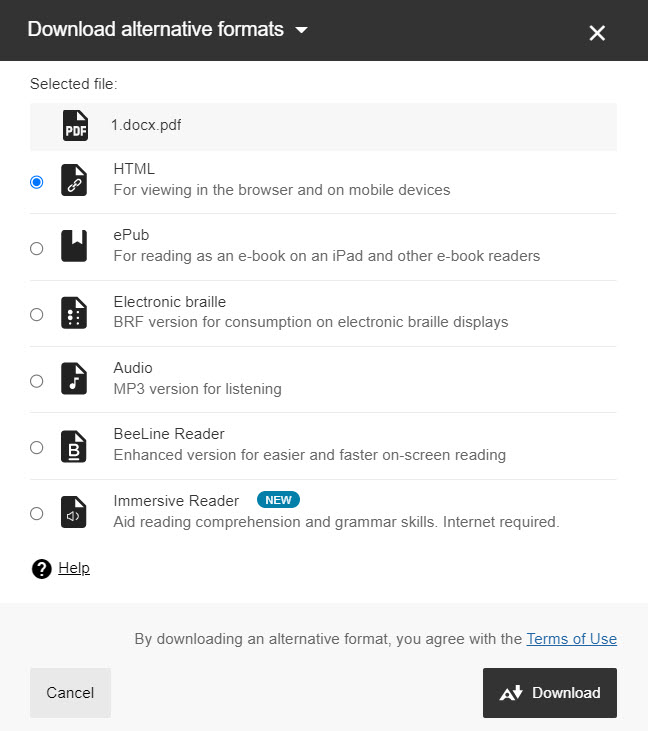
3. Choose your preferred format
Choose the format, or formats, that best suit your needs or preferences and click ‘Download’.
Guide last updated on September 7, 2026