
How to download and use the Blackboard App:
You can access Blackboard on your mobile device by downloading the free Blackboard Learn app.
Download the App
- Search for “Blackboard” in your device’s App Store:
– Apple iOS devices
– Android devices
– Windows mobile devices

How to log-in to Blackboard app?
- Open Blackboard app
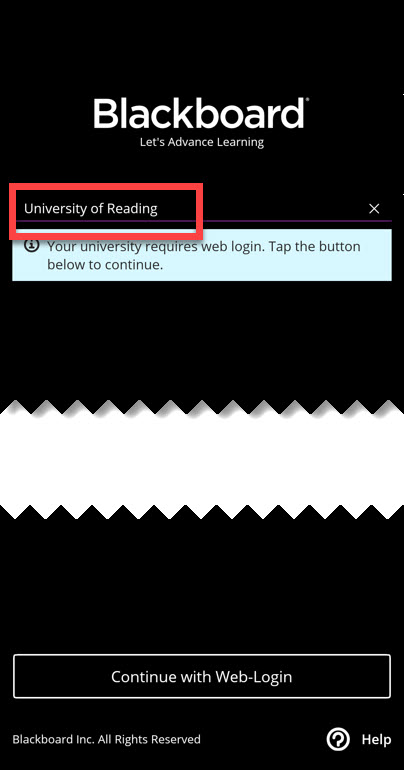
- Tap on Search for your School, type in “University of Reading“
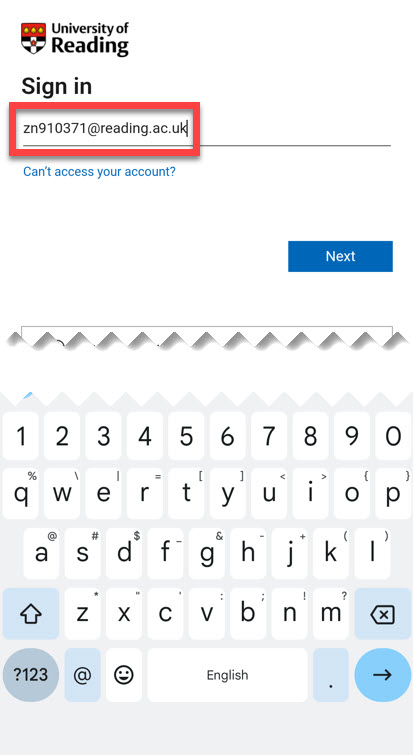
- click on the “Continue with Web Login” button. You will now be taken to the University’s Microsoft sign in page inside the app.
- sign-in using University login details e.g. abc1234@student.reading.ac.uk,
Navigate the App
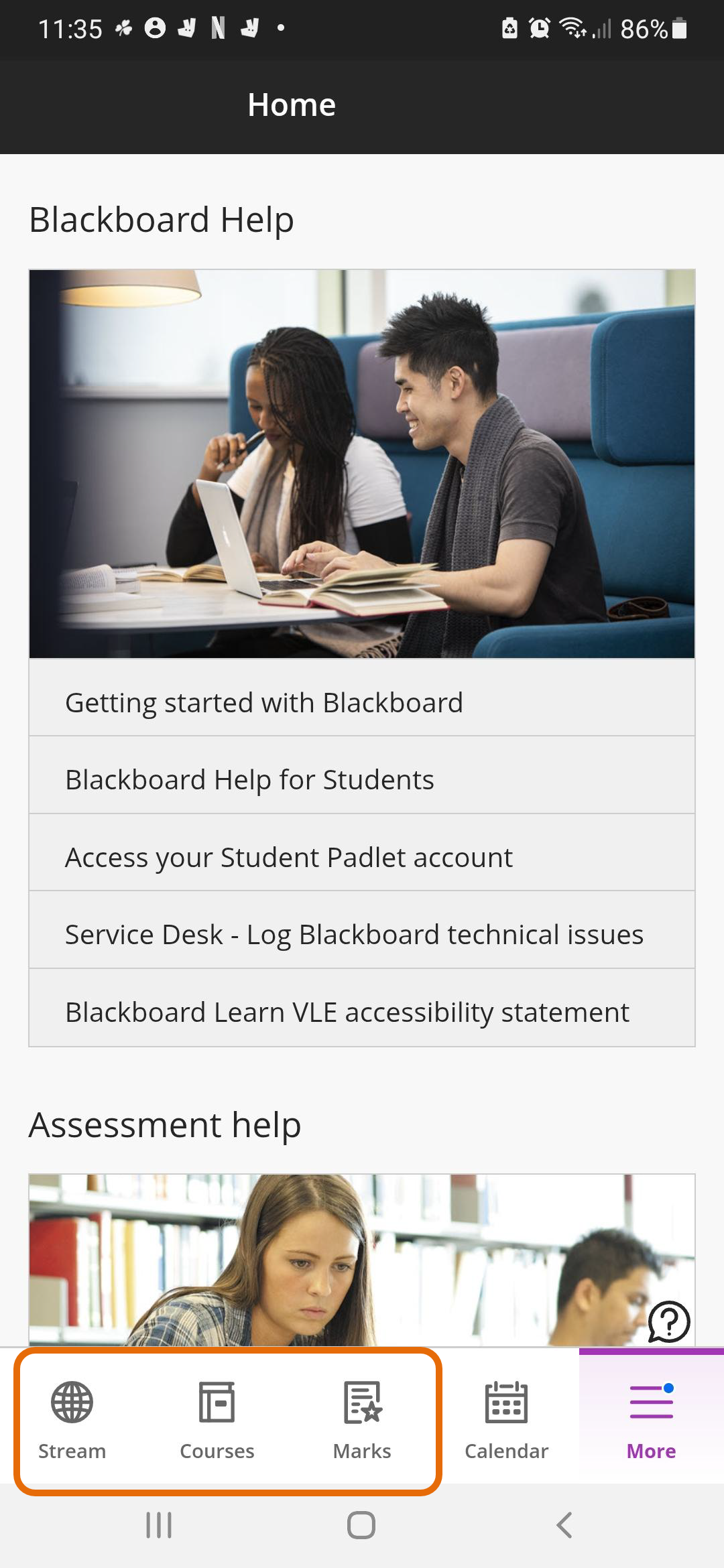
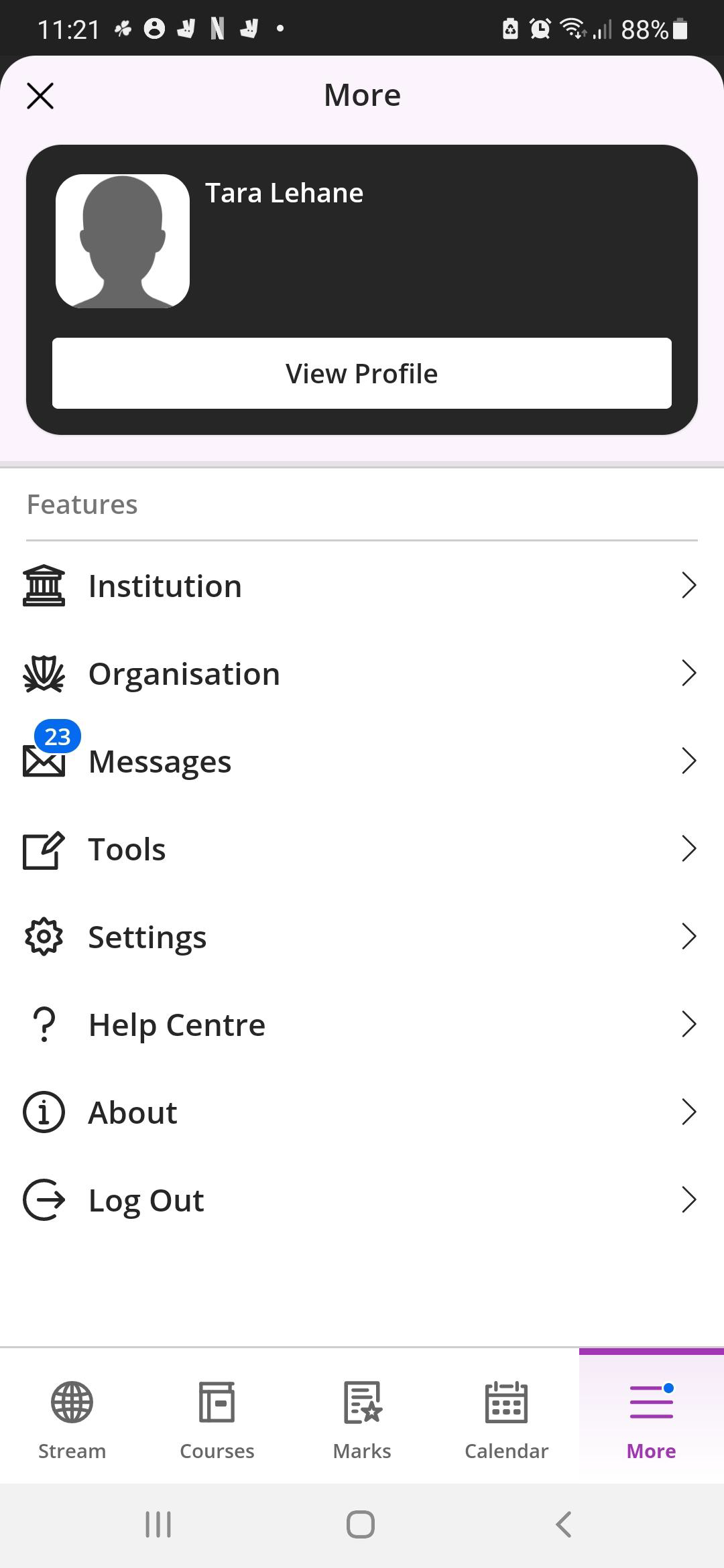
Once you’ve successfully signed in, you’ll be directed to Blackboard’s homepage, where you can access your courses and Activity Stream at the bottom of the screen. Through the ‘More’ menu, you can access Grades, Messages, and other useful links.
Blackboard App – Third party cookies & Prevent cross site tracking
Step-by-Step Instructions to check Blackboard App privacy settings on iPad, iPhone:
Allow “Third party cookies” and disable “Prevent cross site tracking”.
-
Open Settings
- Tap on the Settings app on your iPad.
-
Select Blackboard
- Scroll down and select Blackboard from the list of options.
-
Access Privacy & Security
- Under the Privacy & Security section, find the option labelled Prevent Cross-Site Tracking.
-
Disable the Feature
- Toggle the switch to turn off Prevent Cross-Site Tracking.
-
Disable Cookie Blocking
- Tap on Advanced at the bottom.
- Turn off Block All Cookies if it is enabled.
Guide last updated on September 30, 2026