
Students are responsible for ensuring that the correct documents have been successfully uploaded to the Online Exams submission points. Therefore, before submitting work, preview (or review) uploaded files to ensure you have uploaded the correct files.
If you believe there was a problem with your submission, and the time limit has elapsed, you should email online-exam@reading.ac.uk immediately, attaching the paper you intended to submit.
Please check guidance below on how to ensure your work has been successfully submitted for each mode of submission:
Turnitin
- Turnitin no longer email submission receipt to students.
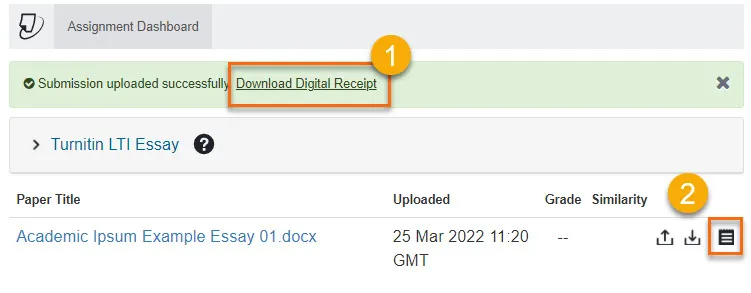
- Download Digital Receipt immediately after submission. Shown option 1 on screenshot below.
- If you forget to download receipt, open the submission point (if its still visible), and use the download receipt icon to download receipt. Shown option 2 in screenshot below or raise a support ticket for help.
- Screenshot below also confirms the date and time of submission along with your submission title.
Blackboard Tests
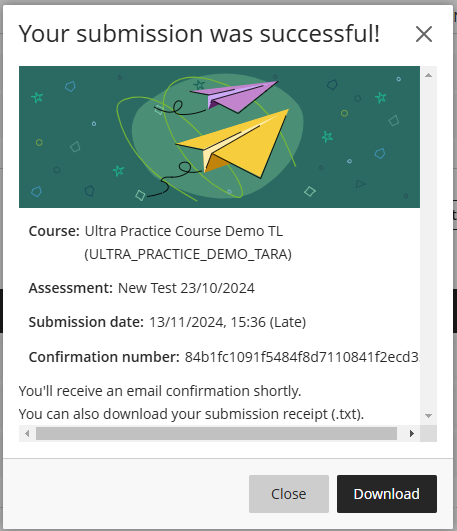
- Upon successful submission, a pop-up window will appear with a link to download receipt.
- Blackboard will also email the confirmation of submission to student.
Gradescope
Gradescope Variable-length assignments
- You will receive an email receipt each time you submit to a Gradescope variable-length assignment.
- After submitting your work, you will need to tag the pages you uploaded – see ‘Tagging pages’ on our Gradescope help page.
- If you spot an error with your submission, you can make a new submission to the assignment, unless the time limit has elapsed.
If you believe there was a problem with your submission, and the time limit has elapsed, you should email online-exam@reading.ac.uk immediately, attaching the paper you intended to submit.
Note: Submission receipts are not emailed for “Gradescope Online assignment” type submissions. If you are not sure which submission type is being used for your Gradescope online exam please contact your support centre.
Blackboard assignments
- Upon successful submission, a pop-up window will appear with a link to download receipt.
- Blackboard will also email the confirmation of submission to student.
Guide last updated on December 2, 2025