
On some modules you may be required to submit work to a Blackboard assignment.
Blackboard Assignment features
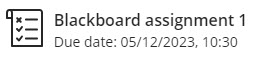
The Blackboard assignment tool allows you to submit:
- more than one file (e.g. a Word document and an Excel spreadsheet)
- files up to 250MB
- video content via YuJa (please see our guidance on how to submit a video assignment)
- one piece of work for the whole group, where all members are able view the submission, marks and feedback.
Blackboard assignments may also be used when you are submitting files created using specialist software, such as Adobe design files, computer programming files, or CAD files.
Your Blackboard assignment may be set to generate a Turnitin similarity report.
Upload submission
Step 1: Find your submission point
Find your submission point in the Course Content under Assessment. Each assignment will have a specific folder with all the assignment information including the brief and submission point.
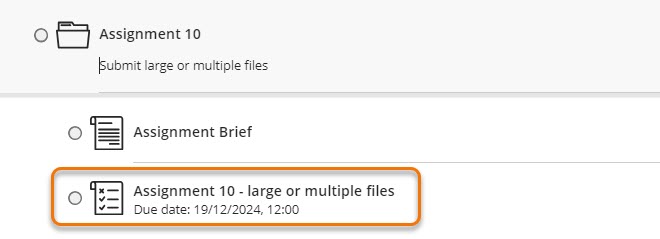
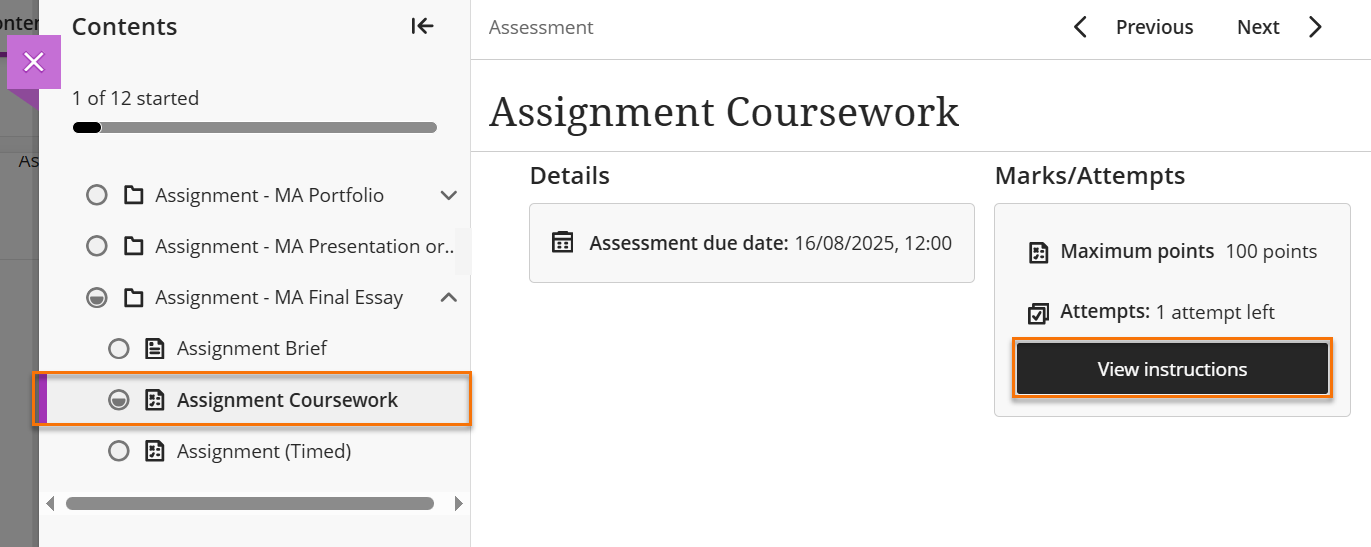
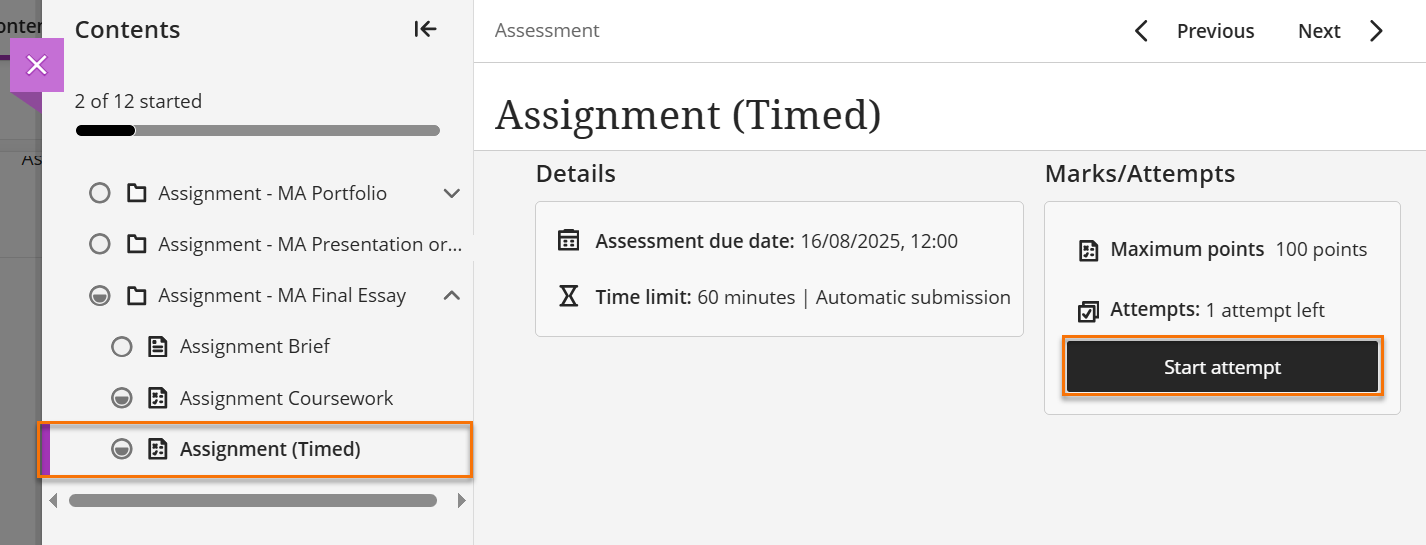
Move down to the submission point and click on the title. The assignment page will open, click the View Instructions button, or if a timer has been set, Start Attempt.
Step 2: Upload your work
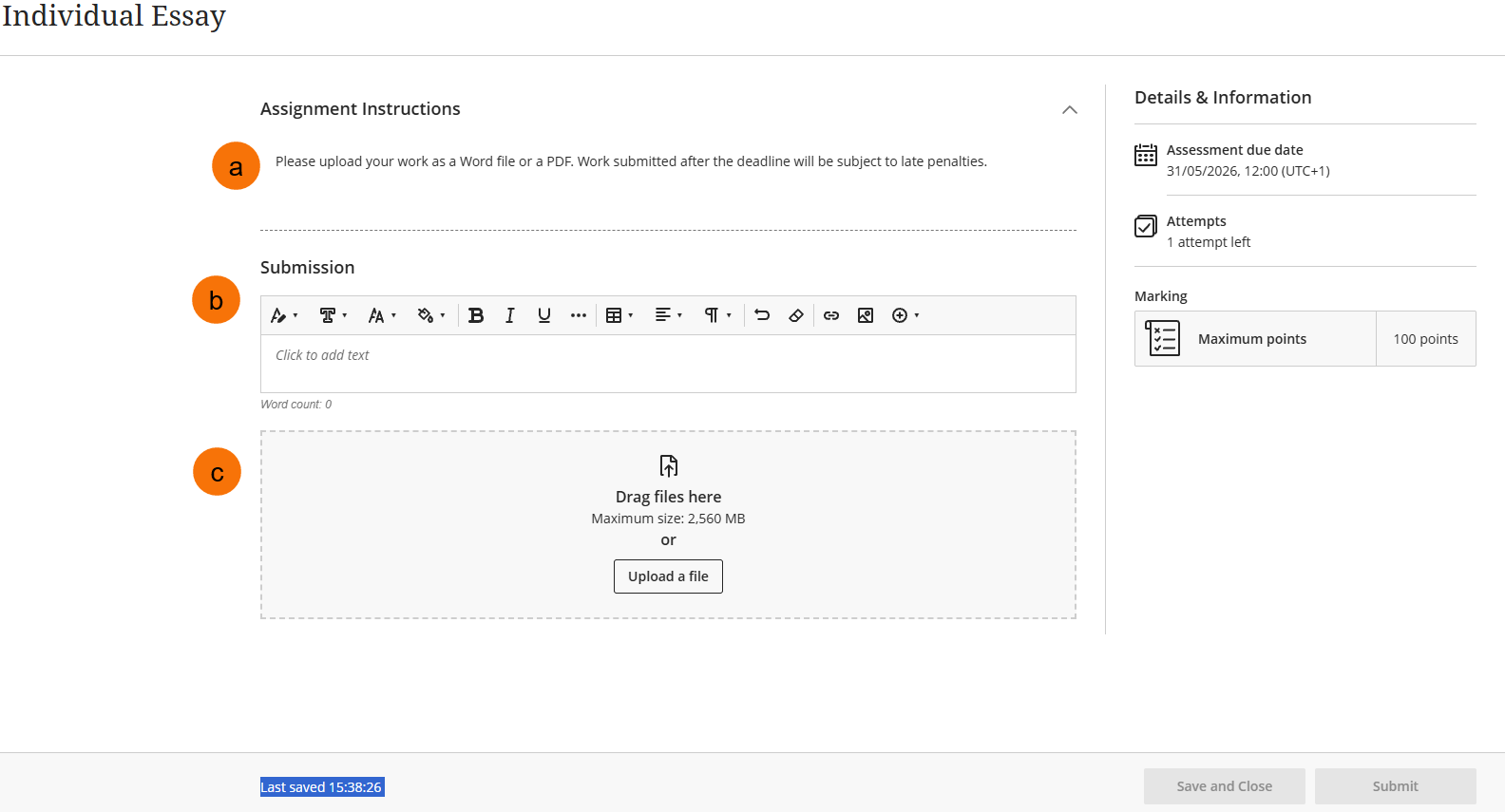
When the submission point opens, the Details and Information panel will remain on the right-hand side. You will see any specific assignment instructions left by the convenor (a).
The Blackboard submission screen has two separate sections: the Text Only section (b) and the File Upload section (c). When submitting, you may see only one section or both. You only need to submit via one method, not both.
Text Only option
Clicking inside the submission text box allows you to type your work directly into Blackboard, with all the standard text and formatting options.
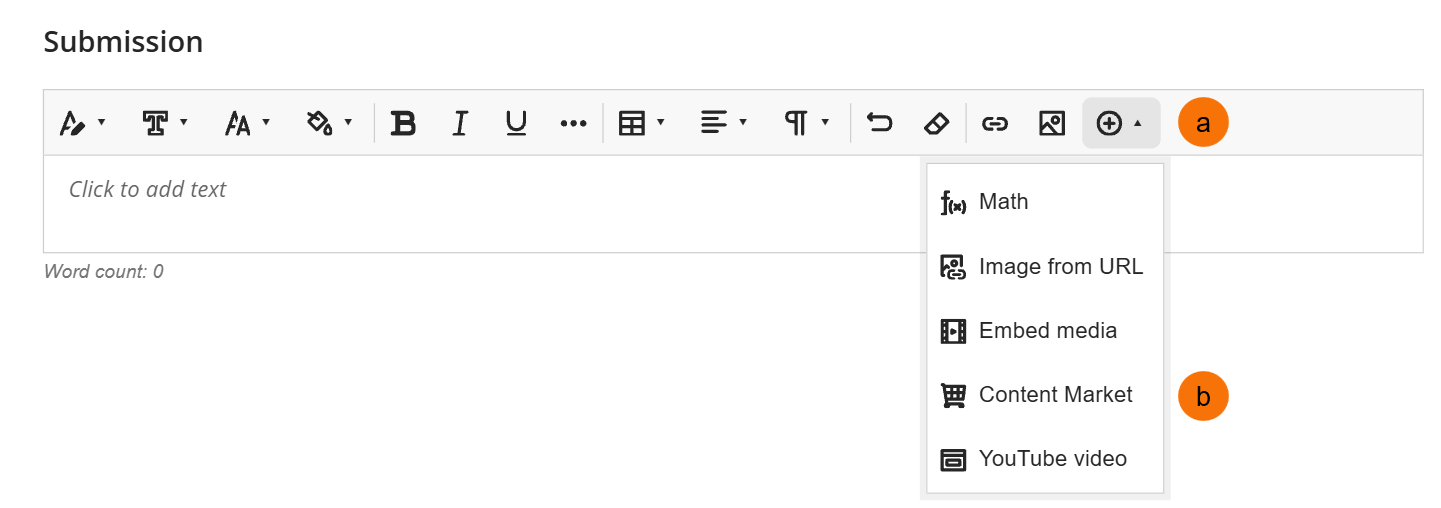
- (a) Use the plus icon to open the add media menu.
- (b) From the add media menu use the Content Market to locate the YuJa media chooser if you need to add a video submission.
DO NOT submit a link to your work, unless otherwise directed in the assignment brief.
File Upload option
Most assessment types will require you to upload a file to Blackboard. You can drag and drop files from your device into the File Upload section. Alternatively:
- Select Upload a file to upload files from your device’s file explorer.

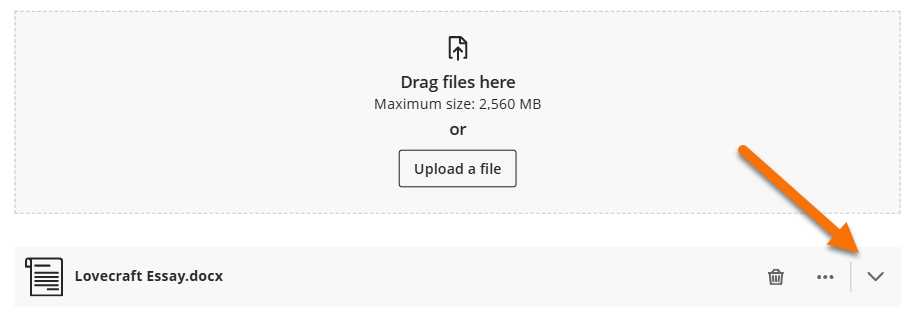
When uploading a file, you can review it before submission. Click the arrow icon next to the file name to expand the file.
Uploading more than one file
It is possible to add more than one element to this single attempt. You can upload additional files, insert a video and file or add text at any point before submitting.
Follow the instructions for each type of submission, as above, as many times as necessary, then when all the files and attachments have been made, submit.
Note: For Turnitin enabled Blackboard assignment, please read and accept the Turnitin EU License Agreement (EULA) when prompted in the popup box. If you proceed with your submission without clicking “Accept,” you will be considered to have agreed to the EULA.
Step 3: Submit your work
Once you are happy to finalise your submission, click Submit.
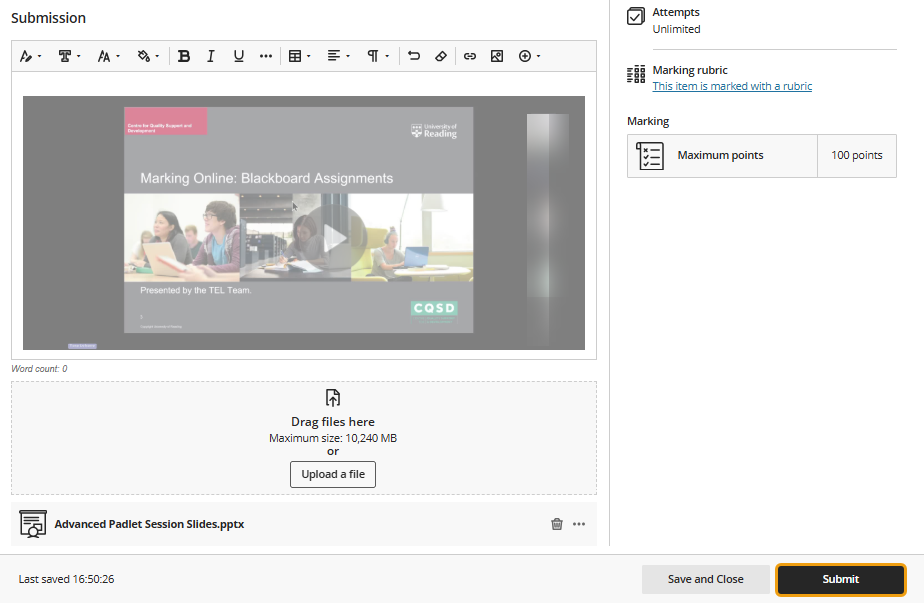
If you click Save and Close a draft of your submission will be saved – this will not be submitted until you click submit.
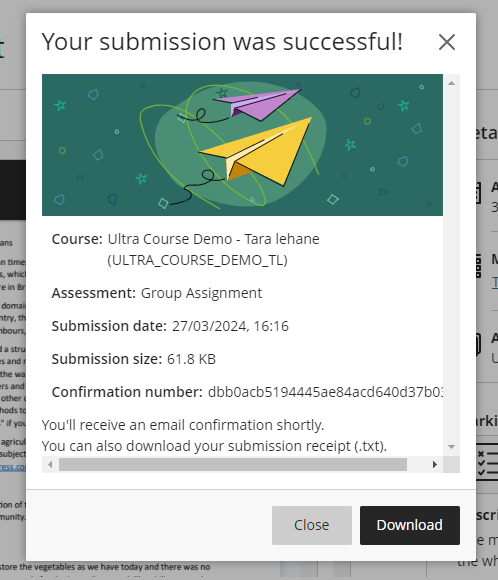
Once you have clicked submit, you will be shown your submission receipt. You can download a copy immediately. You will also receive a copy of the receipt by email.
Resubmissions/second attempts
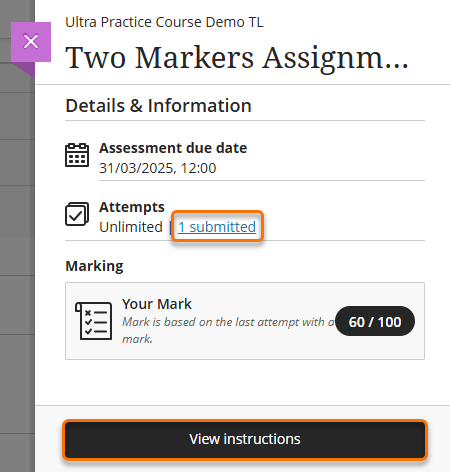
If more than one attempt is allowed for your submission, you can start a new attempt by repeating the process as above. The number of attempts allowed will be displayed in the Attempts section of the submission panel.
Click View Instructions to start a new attempt. If you choose not to continue with this attempt, just close the window.
Click on the 1 submitted link to view the attempt already submitted.
Guide last updated on September 2, 2026