
Most Group assignments will be submitted via a Blackboard Assignment submission point. This tool allows one member of the group to submit and the assignment is assigned to all members of the group. If your Module Convenor is using another tool for a group assessment please follow their specific instructions.
Upload submission
- Step 1: Find your submission point
- Step 2: Upload your work
- Step 3: Submit
- Viewing your group submission
Step 1: Find your submission point
Submission points are found in the Content tab on a course, in an area called Assessment. Each assignment will have a specific folder with all the assignment information including the brief and submission point.
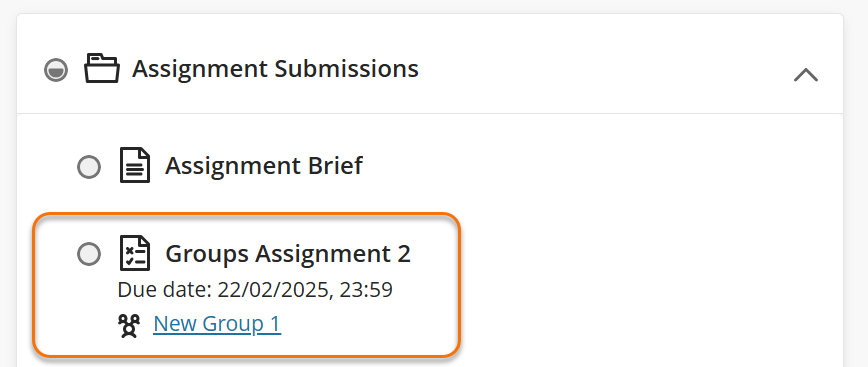
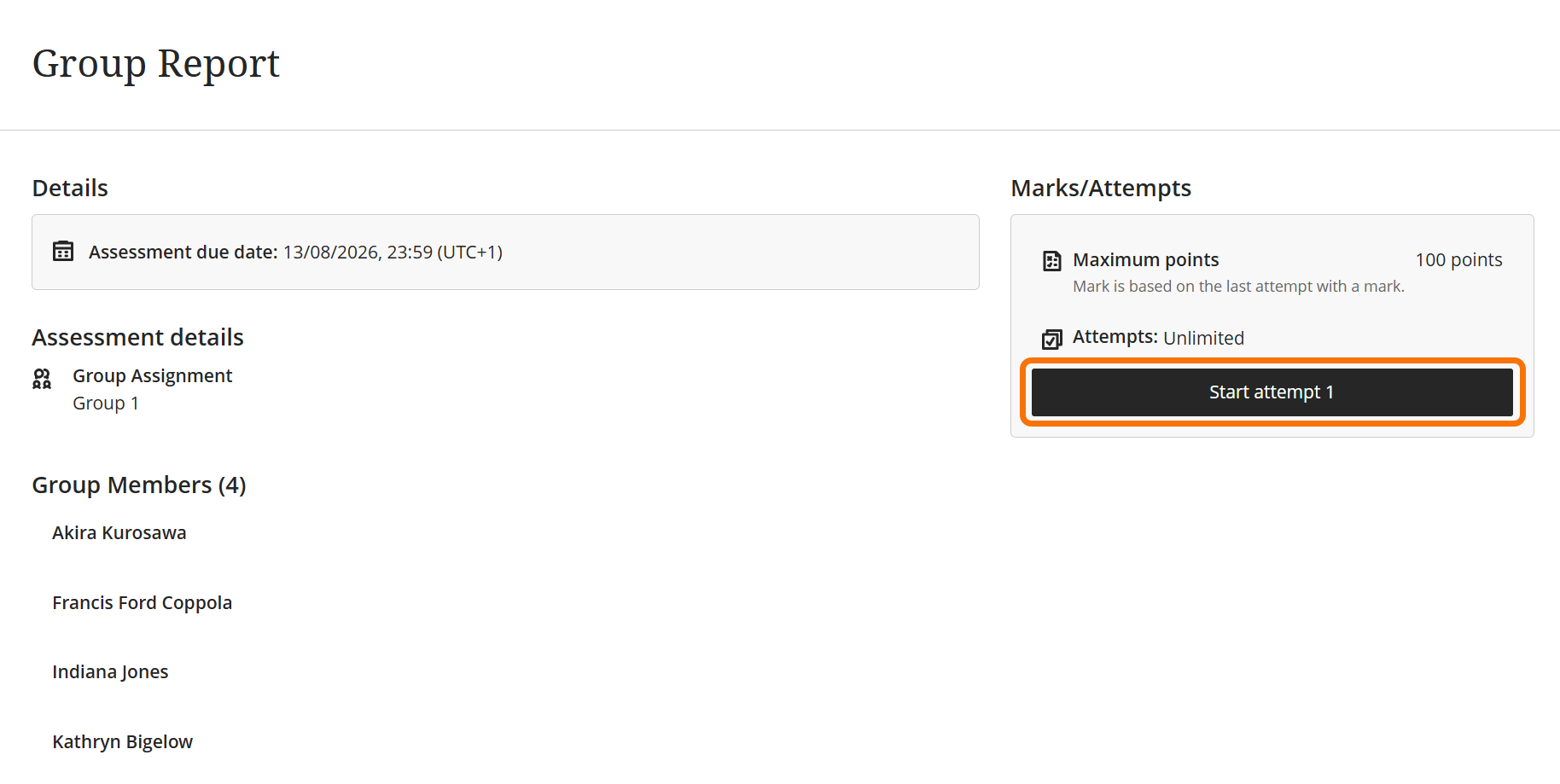
Locate the submission point and click the title. The submission panel will open, click the Start attempt button.
Step 2: Upload your work
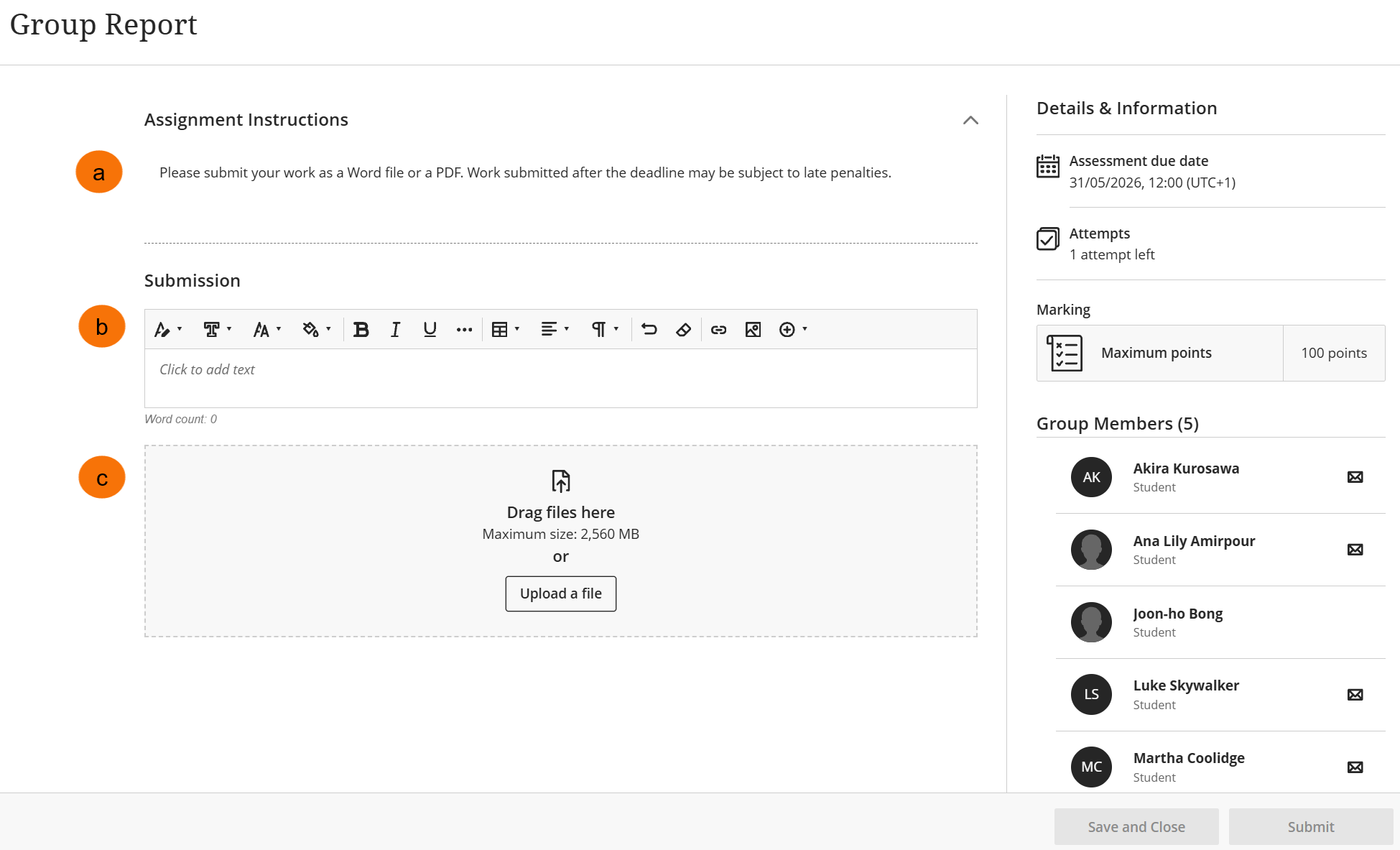
When the submission point opens, the Details and Information panel will remain on the right-hand side. You will see any specific assignment instructions left by the convenor (a).
The Blackboard submission screen has two separate sections: the Text Only section (b) and the File Upload section (c). When submitting, you may see only one section or both. You only need to submit via one method, not both.
Text Only option
Clicking inside the submission text box allows you to type your work directly into Blackboard, with all the standard text and formatting options.
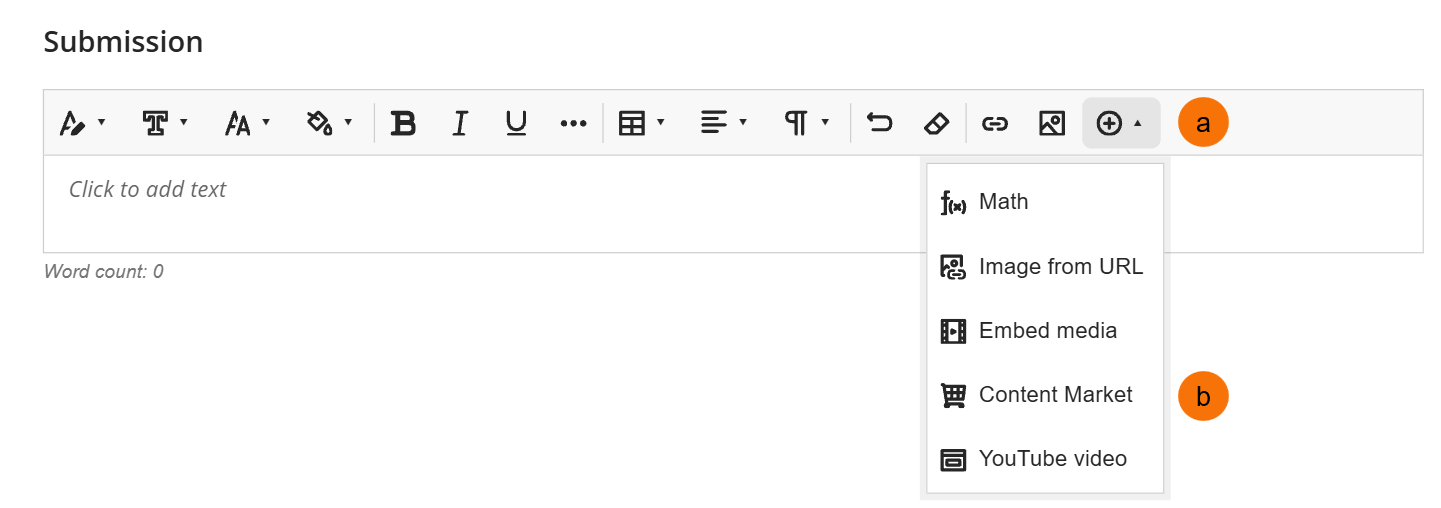
- (a) Use the plus icon to open the add media menu.
- (b) From the add media menu use the Content Market to locate the YuJa media chooser if you need to add a video submission.
DO NOT submit a link to your work, unless otherwise directed in the assignment brief.
File Upload option
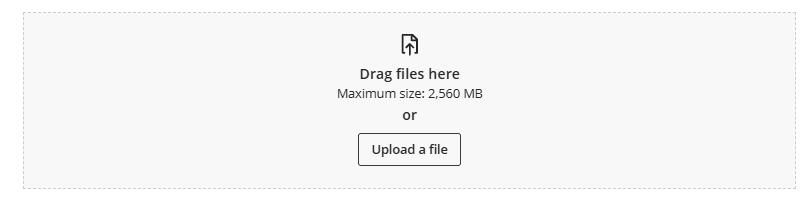
Most assessment types will require you to upload a file to Blackboard. You can drag and drop files from your device into the File Upload section. Alternatively:
- Select Upload a file to upload files from your devices file explorer.
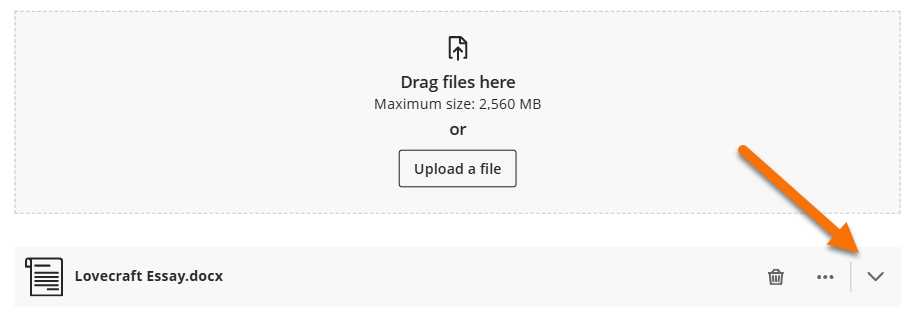
When uploading a file, you can review it before submission. Click the arrow icon next to the file name to expand the file.
Note: For Turnitin enabled Blackboard assignment, please read and accept the Turnitin EU License Agreement (EULA) when prompted in the popup box. If you proceed with your submission without clicking “Accept,” you will be considered to have agreed to the EULA.
Step 3: Submit your work
Once you are happy to finalise your submission, click Submit.
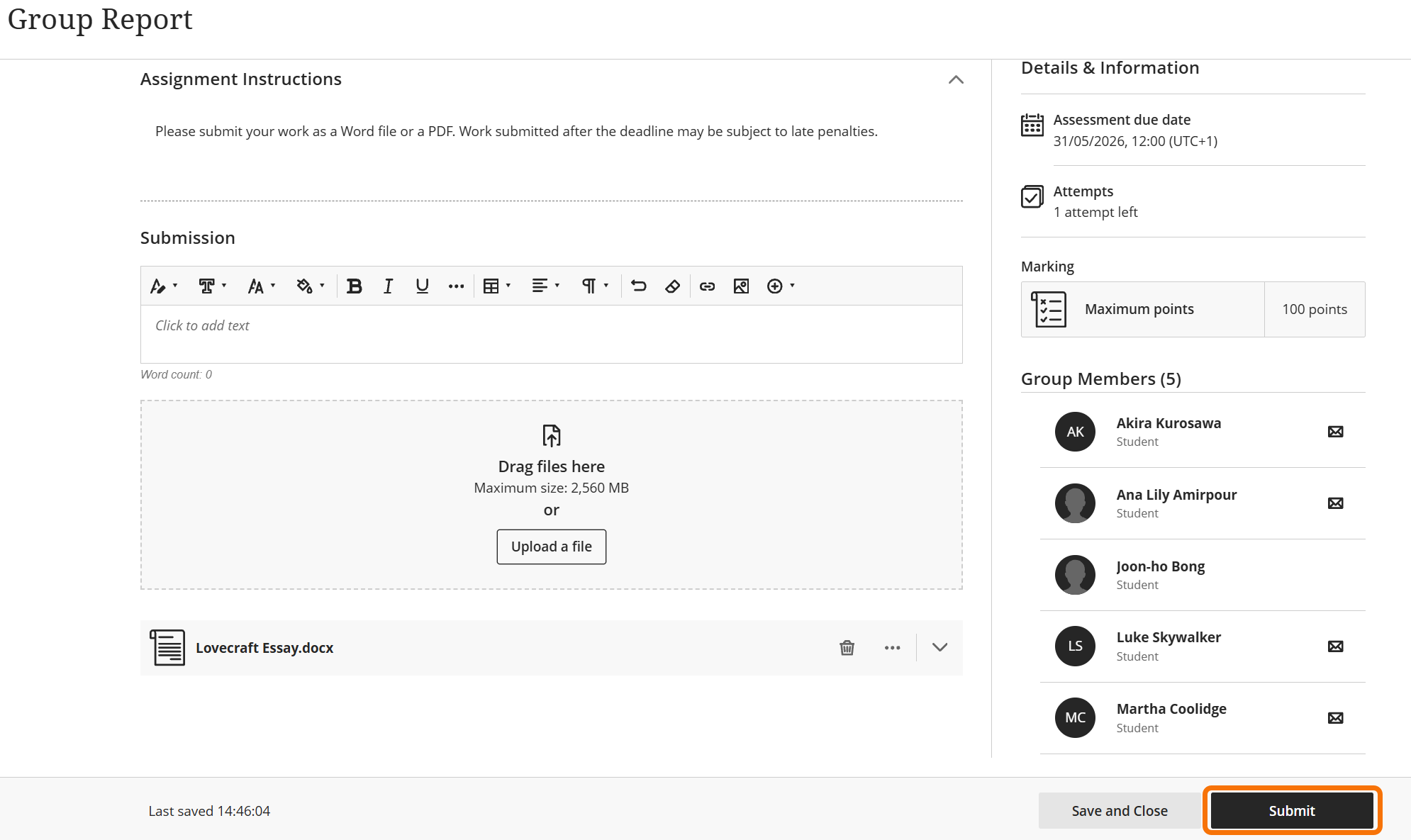
If you click Save and Close a draft of your submission will be saved – this will not be submitted until you click submit.
Once you have clicked submit, you will be shown your submission receipt. You can download a copy immediately. You will also receive a copy of the receipt by email.
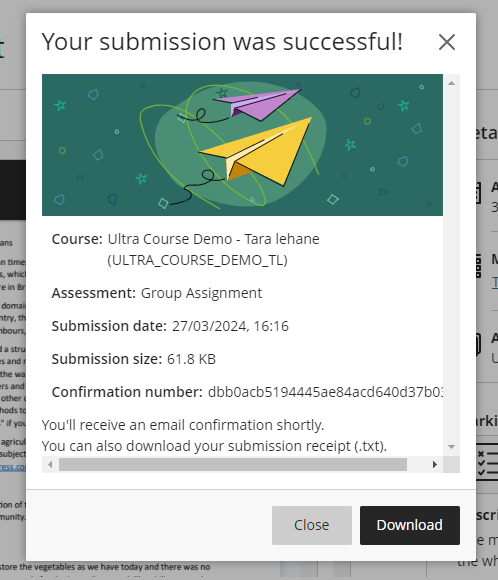
Viewing your submission
Once a submission has been made by you or a member of you team you will all receive a receipt by email. You can also view the submission via the submission point, if it has not been hidden from student view.
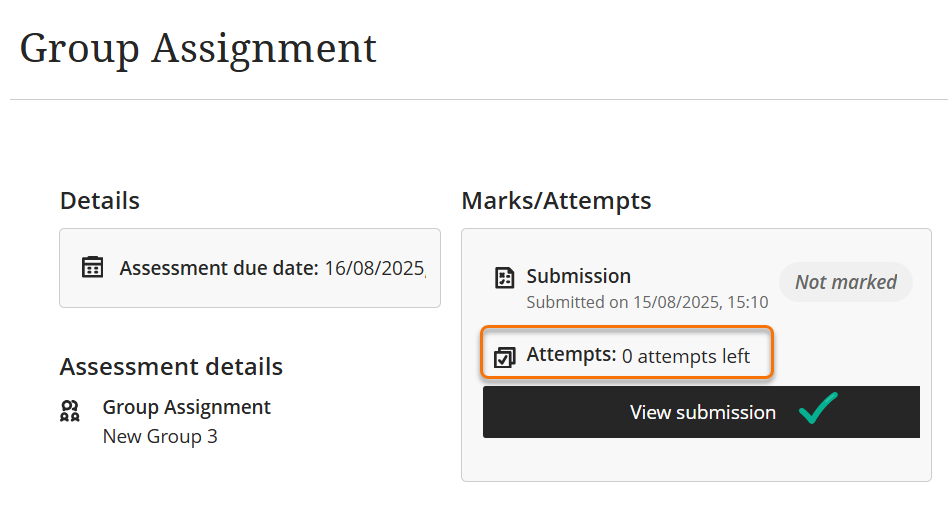
- If the attempts left is 0 click on the View Assignment button.
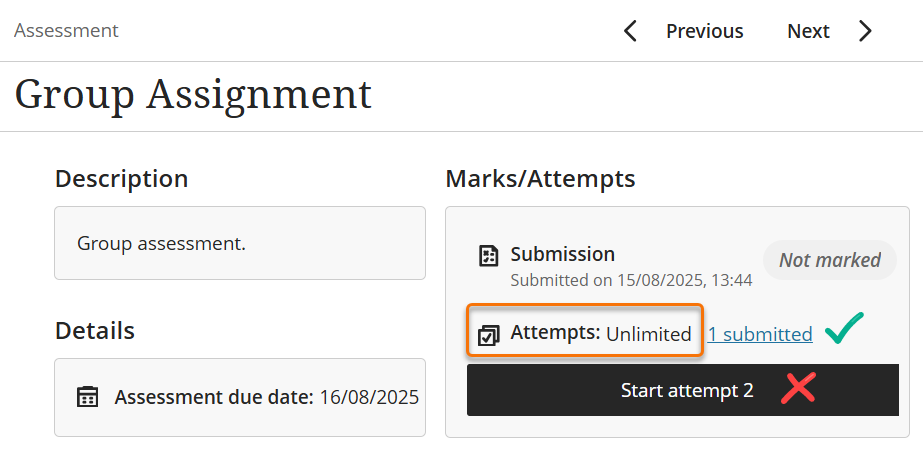
- If the attempts left is 1 or more click on the 1 submitted link under attempts.
Clicking the Start Attempt button would start a new attempt, even if you do not attach a file or save the attempt it will create a draft attempt that may cause issues during the marking process.
Guide last updated on August 12, 2026