There are two ways you can access and view a Turnitin Similarity Report:
- Before you submit your work, use Turnitin Draft Coach in Microsoft Word with your University MS365 account. (Available from 9th February 2026.)
- After you submit your work in Blackboard, you may be able to view a report depending on the settings your tutor has chosen.
This guide covers:
- Open a Similarity Report in Blackboard
- What does a Similarity Report show?
- How to use a Similarity Report
- Support & advice
Open a Similarity Report in Blackboard
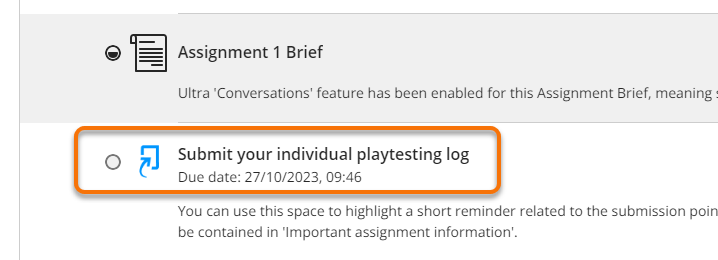
In a Course, go to Assessment and open the submission point where you uploaded your work.
Important: There is a 24 hour delay in the generation of the Similarity Report when you re-submit your work more than three times to the same assignment.
Turnitin Assignment
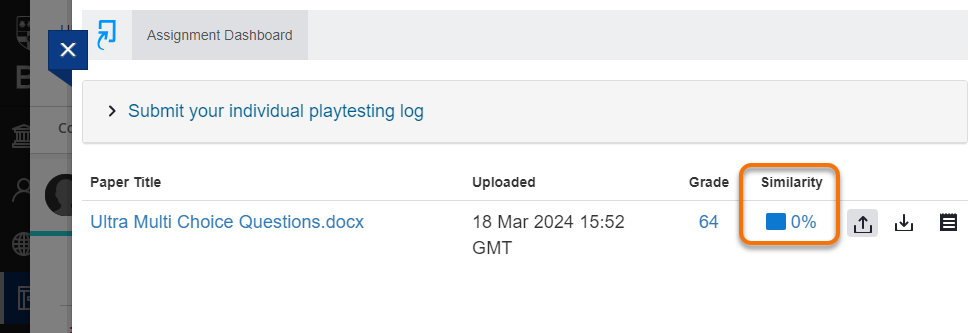
If you submitted to a Turnitin Assignment, from the Assignment Dashboard, click the Similarity percentage score or click the Paper Title link to open your paper and view the Similarity Report.
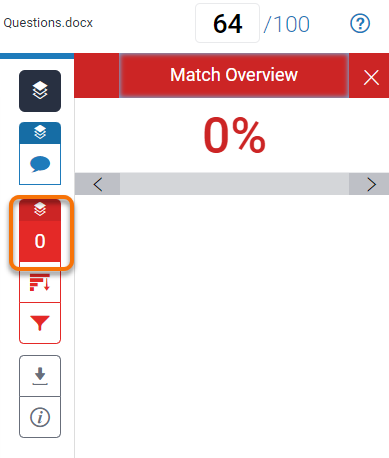
The page that opens is called the Feedback Studio.
Click the red Similarity Layer icons in the right hand menu to see your report and investigate the source of matches made in your work.
Blackboard Assignment
If you submitted to a Blackboard Assignment, when you open the submission point:
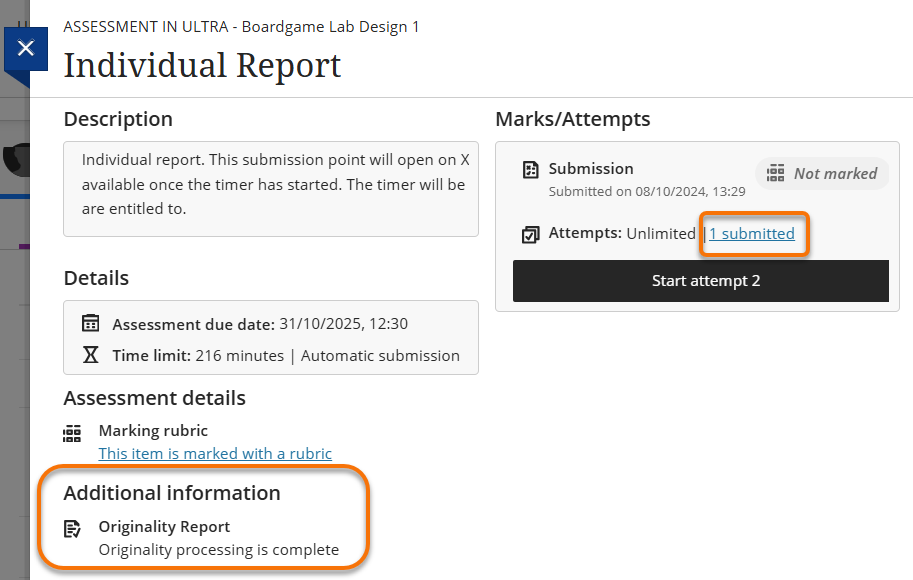
- Under Additional Information look for Originality Report to see Similarity Report is available.
- Under Marks/Attempts click the link to open your submitted work.
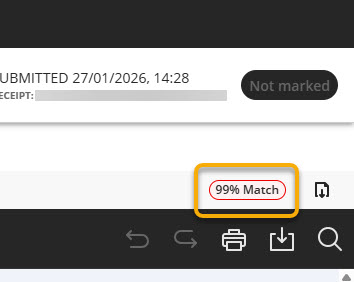
When your paper opens, click the pill shaped button in the top right hand corner of the window showing a percentage Match. This opens the Similarity Report in a new window.
What does a Similarity Report show?
When you submit work to Turnitin it compares your writing to a large database of sources, including websites, books, and other student work. It simply highlights parts of your text that match individual sources and gives an overall similarity percentage score.
The view and layout of a Simliarity Report is different when you open it from a:
- Turnitin Assignment – see how to use the Classic Similarity Report.
- Blackboard Assignment and Draft Coach in MS Word – see how to use the Enhanced Similarity Report.
The report shows exactly the same information whether you view the Classic or Enhanced report.
If you use assistive technology, you may prefer to view the accessible text only version of the Classic Similarity Report.
How to use the Similarity Report
Watch this short video from Study Advice, which explains what the Similarity Report is and how to use it to improve your academic writing.
The report is not a plagiarism detector. It simply shows which parts of your work look similar to other sources. It’s a helpful learning tool that can support your understanding of referencing, quoting, and paraphrasing.
It’s normal – and often expected – for academic work to include some matched text, such as:
- Correctly quoted and referenced material
- Common phrases or standard assignment wording
- Properly cited definitions.
The key is how you’ve used and acknowledged your sources.
Similarity percentage
You’ll see an overall percentage on the report. This shows how much of your submission matched other sources. But:
- A low score doesn’t mean your work is perfect.
- A high score doesn’t always mean there’s a problem.
- It’s how you’ve written and referenced that matters.
Focus less on the number, and more on what the matches are showing you and if it is appropriate for your assignment.
Using the report to improve your work
Use the Similarity Report as an opportunity to:
- Check that quotes are in quotation marks
- Make sure you’ve included citations where needed
- Avoid relying too heavily on one or two sources
- Practise rewriting information in your own words (paraphrasing).
Support and advice
If you’re unsure how to interpret your report or improve your academic writing:
- See Library ‘Citing References’ guide – for advice on referencing and citations, including example references.
- See Study Advice guides and videos: Academic integrity and referencing.
- Speak with your tutor or Academic Liaison Librarian.
Guide last updated on January 29, 2026