
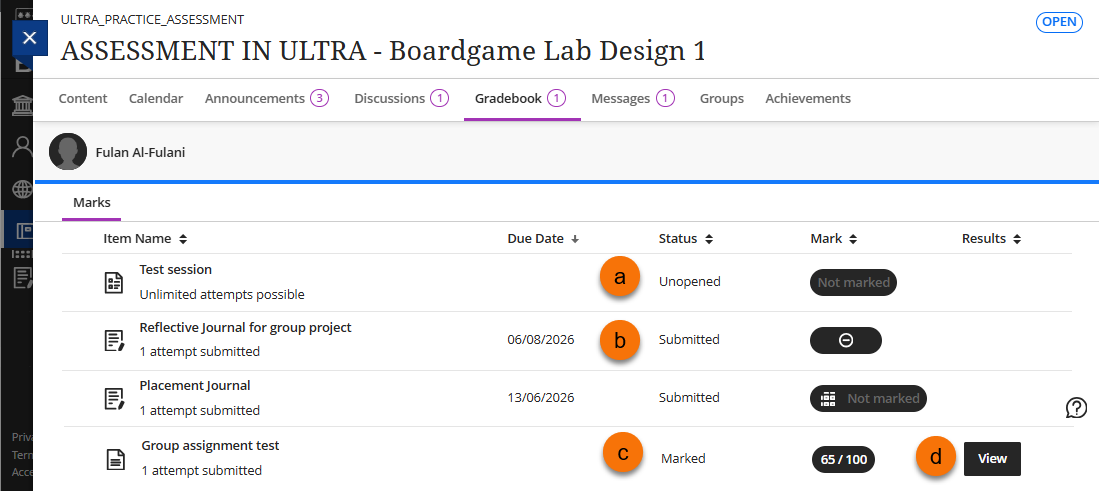
One way of keeping an eye on what you have submitted and if your submissions have been marked is to look at the Gradebook. This is one of the options on the top menu in your Ultra course.
Gradebook view
In the Gradebook you will see all the assessment on your course listed. However if any of the submission points have been hidden from students they will not appear in the Gradebook.
- (a) Status as Unopened will show as an empty mark in the Mark column and no feedback icon.
- (b) Status as Submitted will show as Not Marked in the Mark column and no feedback icon.
- (c) Status as Marked will show the mark in the Mark column and a feedback icon in Feedback if there is some.
- (d) View feedback.
Open submitted work
From the Gradebook you can still open submissions to check on them or retrieve receipts (Turnitin) before marking has taken place, as long as the submission point remains visible to students.
- Open submitted Turnitin (retrieve submission receipt)
- Open submitted Bb Assignment (Video or Group)
- Open submitted Test
Open submitted Turnitin – not marked
Once you have submitted you can still open your submission and view it via the Gradebook or the submission point in the content area. Once you click on the assessment a screen will open with the assessment details with a Launch button, this will launch Turnitin.
Please note the submission point may be hidden after the due date. If this is the case it will not be visible from either the content or gradebook.
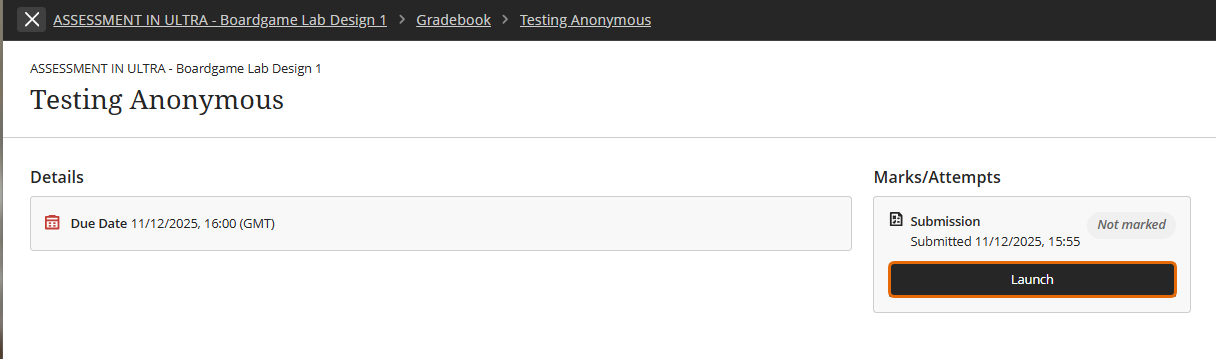
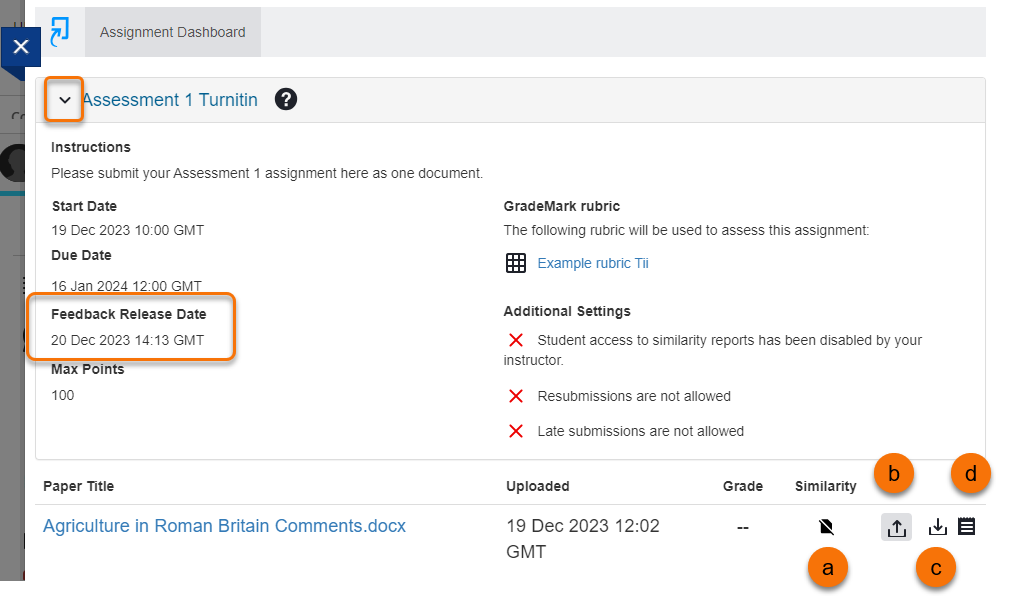
When you launch a Turnitin submission point that you have already submitted to you will be able to open the Assignment information to check the Feedback Release Date. This is the date when marks and feedback will be released to students.
For the submitted paper you will be able to:
- (a) View similarity report – depending on whether access has been granted.
- (b) Upload a second attempt – depending on whether this has been allowed.
- (c) Download a copy of the submitted paper
- (d) Download a copy of your submission receipt
Open submitted Bb Assignment
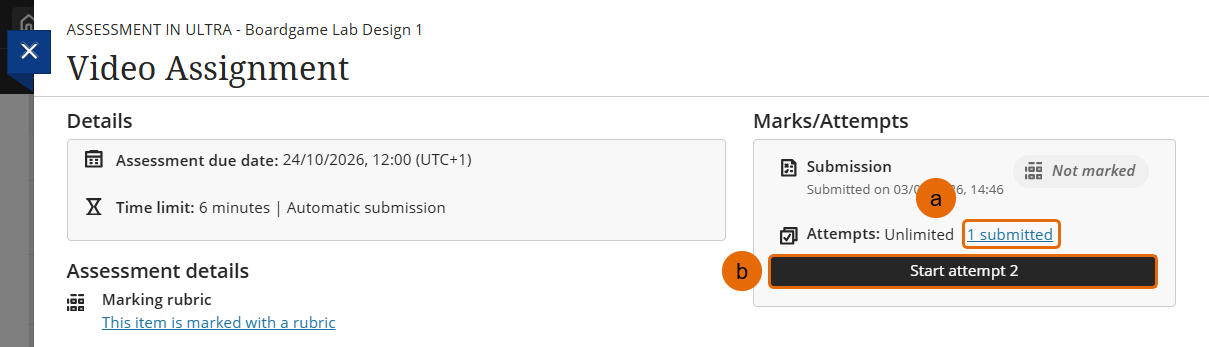
Blackboard Assignments can be set up to allow a one or many attempts. You can view all attempts after submission and before marking as long as the submission point is still visible to students.
- Click on the submission point in the Gradebook.
- To view your submission click on the x submitted link (a).
- To start a new attempt click Start attempt x (b) . If the due date has past the attempt may be disallowed or marked as late depending on the settings.
*Please note: If you click start attempt you will start a new attempt, if the attempt is abandoned it will remain as a draft.
The attempt will open and you can view it from this screen.
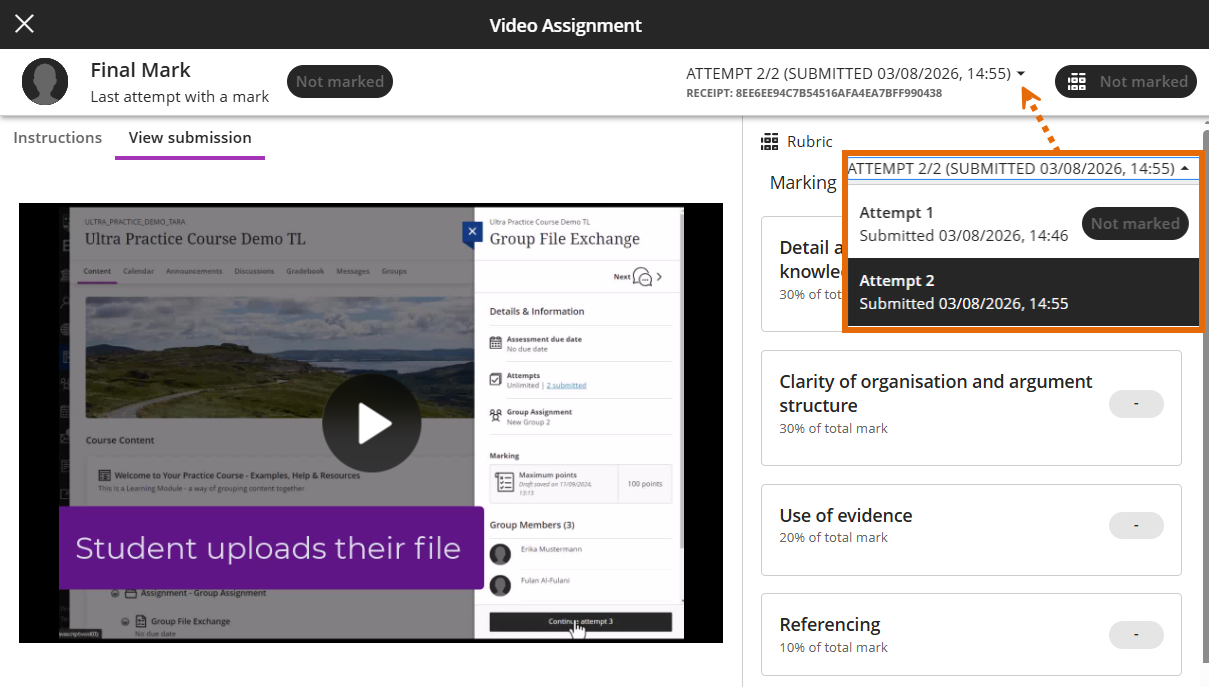
Open submitted Test
There are different ways to set up Tests so there will be variations on what you will seen.
A test that has not been marked but has been set up to show allow the submitted work to be viewed. If you click on the Test in the Gradebook a screen will open with the test information. The number of attempts will display, taking into account how many attempts you have already made.
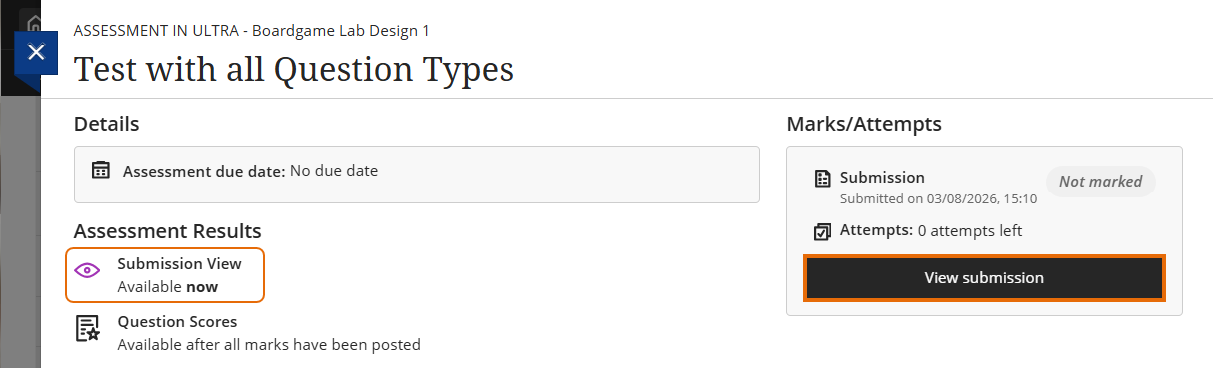
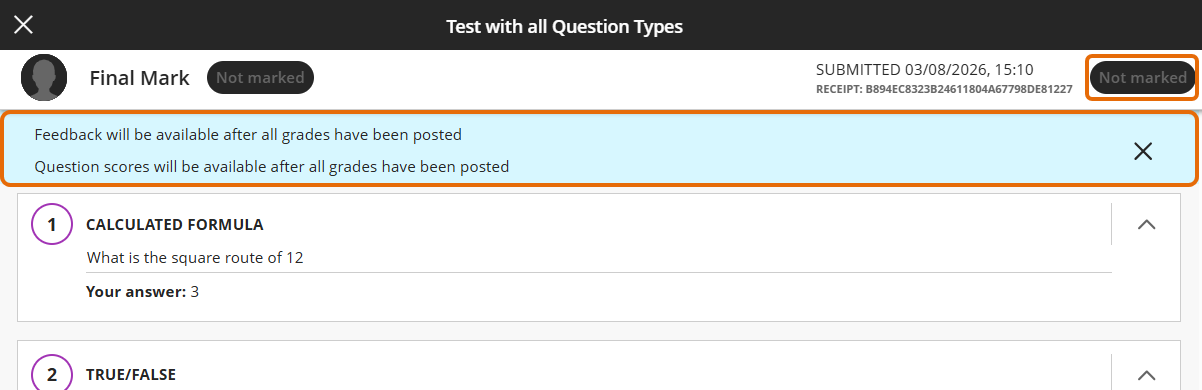
If Submission View is available, and not the marks, you will see which answers you gave but not if they are correct or not.
A blue banner across the top of the screen will let you know when the test feedback and marks will be released
Guide last updated on August 3, 2026