
Marks and feedback for summative work will normally be provided after fifteen working days from the deadline. There are some exceptions to this, such as modules with particularly large cohorts.
Find and access marked work
The submission point will need to be visible to students for you to be able to access the marks and feedback. If they are hidden during marking, they will be made available on the marks release date and time.
Access from the Course Content
Submission points are found in the Content tab on a course, in an area called Assessment.
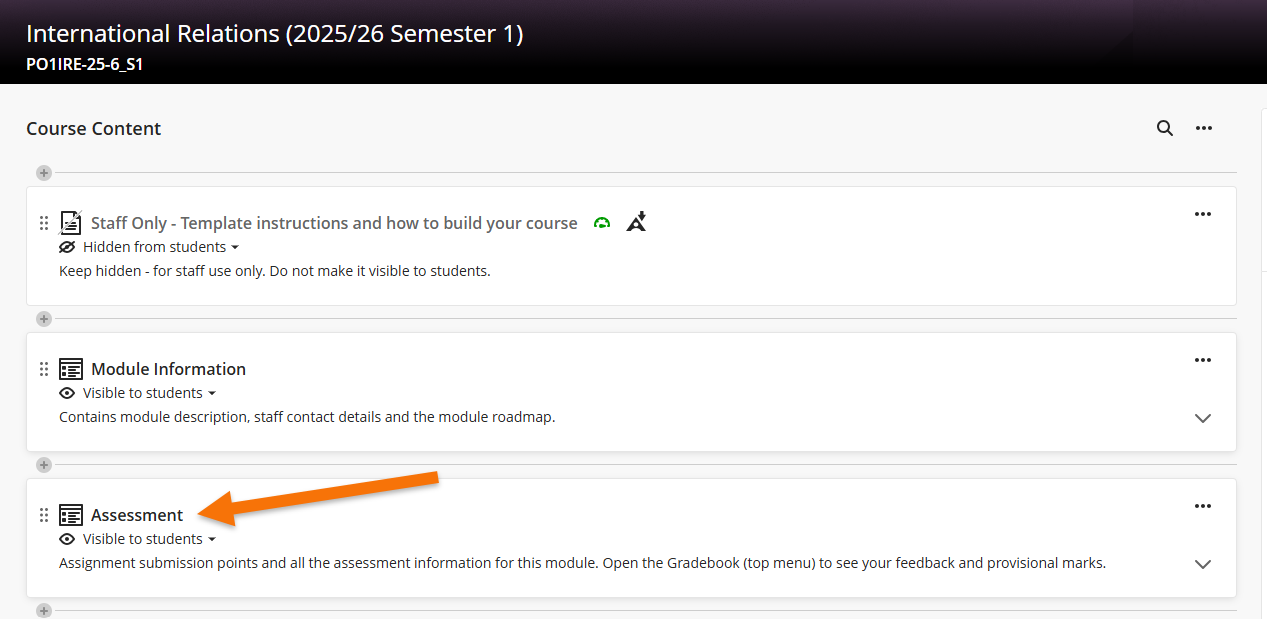
Each Assignment has a specific folder where you will find the submission point. To view your marks and feedback, click on the assignment title.
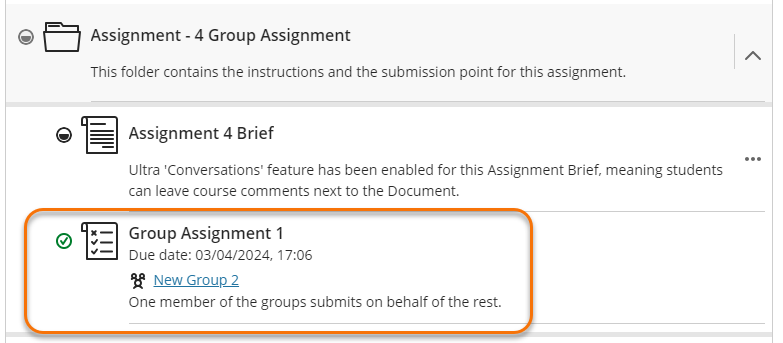
The View submission panel will open.
Access from Gradebook
Open the Gradebook via the tab in the navigation bar. In the Gradebook, find the assignment and click on any of the following:
- (a) Assignment title
- (b) Marks
- (c) View button
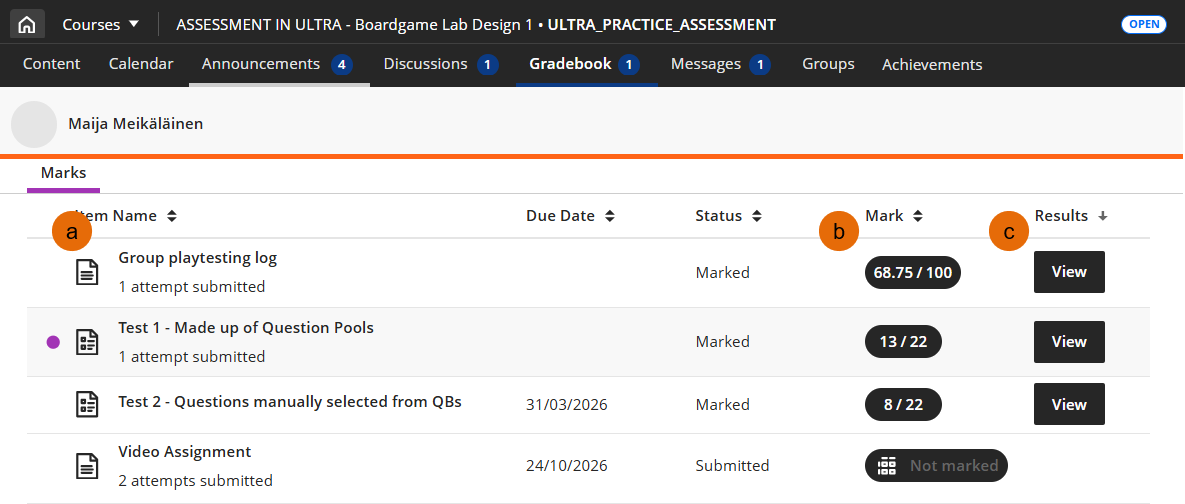
The submission page will open on the right-hand side of the page. In some cases the View button will take you straight to the submission.
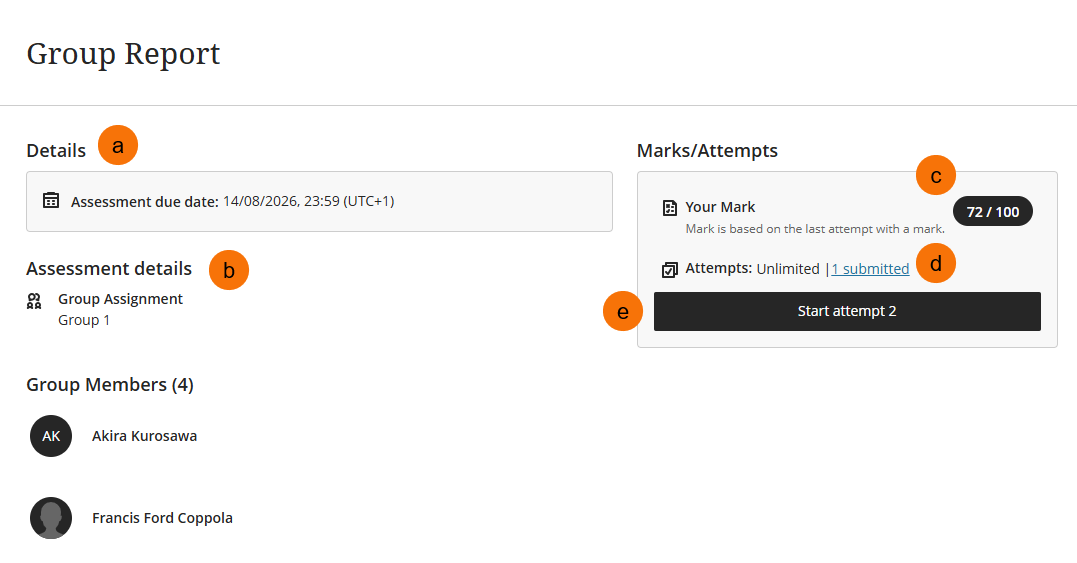
View Submission page
To open the submission and view your feedback click on the x submitted link or the View submission button if only one attempt allowed.
- (a) Due date
- (b) Assessment details (i.e. group assignment or marked with rubric)
- (c) The mark
- (d) x submitted link – click to access submission when multiple attempts are allowed.
- (e) Start attempt x/View submission button (depending on number of attempts allowed)
Take care not to click Start attempt X if further attempts are allowed. This will start a new attempt, which will remain as a draft if abandoned.
View Feedback
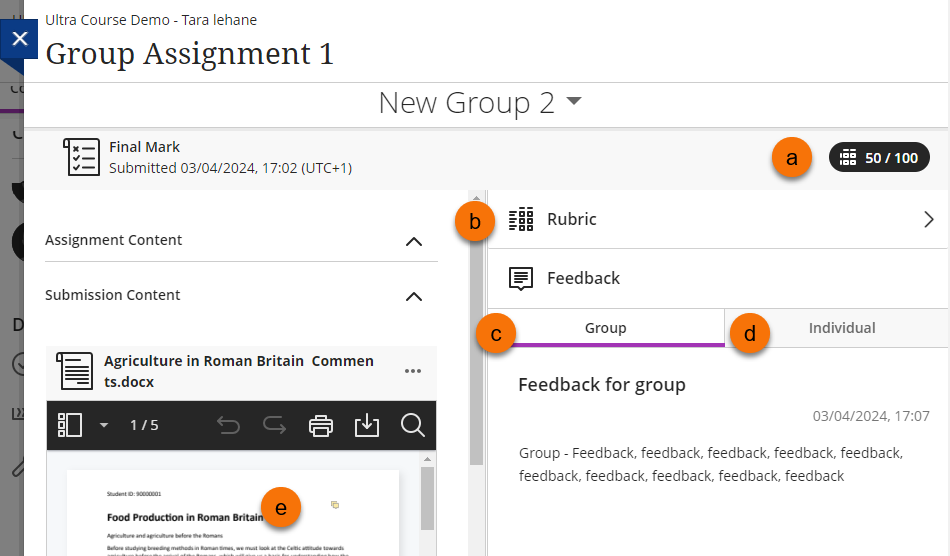
Once the marked submission is opened, you will be able to view your feedback in a number of ways. Please note, your marker may not use all the feedback tools.
- (a) Marks
- (b) View Rubric
- (c) Summary Feedback for the Group
- (d) Summary Feedback for Individual student (you)
- (e) Annotations on paper
View Rubric
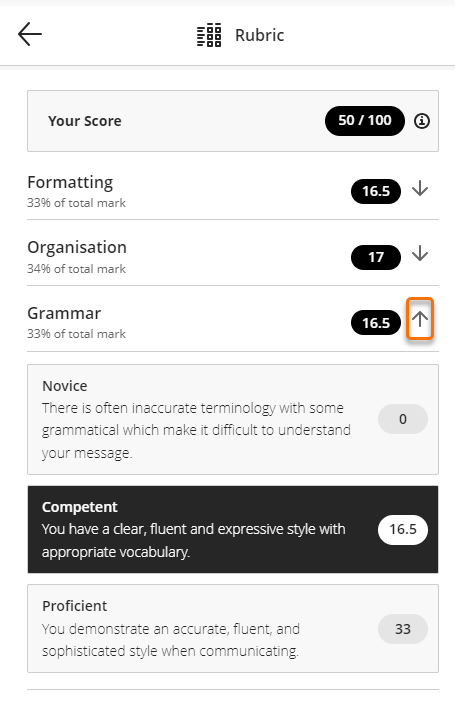
Click on the Rubric icon to view it. The Rubric will open in the marking panel.
If a scoring Rubric the break down of marks per criterion will display.
To view the criteria descriptions click on the down arrow on the right-hand side of the criterion.
Summary Feedback
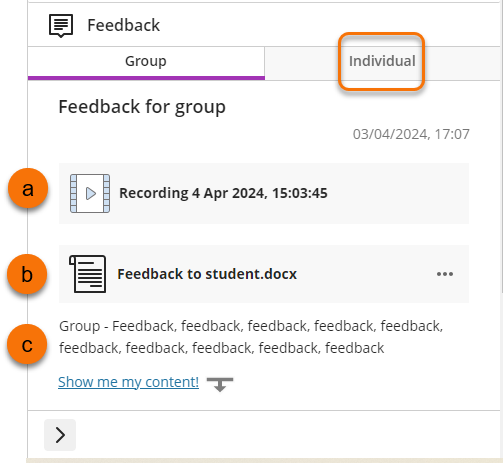
The feedback panel will contain the summary feedback for your work. The marker may have provided this in one of a number of ways:
- (a) As an audio recording
- (b) As an attached document
- (c) As text typed into the feedback editor
Group and Individual tabs
For Group assignments the marker will provide feedback to the whole group, this will be open as default when you open the marked submission.
Your instructor may also decide to provide individual feedback for you specifically. If so this will be in the Individual tab and you can easily toggle back and forth between the tabs.
Annotations
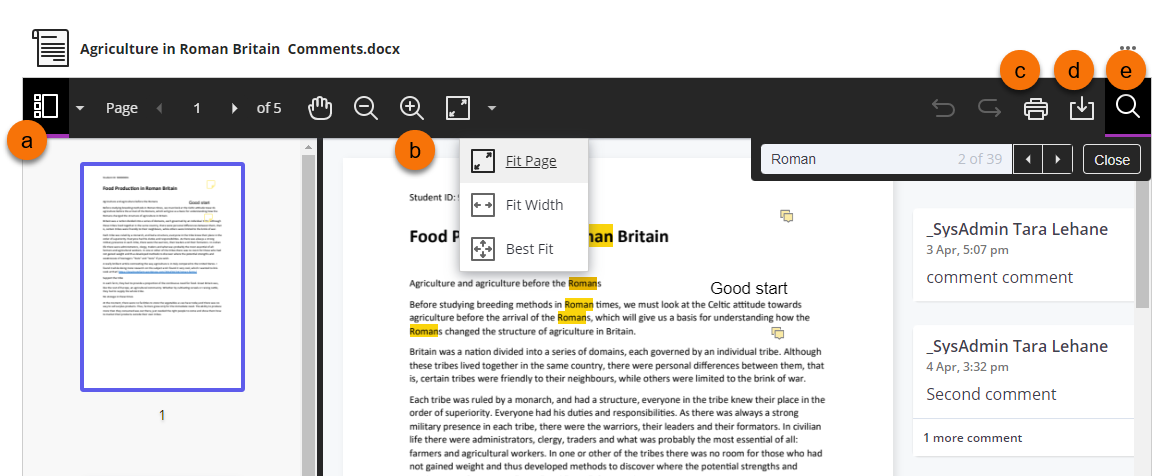
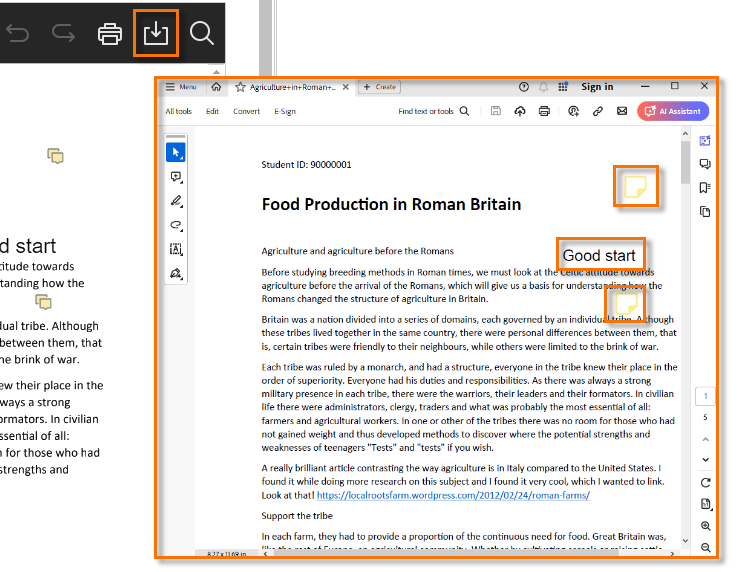
Your marker may choose to annotate your submitted paper with comments or inline text directly on the page. There are a number of features to allow you to navigate around paper to view the annotations.
- (a) Thumbnails feature allows you to move easily around the paper
- (b) Zoom in/out and maximise tools allow you to change the view
- (c) Print feature allows you to print the annotated paper
- (d) Download feature allows you to download a Pdf of the annotated paper
- (e) Search feature allows you to search your paper’s text
Download annotated paper
Using the Download icon you can download a Pdf document of your submitted paper with the markers annotations.
Guide last updated on August 13, 2026