
It is possible to export Group Sets from Blackboard Ultra, which can then be imported into other Ultra courses. Student enrolments can also be exported/imported, but this requires the same students to be enrolled in both courses.
Please note: All groups are in Group Sets in Ultra. A Group Set can contain one or more groups.
Export Group Set
Exporting a group allows you to save a copy of the Group Set (names, descriptions and number of groups) and the membership of those groups as an excel spreadsheet. Groups can be imported into other Blackboard courses and used as a new set of groups for enrolling students. You can also import both groups and group memberships if the same students are enrolled in both courses.
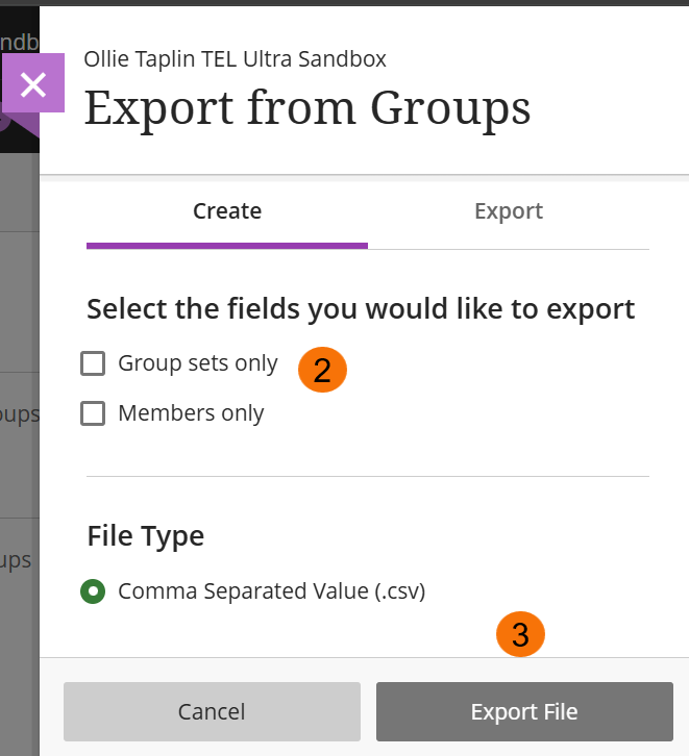
Export options are:
- Groups sets only – use this to import groups to other Blackboard courses as fresh groups to assign destination course students to.
- Members only – use this to import group members into a group set (the destination course will need same students enrolled).
Both options can be selected together.
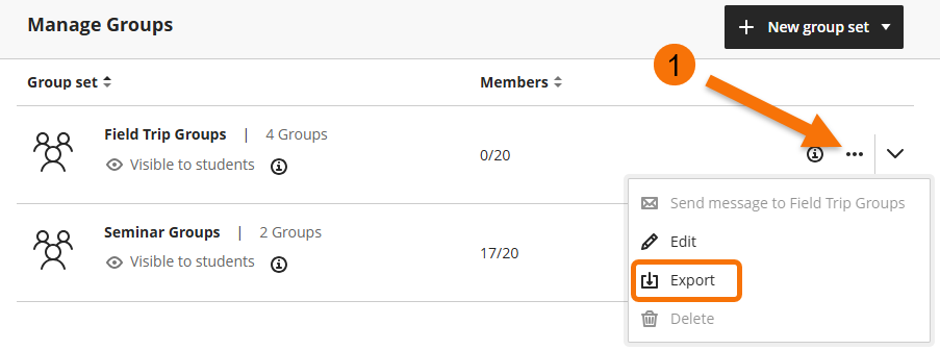
- Navigate to the Groups page and click the three-dot menu for the group that you want to export. Select Export.
- Choose which fields you want to export, Group Sets or members (or both)
- Click Export file
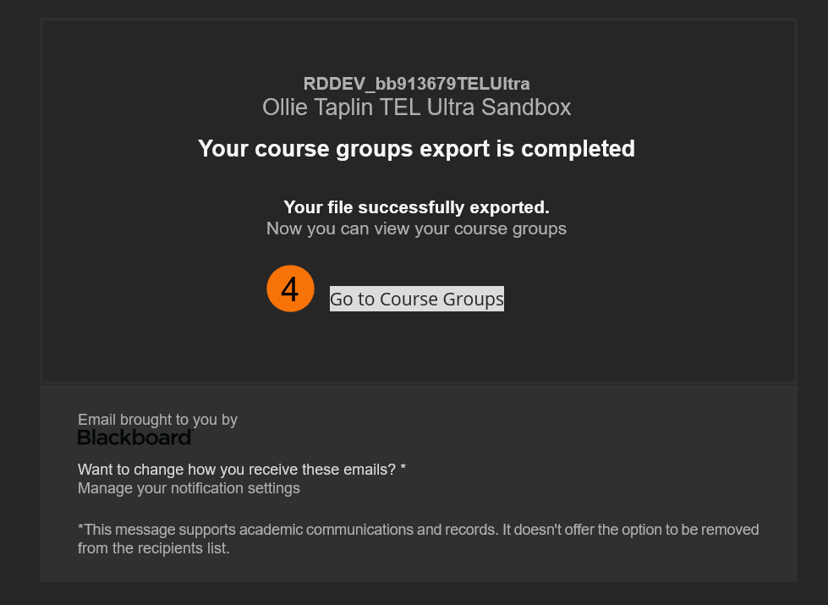
A success banner will appear explaining that you will receive an email when export is complete

- On receipt of the email, follow the link back to groups page
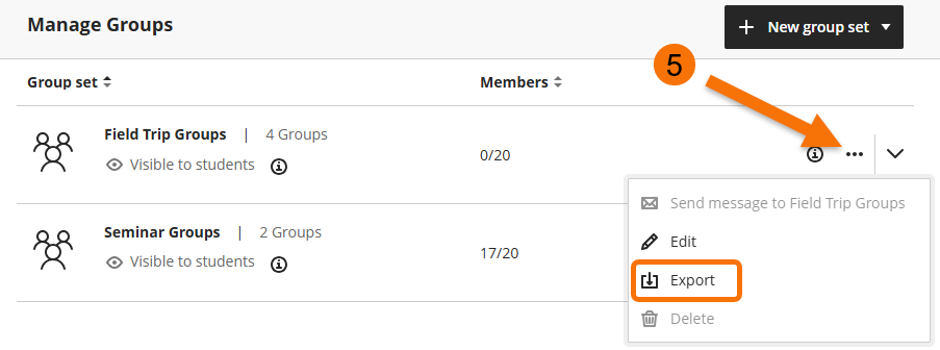
- On the Groups page, click the three-dot menu for the group that you previously exported and select Export again.
- Select the Export tab from the Export File menu.
- Click to download the appropriate file.
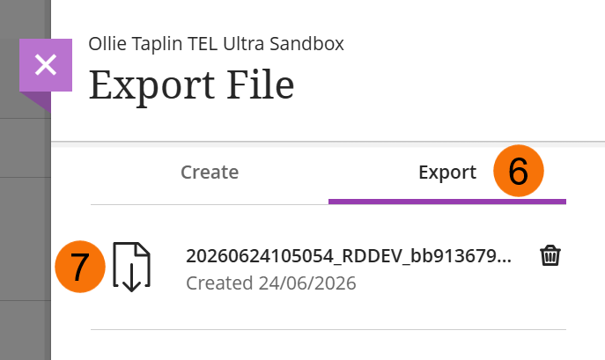
If you are downloading both groups and members, the file will be a .zip. You will need to extract the files before you can use them.
Import a Group Set and Membership
The Import Group function allows you to import groups that have been exported from another course. You can also download template csv files for Group Sets and group memberships, populate them with your group information in Excel, and then import them into Blackboard.
- Import the Group Set
- Import the Group Members
Import the Group Set
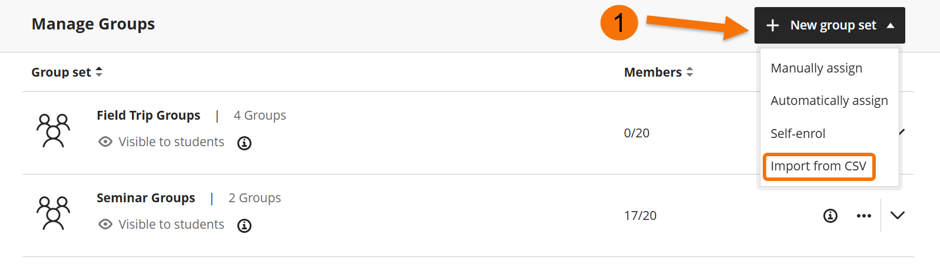
- Navigate to the Groups page and click New group set. Select Import from csv.
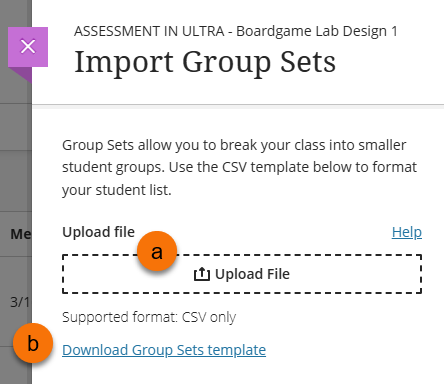
- The Import Group Sets panel will open.
- If you have the Group Set csv file ready (i.e. exported it from another course) select Upload file (a) and choose the groups.csv file from your device.
- If you do not have a csv file ready, download the Group Sets template (b) add the group sets information in accordance with the template formatting, then save the file as a csv and upload the file (a).
You will be emailed when the groups are imported, follow the link in the email or refresh the groups page.
Import group membership
Once a Group Set has been created on a Blackboard course, you can import members via a csv.
- Open the Group Set and click on the three-dot icon in the top right-hand corner of the page. Select Import groups or members.
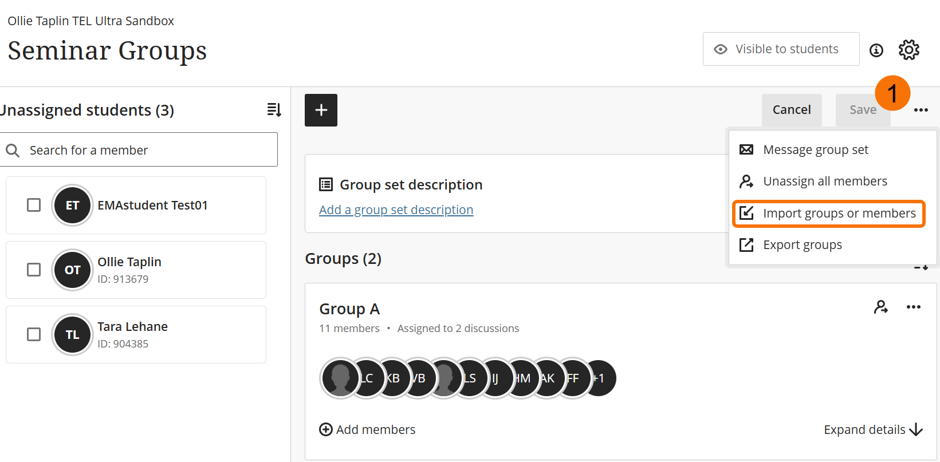
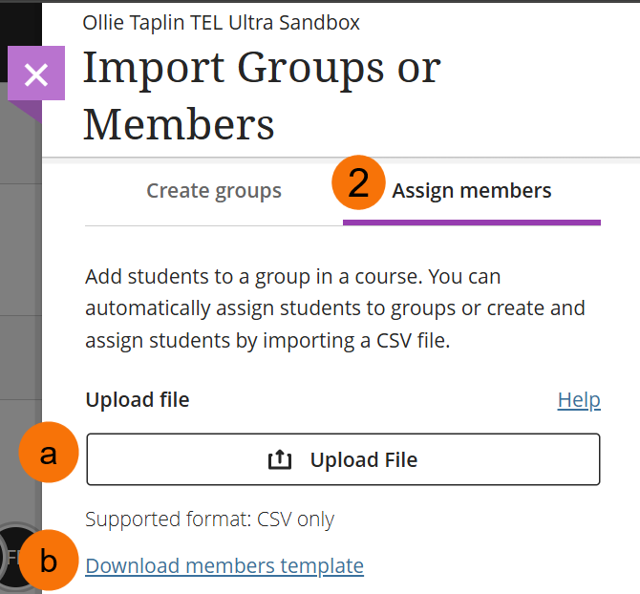
- The import Groups or Members panel will open. Click the assign members tab:
- If you have a group membership csv file ready, use the Upload file button (a) to upload the membership file from your device.
- If you have not created the membership file, download the membership template (b), add members in excel (you will need the student usernames), then save the file as a csv and upload the file (a).
You will be emailed when membership is imported, follow the link in the email or refresh the groups page
Guide last updated on August 10, 2026