
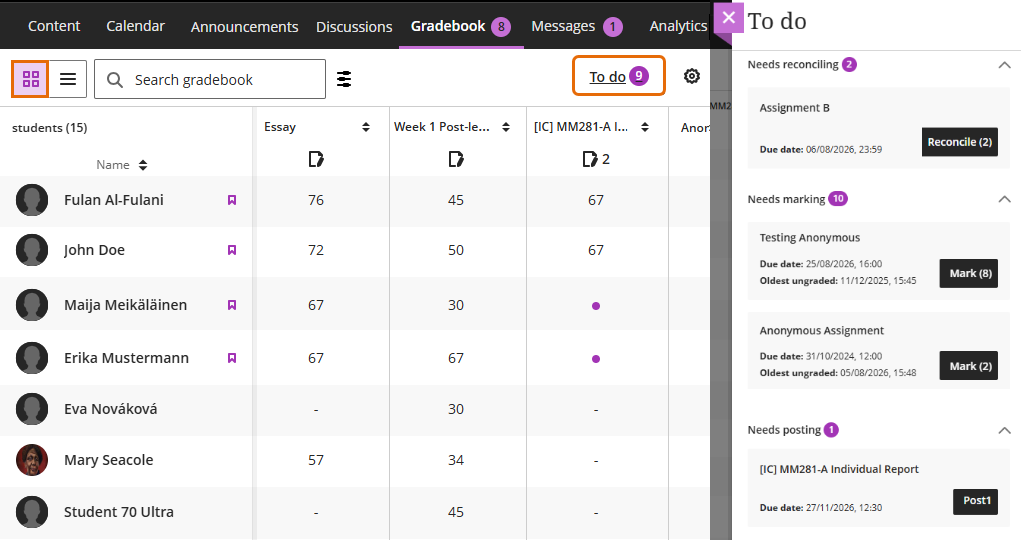
The Gradebook To do panel in a Blackboard course allows you to quickly see which assignments need to be marked within the course. This allows you quick access to all the marking you need to do on the assignment.
- Need Reconciling (applies to two markers per student function)
- Needs Marking
- Needs Posting (Programme Administrators ONLY will post marks for summative assessment)
Needs Reconciling
If you are using the two markers per student assignment setting. The any instructors assigned as a Reconcilers will see the submission that require reconciling.
Clicking on the Reconcile button will open the Submission tab of the assignment with the two markers per student function turned on.
Needs Marking
Clicking on the Mark button will open the assignment inbox for Turnitin or marking screen for Blackboard assignment.
Needs Posting
Clicking on Needs posting open the post all marks pop-up window.
Gradebook vs Submission point
Accessing the markable items via the Gradebook leads you to the same area as the Submission Point. You can see a list of students and their submission status.
In the Gradebook you can see all the assessments on your course, without delving into folders etc. You will also benefit from the overview tab which makes locating assessments by their status, needs marking/posting/reconciling easier.
In the Course Content you will find the submission points located in their named assessment folders, along side the brief and any other materials, you may find this a helpful way of knowing you are looking at the right piece of assessment.
Guide last updated on August 10, 2026