
Gradescope is a STEM focussed software allowing uploading of handwritten work, flexible rubrics and multiple choice bubble sheets.
Introduction
How to access Gradescope
Viewing student work, marks or comments
Introduction
Most Gradescope digital exams are of the ‘Homework / Problem Set’ type – students generally write their answers by hand on paper, then scan their work and upload it to Gradescope.
A handful have been set up as ‘Online Assignments’ – these can contain multiple choice questions, but also some questions where students need to submit a file (which often would be a scanned copy of handwritten work).
Some are in-person multiple choice exams which are then uploaded digitally using the Bubble Sheet Assignment.
Most exams which use Gradescope are set up as timed assessments (digital exam available for 23 hours, but must be completed within a set time, say 3 hours, once started). However, some are specificly timed.
How to access Gradescope
You should access Gradescope via a Blackboard course on which the tool has been enabled.
Navigate to the Take Home Exams menu area, and you will find a Gradescope link inside the Exam folder.
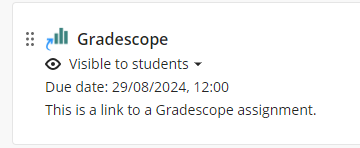
This will take you to the Gradescope course relating to this Blackboard course.
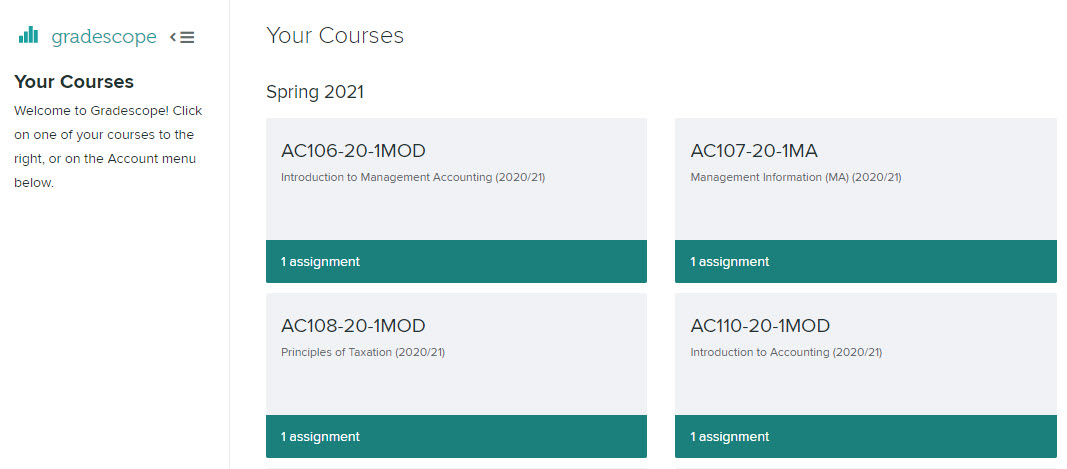
Once inside Gradescope you can navigate to any other courses on which you are enrolled – click on the Gradescope icon top left.

This takes you to your Gradescope Dashboard.
Viewing student work, marks and comments
View work by student
View work by question
When you enter a Gradescope course, you see a list of Assignments.
In most cases there will only be one Assignment – the exam for that module.
Click on the assignment name.
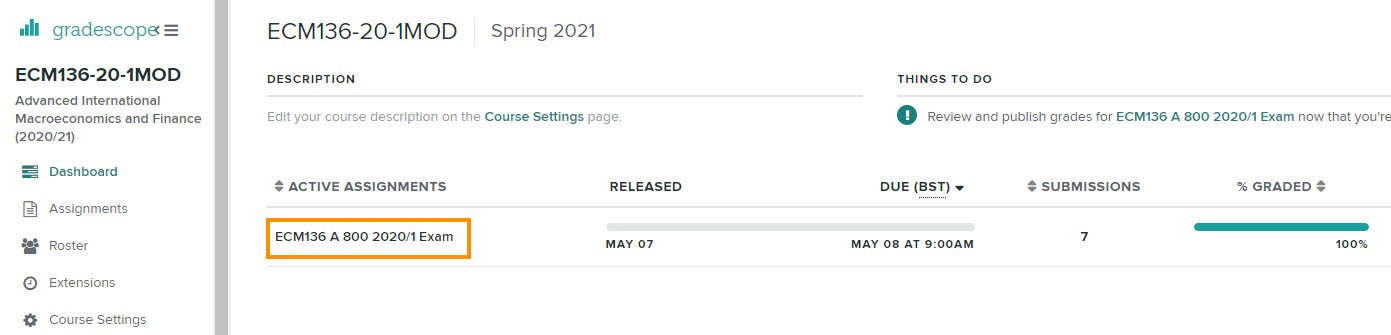
If all marking is complete, you will be taken to the Review Grades page.
You can sort the list by any of the criteria – e.g. sort by Name, or by Score.
Viewing work by student
To view the marked work for a specific student, click on their name.
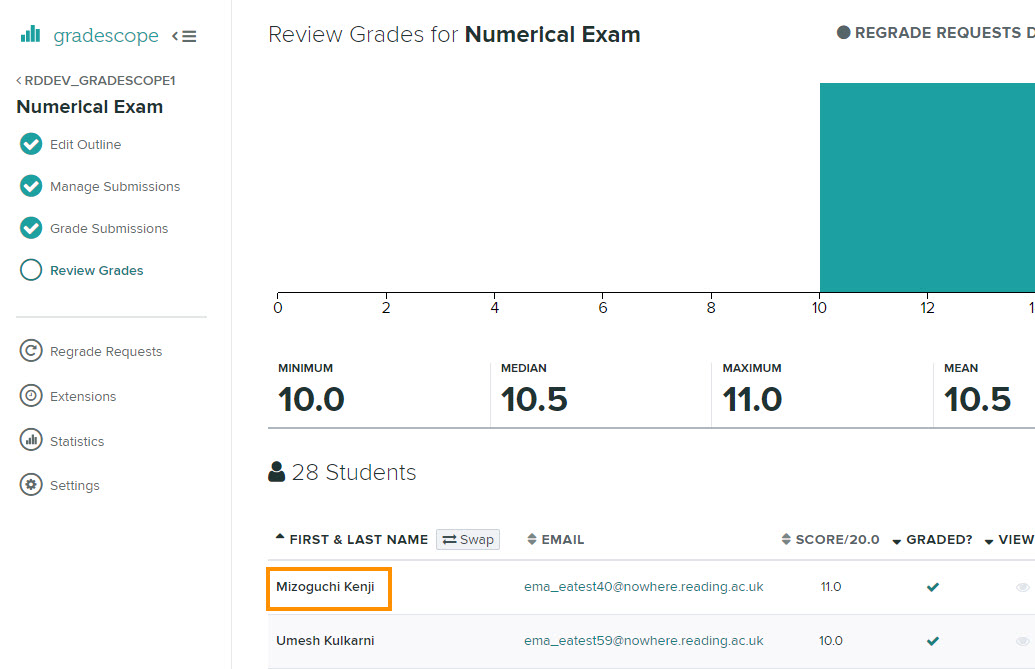
You see a summary of the student’s marks per question. Click on the Question number to see the student’s answer, how marks have been awarded, and any comments left by the marker.
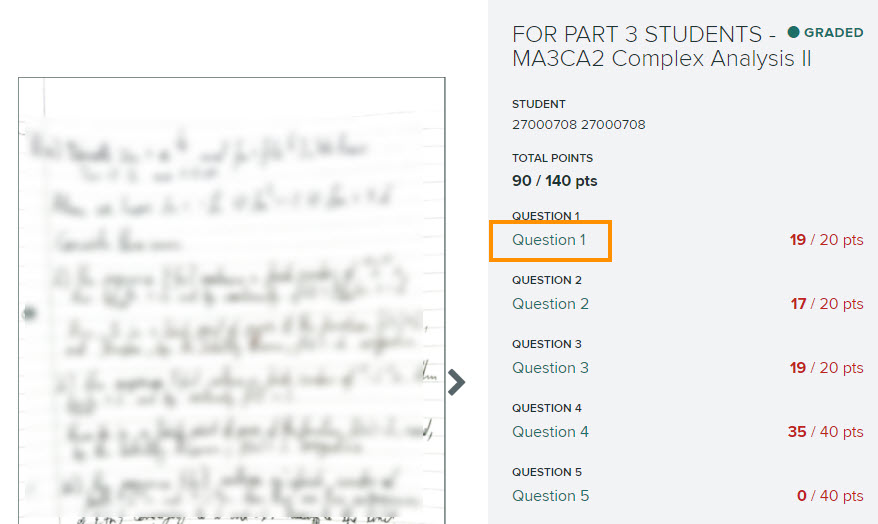
Please note
Gradescope marking is done using a rubric. These may be positive (awarding points for criteria met) or negative (deducting marks for criteria not met). Please check with the Module Convenor if you are unsure how marks have been allocated for your modules.
Markers will have left a variety of marks on students’ papers. They may simply have ticked answers, to show that they have marked them. Or they may have left comments to assist with moderation.
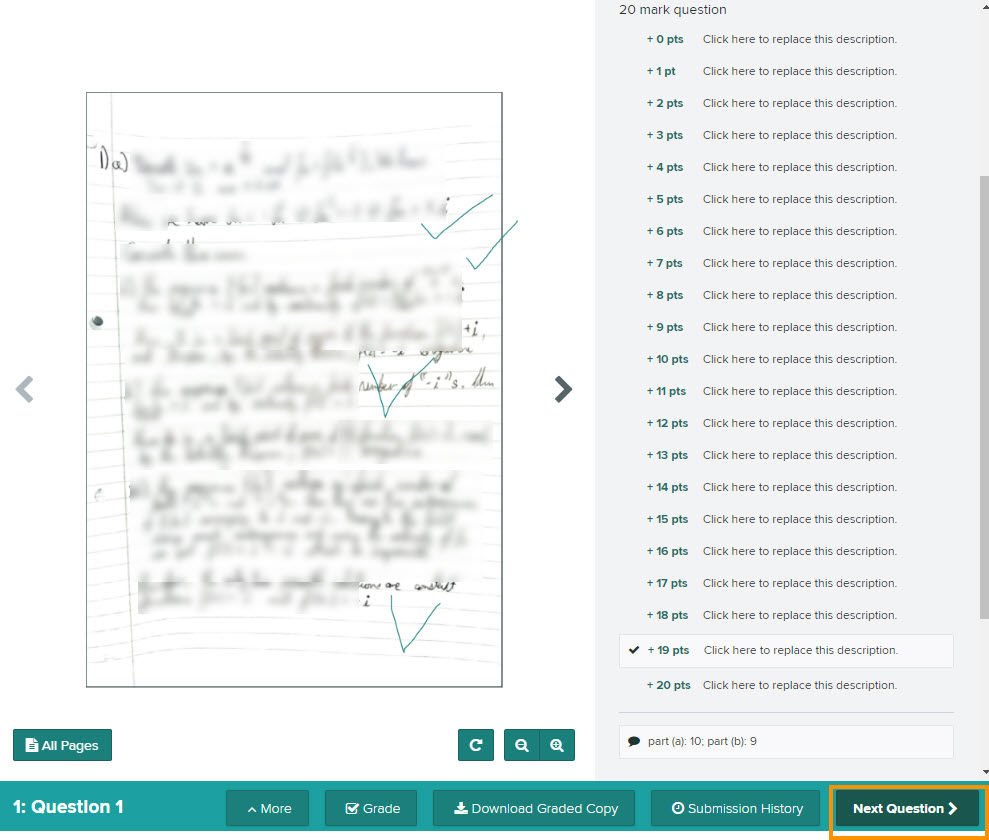
Click on Next Question to move on.
Viewing work by question
If you want to sample the answers to a specific question, choose Grade Submissions on the left-hand menu. Then choose the Question you want to view.
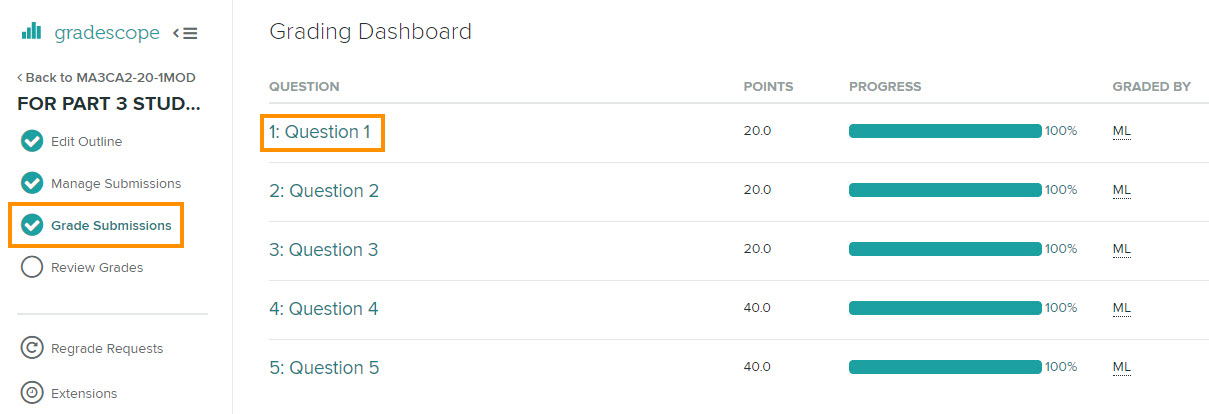
You will then see a list of students. Click on the first name to view their answer to this question, and then when you want to move on, click on Next at the bottom of the screen.

Guide last updated on October 14, 2026