
Flashcards are a learning activity that students can complete asynchronously on a Blackboard course.
What is are Flashcards
Flashcards are a type of retrieval practice tool used by students to retain key information such as definitions in their long term memory.
Blackboard Flashcards allow students to flip the card to see the definition/explanation and then mark it as “needs practice” or “feeling confident”. When they have run through all the cards they can revisit those marked as needs practice or retry the whole deck.
The game does not linked to the gradebook and instructors only see activity overview rather than that of individual players, in this way it is a low stakes personal learning tool for the students’ own use.
Create a Flashcards
Step 1 – open create panel and select Learning Activity
To add flashcards, hover over the area in the Course Content you wish to insert the Learning Activity and click the plus sign. From the Add Content menu select create. The Create Item panel will appear on the right-hand side of the screen.
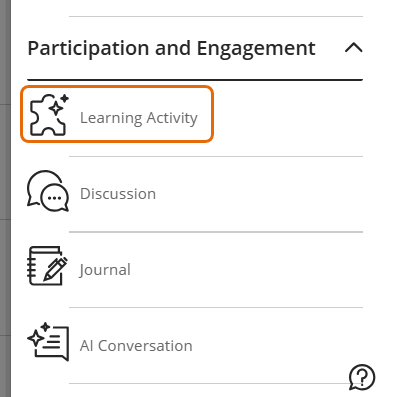
The Learning Activity option is listed in the Participation and Engagement section at the bottom of this panel. Click on Learning Activity.
Step 2: Name your activity and provide instructions
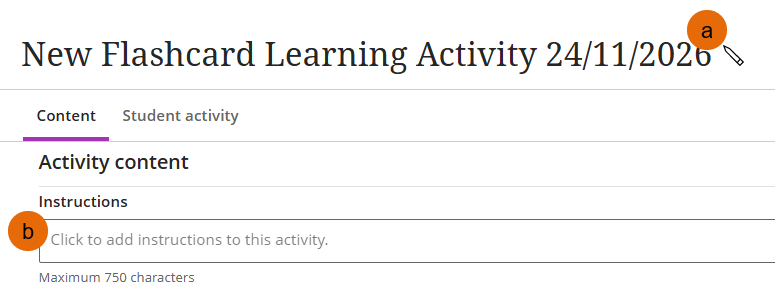
In the create Learning Activity page you can give your new activity a name (a).
Add instructions to the text box provided (b), there is a character maximum of 750.
Step 3: Create flashcards
Select Create flashcard to manually create cards of the activity.
The first card will appear on the screen. There are two text boxes, one for the front of the card and one for the back of the card.
- Click into the front text box to add your question, concept or word to act as the first part of the activity, you have a maximum of 250 characters.
- Click into the back text box to add the answer, description or definition to act as the second part of the activity. you have a maximum of 250 characters.
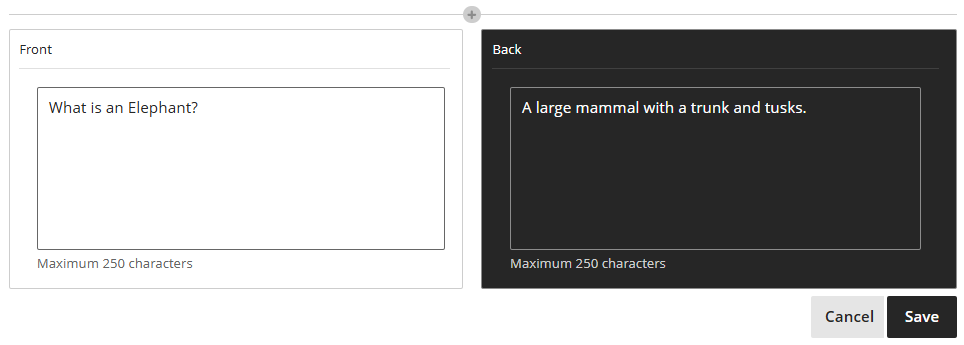
Click Save to save your first card. To make a second card click on the Plus icon.
Blackboard AI Design Assistant
To create a Flashcards using the Blackboard AI Design Assistant first follow Steps 1 and 2 above.
Then rather than selecting create, select Generate Flashcards.
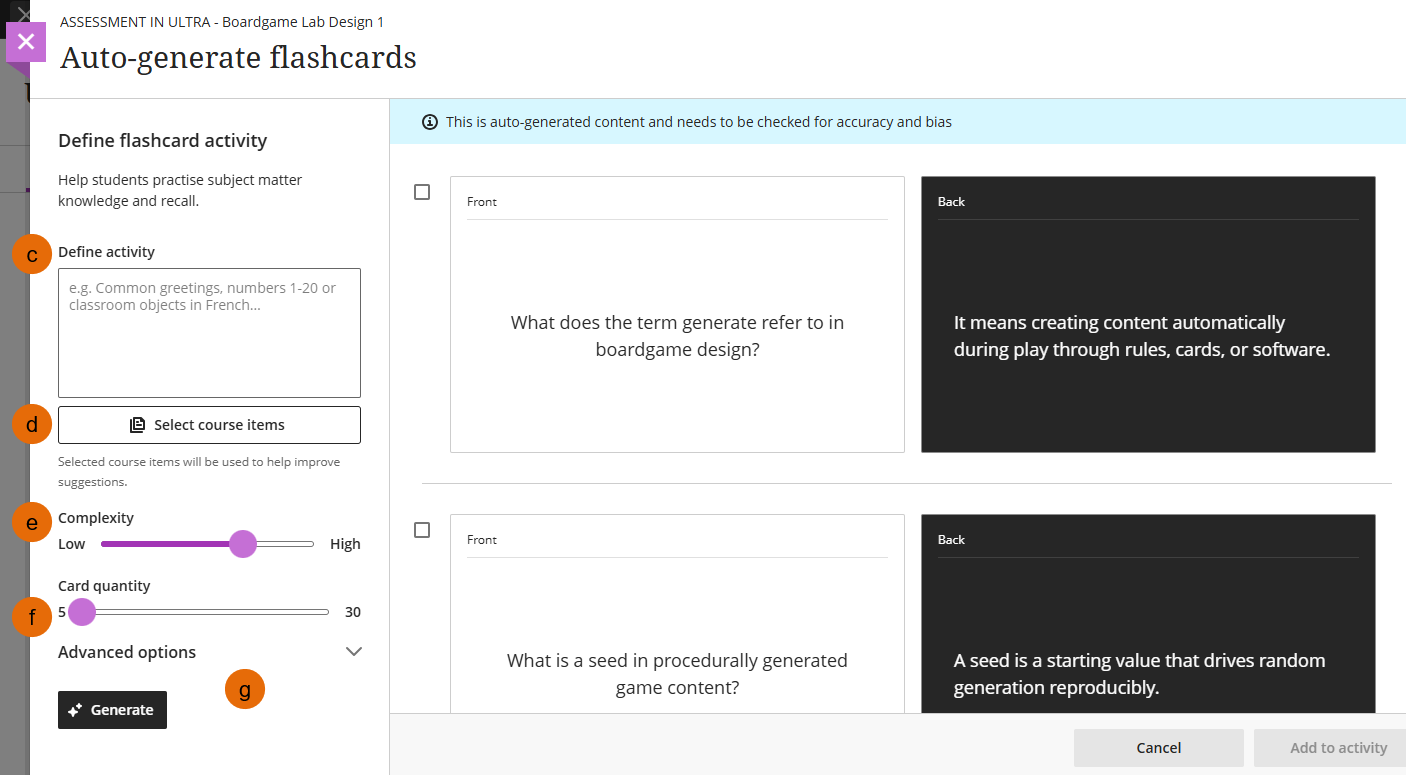
The Auto-generate flashcards screen will open. It will automatically generate flashcards based on the course title alone.
The Define activity text box (c) add a description and purpose of the activity. You can also use the Select course items function (d) to point the tool at the relevant materials on the course to use for the card generation.
The Complexity scale (e) can determine the level of complexity of language used in the cards.
Select the Card quantity (f) from 5-30. Please note
- you will only have one opportunity to generate cards, you can not return to this screen once the cards are selected
- once the cards have been selected you can edit the text and delete cards.
Advanced options (g) gives you the opportunity to create cards in many different languages.
Click Generate to produce flashcards. Select the cards you wish to use and click Add to activity.
When the cards have been added to the activity you can use the edit or delete options to make changes.
If you click on the plus sign you will be able to manually create new cards, the generate option will not be available for additional cards.
Student Activity Tab
The flashcard activity is only for formative use and can not be set to be graded. Therefore it will not appear in the Gradebook.
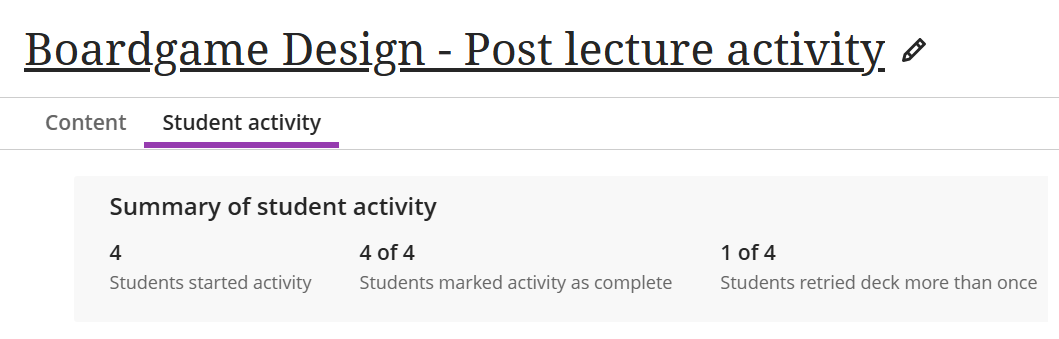
For an overview of student engagement with the game view the Student activity tab.
Guide last updated on November 26, 2026