
This guide is for scenarios where users need to manage permissions on folders or files that are directly uploaded to Blackboard content collection. E.g. HTML or SCORM packages to Blackboard content collection.
Steps below explain How to change folder permissions in content collection:
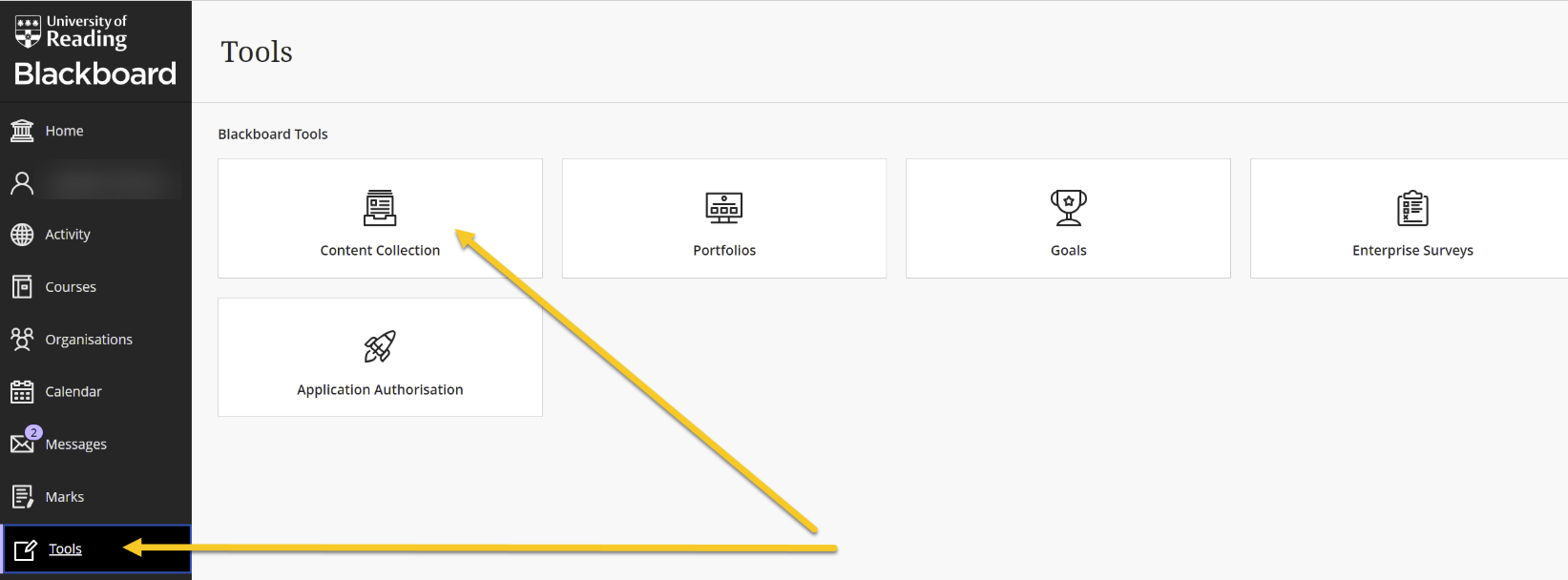
- Open content collect via Tools from BB dashboard
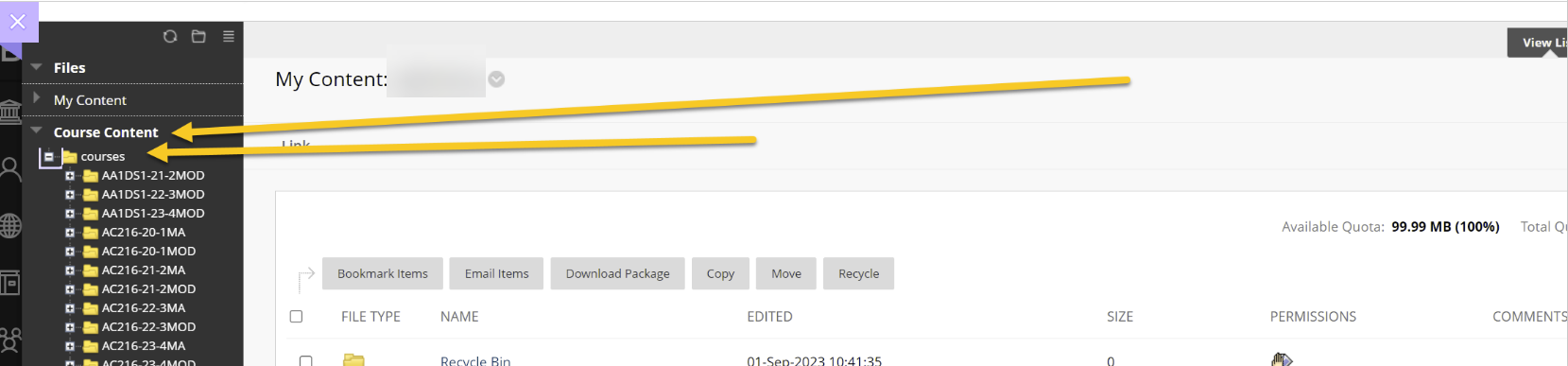
- Navigate to “Content collection” of your required course
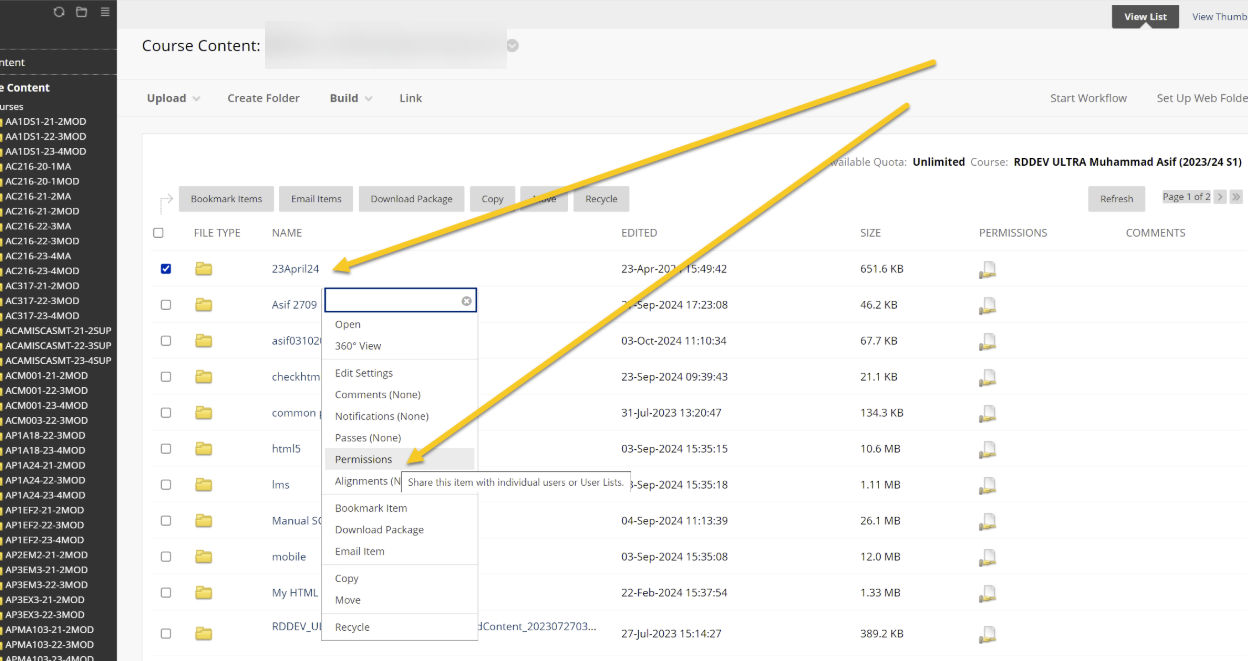
- Create or locate the main folder, click “Dropdown” arrow to open menu, click “Permissions” (this is the folder where you upload all your HTML or SCORM packages)
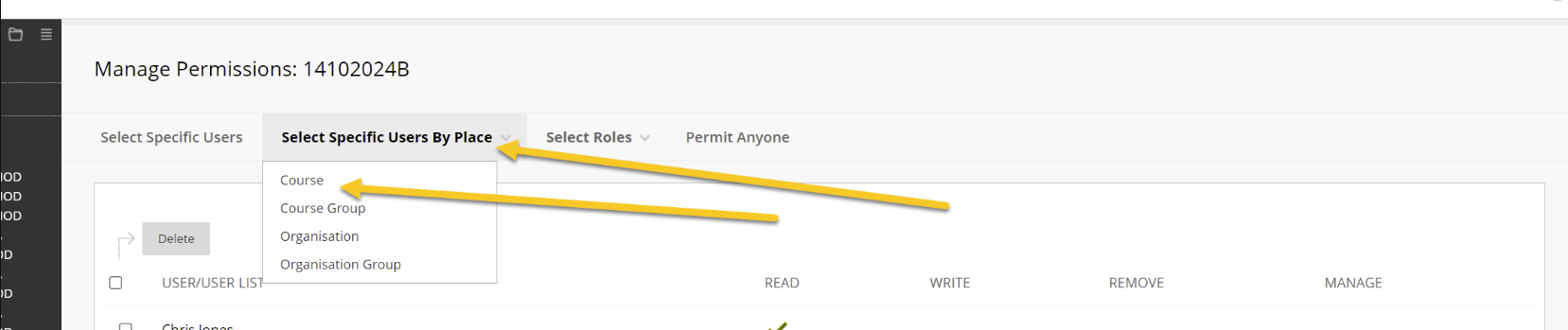
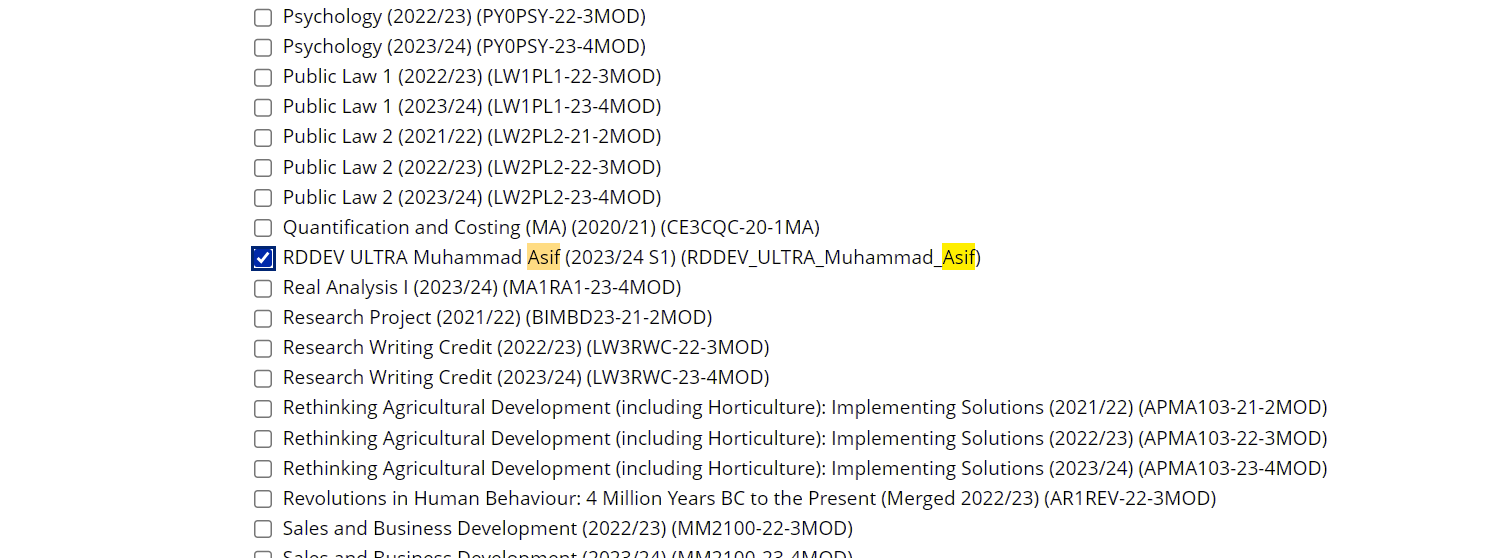
- From “Select specific users by place”, click “Course”
- Under “Choose courses”, tick the course where folder is present
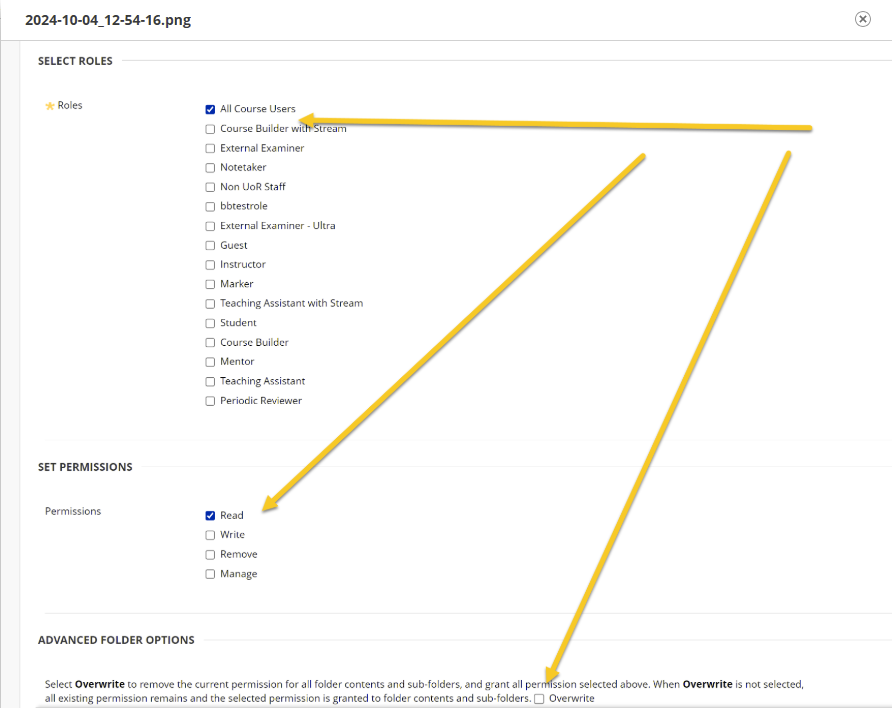
- Under “Select Role” tick “All course users”
- Under “Permissions” tick “Read”
- Under “Advance folder options” Do NOT tick “Overwrite” (only apply this option, if the change doesn’t work).
- Click “Submit”
Guide last updated on August 4, 2026