
When you set up a Turnitin assignment on your Blackboard course, this creates a corresponding Turnitin “class”. All Turnitin classes are set to expire 12 months from the creation date or on the day of the latest feedback release date for Turnitin assignments, whichever is the latest. When the class is expired, all the submissions and student attempts become read-only.
This means that:
- Marks or feedback cannot be edited
- New attempts cannot be submitted
If you need to edit marks and feedback, or allow further student attempts in an expired or read only class, you can re-activate the class.
When the class for your Blackboard course has expired, a message appears when you open any of the submitted papers in the Feedback Studio.
Staff on the Blackboard course can continue to reactivate the class (up to a maximum of 7 years).
What can be viewed in an expired Turnitin class?
Staff
- Can open submitted papers in the Feedback Studio
- Can view any marks and feedback previously entered.
- Can download papers.
- Can download the Gradebook.
- Cannot edit marks or add new feedback.
Students
- Can open submitted papers in the Feedback Studio.
- Can view any marks and feedback previously entered by academics.
- Can download their papers.
- Cannot submit or re-submit.
What action is required?
If the assignment is needed only as a record of what was submitted, and of marks and feedback provided – No action required
If there are still students who need to submit work to the course or there is work which still needs marking you can reactivate the class.
Reactivate the class
To reactivate an expired class, the Instructor or Programme Admin should:
- Create a draft submission point in the relevant class
- Name it something that will be clear to student that it is not in use
- Enter the Assignment Inbox of this new submission point
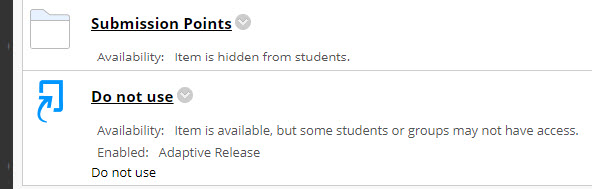
The Turnitin class will now be reactivated, allowing further student submissions, and staff to carry out marking.
To prevent the class from closing again you may keep the draft submission point on the course, hidden from students, with a Feedback Release date in the future. Alternatively you may choose to delete it when you have completed the work you needed to do.
When deleting a Turnitin submission point you will need to delete the submission point and the grades centre column separately.
Guide last updated on May 26, 2023