
You may wish to create your marking rubric before students have submitted in line with your arranged marking scheme – you can still adapt the rubric as you mark where needed.
Choose the rubric set up
Set the outline
Create a rubric
Rubric permissions
Choose the Rubric set up
When creating the Assignment under Create Your Rubric check the box Before student submission if you wish to create the rubric as part of the initial set up.
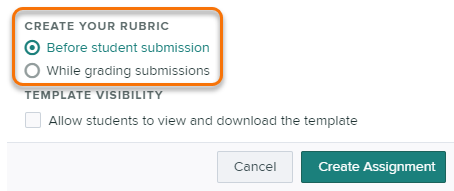
If While grading submissions is selected, this will simply skip this step in the initial set up, and you can go back when you are ready.
The following steps apply to both.
Set the Outline
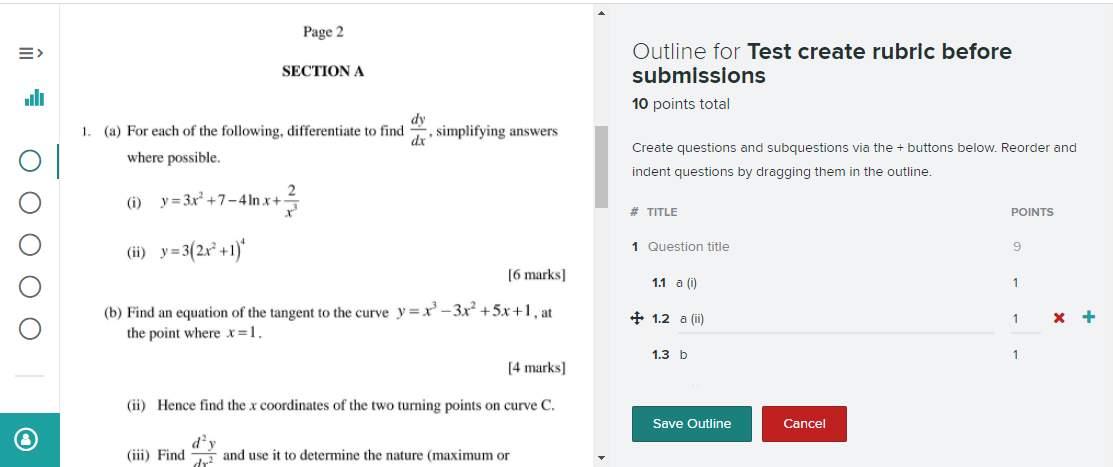
Once the Create Assignment button is clicked the Assignment Outline page will open.
Set the Outline as usual.
Create a Rubric
When you have saved your outline the Create Rubric page will open.
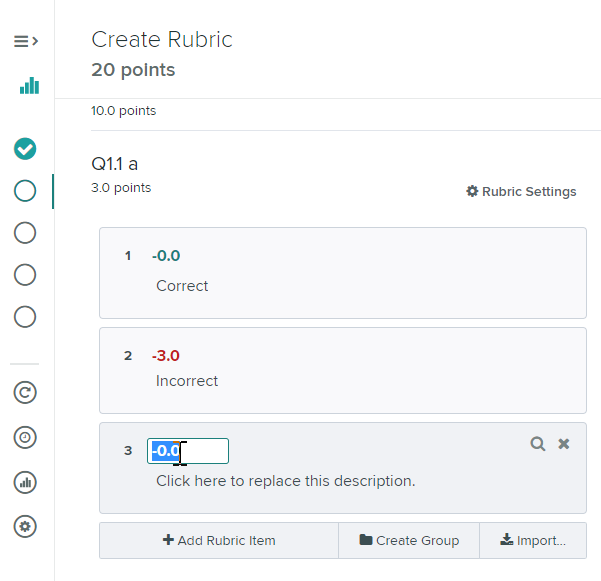
Now you can create your Rubric. Alternatively you can come back to this page at a later time to create the Rubric, without any submissions.
The option to Create Rubric will be available from the left-hand side menu when you click on the Assignment from the dashboard.
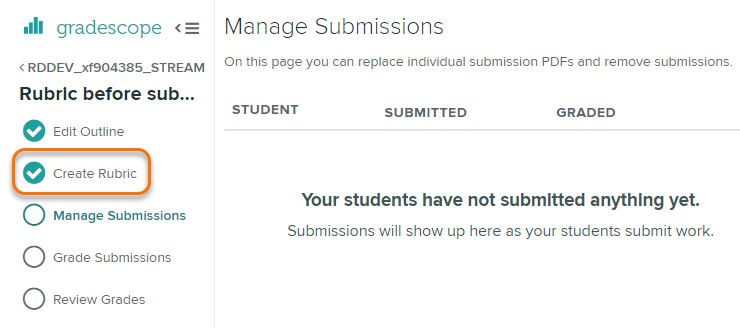
If appropriate, you can reuse the Rubric from one question on other questions – in the same assignment, or in any assignment in any course where you are the Instructor.
Please see Copying Rubrics.
Rubric Permissions
If you wish to set editing permissions for the rubric you can do this in the assignment settings.
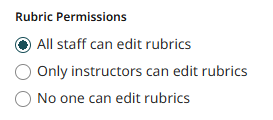
Select who can edit the rubric from all staff, only instructors or no-one after creation. This is best when you have a set rubric where extra additions will not need to be made.
Guide last updated on October 13, 2026