
A Text Item allows you to directly enter text in a Gradebook column of up to 32 characters per student. Use it to write a short note or keyword to help administer assessment, for example, the name of a second marker.
How text items work in the Gradebook
Text items are columns you can type text into. The column
- Gives each student a seperate text cell.
- Appears in the Filter and be ordered by the text.
- Content can be downloaded to work in Excel and re-uploaded.
- Can be seen by staff and / or shown to students.
- Is posted automatically (but can be hidden from students).
- Does not support the entry or calculation marks, rubrics or feedback, due dates or points values, and does not transfer to RISIS via the EMA. Integration. (Instead, use a standard grade column to provide feedback or a grading schema to apply text based marks, for example, pass / fail.)
Add a Text Item
New Text Items are created in the Gradebook by adding a new Text Item and then entering text in the column cell for a student. This is done in the Markable Items or Marks tab in the Gradebook.
Add in List view
Hover over one of the grey lines separating the rows. Click the purple plus icon and select “Add text item”.
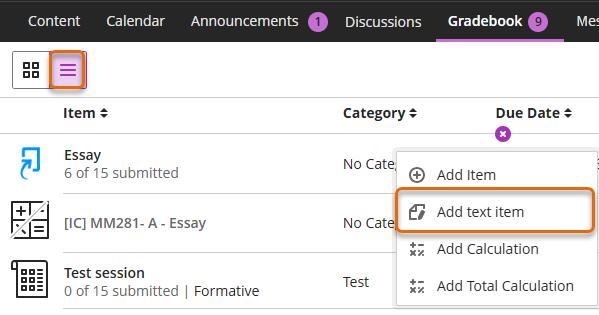
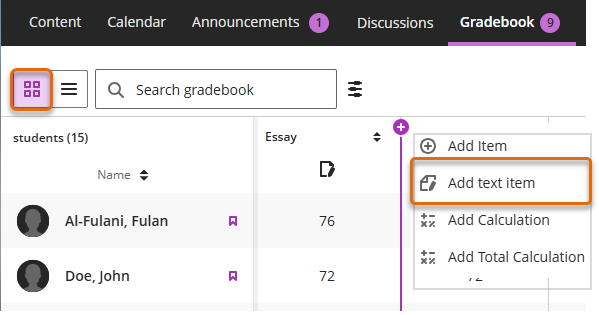
Add in Grid view
Hover at the top of the column where two columns meet. Click purple plus icon, select “Add text item”.
Apply settings to Text Item column
Once you have selected Add text item, a New Item panel will open. Set up the column according to your needs including due date, points, category or description.
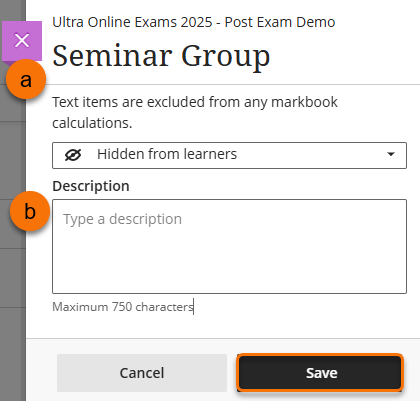
- Add description (b) if desired, could be helpful for other staff members and students to know the purpose of this column.
- Name the column (a) something meaningful.
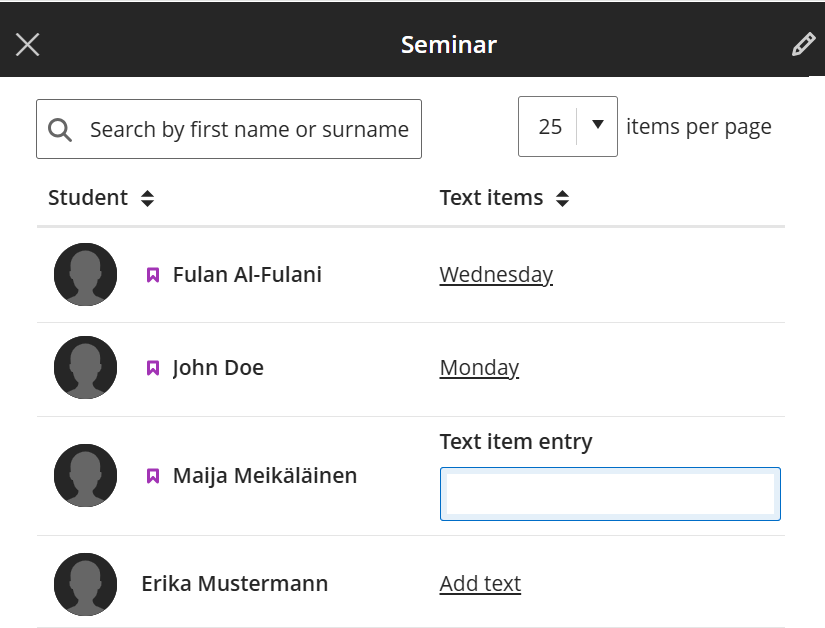
- Return to the Grid or List view and add the text to your new column (c). There is a character limit of 32.
List view
Grid view
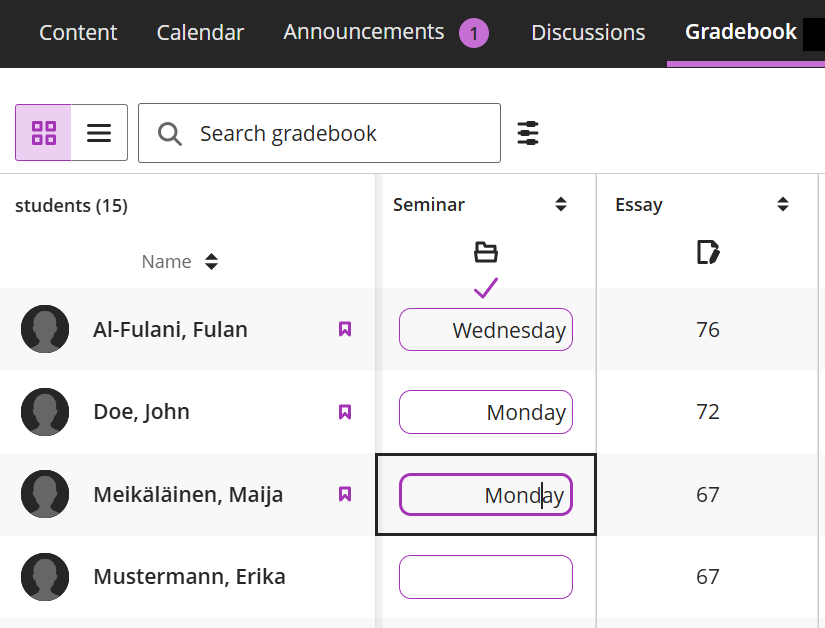
Instructors Views
List view
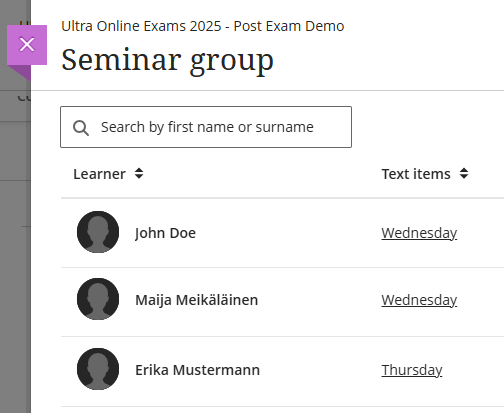
In the List view, the Text Item will appear in the same way that assessments do. Once opened, it will display the text entered in the cell for each student.
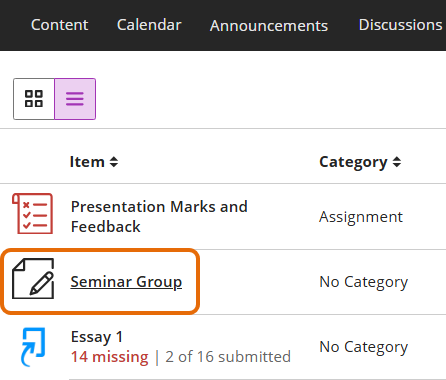
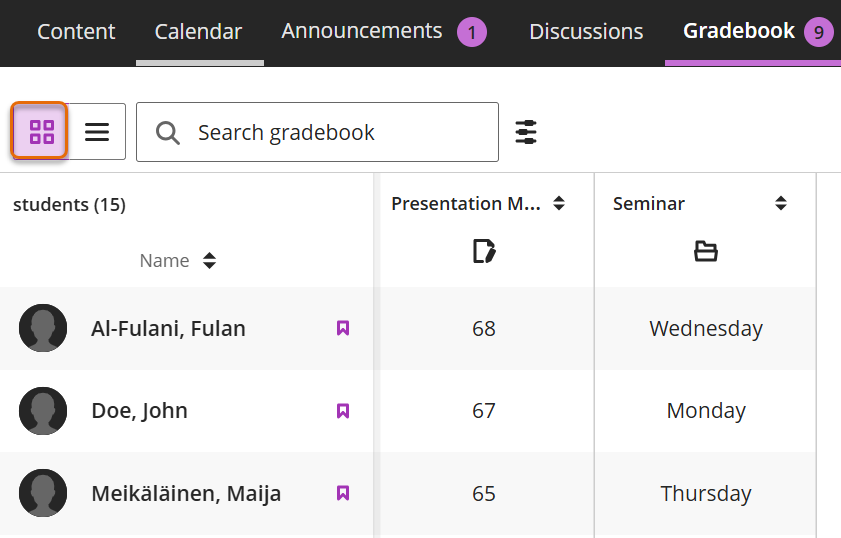
Grid view
In the Grid view, the text will appear in the column next to each student. You can move the column’s position in the List view.
Student view
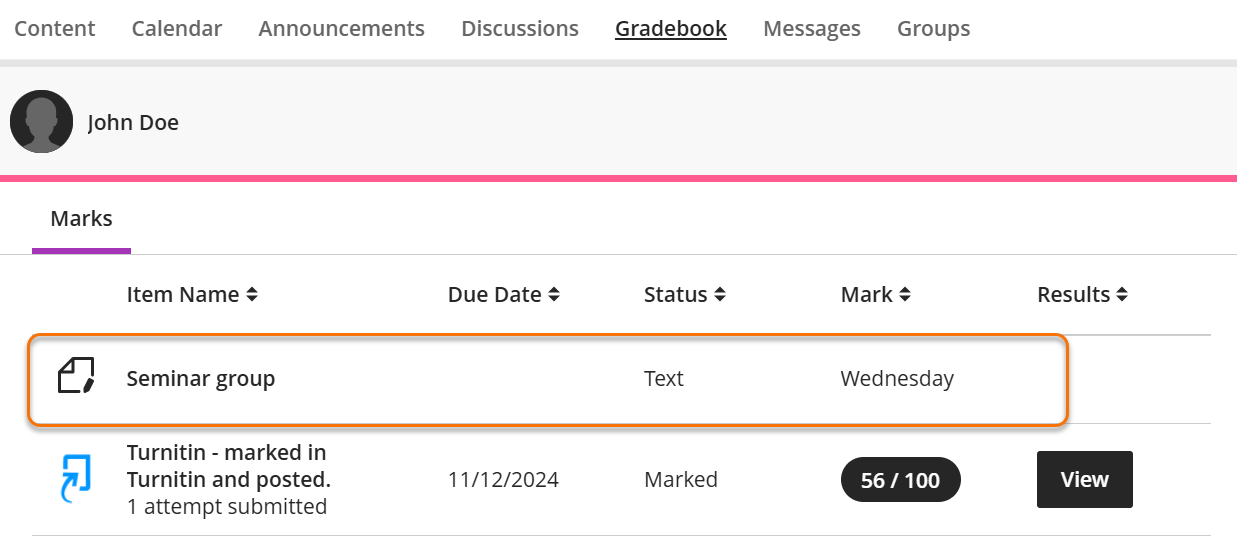
It is possible to set the Text Item as visible to or hidden from students.
If set to visible to student, they will see the Text Item as another assessment in their Gradebook. The text will appear under the Mark column.
Guide last updated on August 10, 2026