
Blackboard Ultra allows you to add additional columns to the Gradebook. There are a number of different item types Item, Text Item, Calculation, Total Calculation.
An Item allows you to add marks directly to the Gradebook. Please note that you can not use a Rubric with these added columns.
- Add a Column
- Manual columns and integration
- Add marks and feedback to the column
- Students view of the marks and feedback
Add a Column
New columns are created in the Gradebook by adding a new Item and using the item settings to create your new column for your specific use.
This can be done in the List or Grid view in the Gradebook.
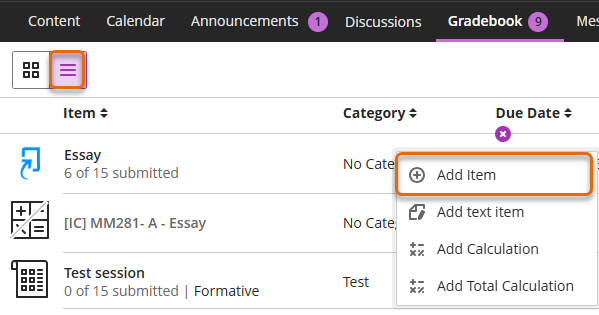
Add item in List view
In List view, hover over one of the grey lines separating the rows. Click the purple plus icon and select “Add Item”.
Add Item in Grid view
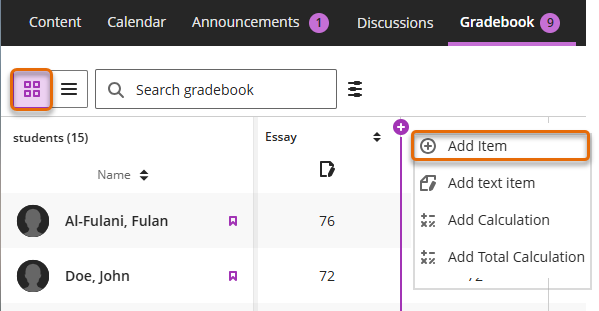
In Grid view, hover over at the top of one of the grey lines separating the columns. Click the purple plus icon and select “Add Item”.
Apply settings to new column
Once you have selected Add Item a New Item panel will open. Set up the column according to your needs including due date, points, category or description.
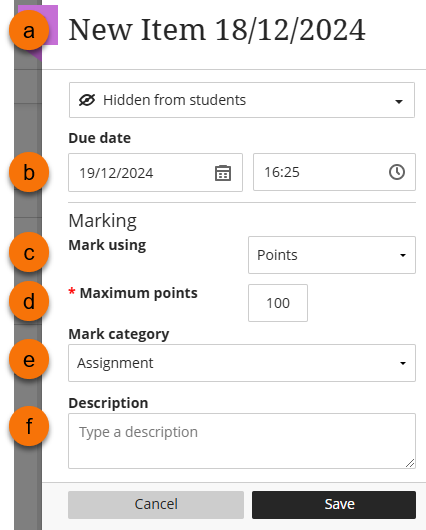
- Name the column (a) something meaningful.
- Add a due date (b) if required.
- Mark using preference (c) (points by default).
- Maximum point, (d) usually 100.
- Mark category, (e) select as desired (Assignment by default).
- Add description (f) if desire, could be helpful for other staff members and students to know the purpose of this column.
Manual Columns and integration
If you are using manual columns to feedback to students check with mode of submission you have chosen.
You may be using a manual column so that you can attached a word document as feedback for a Turnitin submission, in this case you can map the Turnitin column or the manual column to the [IC] calculated column to return the marks to RISIS.
If you have chosen Bb presentation/performance – manual feedback integration will create a Gradebook item with the pre-fix [IC]. You can enter the marks directly into this column and transfer them back to RISIS using Marks Approval and Transfer, however, rubrics can not be attached to manual columns.
| MC01 | Bb presentation / performance – manual feedback | Manual column | N |
| WC06 | Physical entity submission | Weighted (calculated) Column | N |
You will not be able to use rubrics to mark with a manual column (item), therefore, you may wish to use the Blackboard Assignment submissions offline or Turnitin grading template options to give marks and feedback where no electronic work is submitted by the student.
A weighted column is provided for physical entity submissions mode of submission so that you can choose the best route for you to feedback to the students. Whichever route you decide you can then map the column the results are in to the [IC] calculated column.
Adding Marks and Feedback to the Item
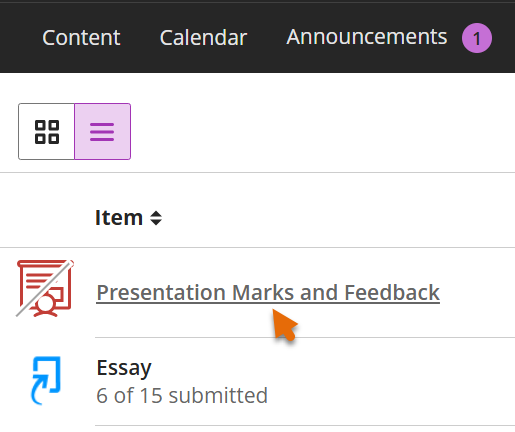
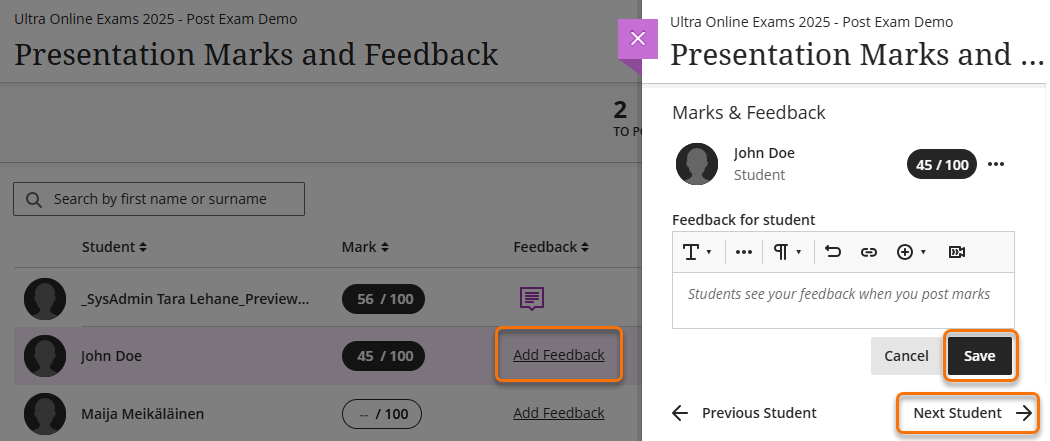
Once the new column has been set up you can add marks and feedback by opening the marking screen.
Open marking screen from List view
Open marking screen from Grid view
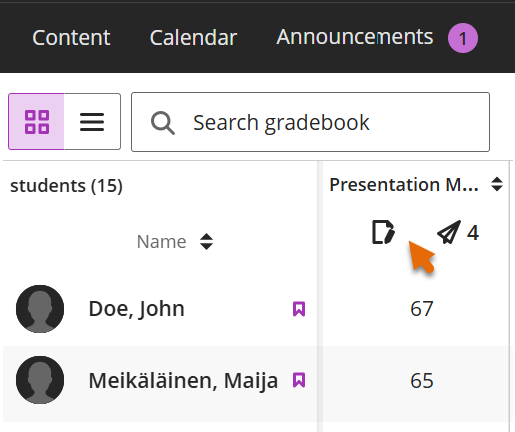
In the marking screen add marks and feedback.
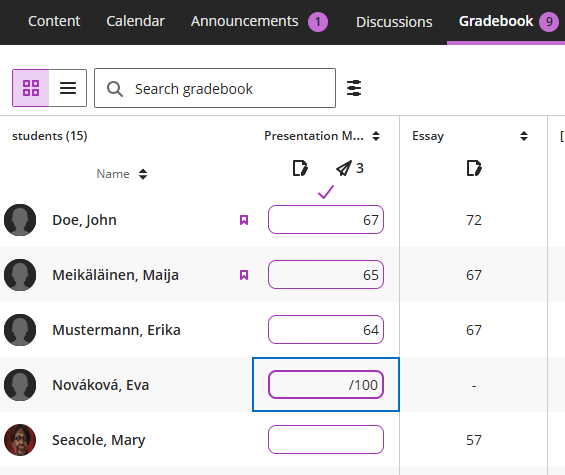
Add Marks only
It may save time to add the marks directly to the column in the Grid view. Hover at the top of the column until the purple edit pen icon appears.
Once the marks are in the feedback can be added by opening the marking screen or by clicking into each cell and opening the marks details panel.
How students will see their feedback
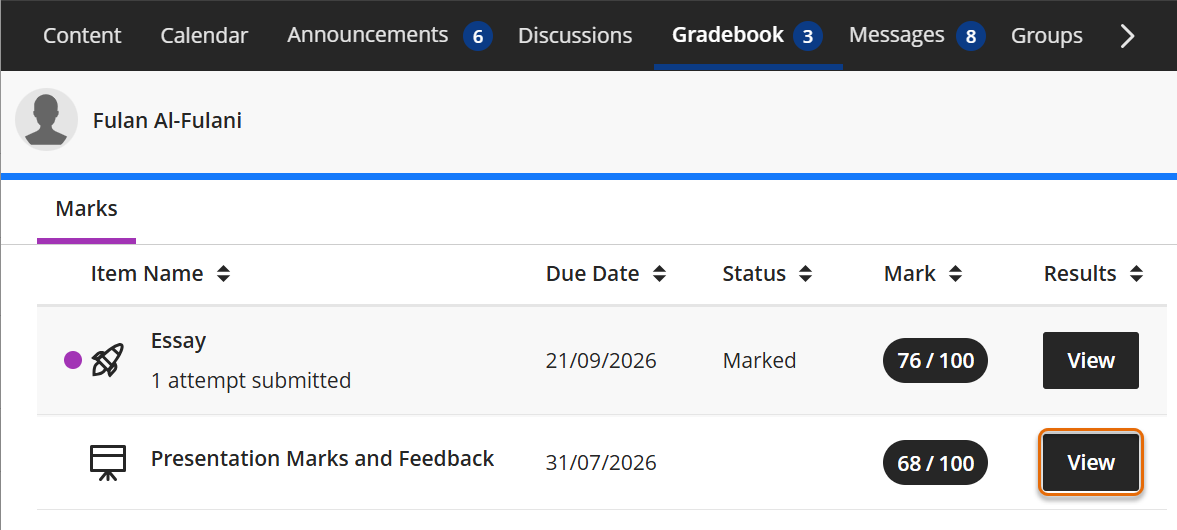
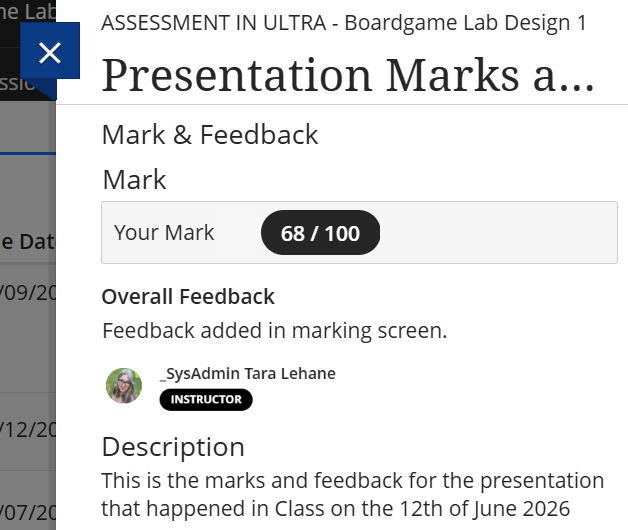
Once you have provide all the marks and feedback and Post the marks the student will see the marks and the feedback via the Gradebook.
When the students click on the View button a panel will open with the feedback.
Guide last updated on August 10, 2026