
When using an Assignment or Test with limited attempts, it may be necessary to allow a student additional attempts due to wrong work being submitted or Assessment Adjustments. Blackboard calls these Exceptions.
Exceptions also allow you to adjust assessment settings for individual students, including applying due date extensions and controlling their access to submission points.
Add or edit exceptions
Edit exception options
Allow additional attempts
Add or edit exceptions
To edit these options for students, navigate to the Gradebook Grid view. You can access the exceptions panel either via the student Marks tab or the Mark details panel.
Via student’s Marks tab
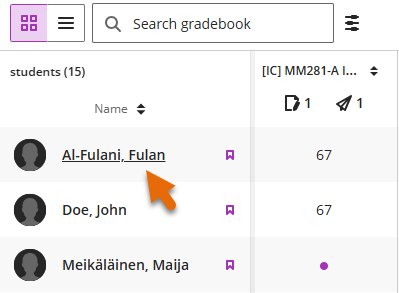
- Open the Gradebook Grid view.
- Click on the student’s name in the far left column. The student’s detail card opens on the Marks tab by default.
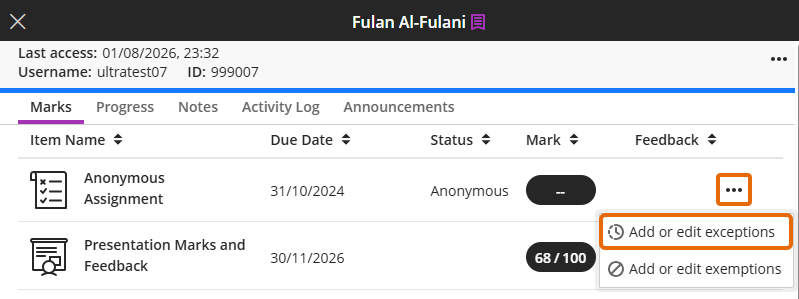
- Find the relevant assessment from the list and select Add or edit exceptions from the three dot menu.
- When the panel opens edit the exceptions.
Via Mark details panel
- Open the Gradebook Grid view.
- Click in the cell for the specific student and specific assessment. The Marks details panel will open on the right-hand side of the screen.
- When the Mark details panel opens, click Accommodations, the exceptions options can be edited from here.
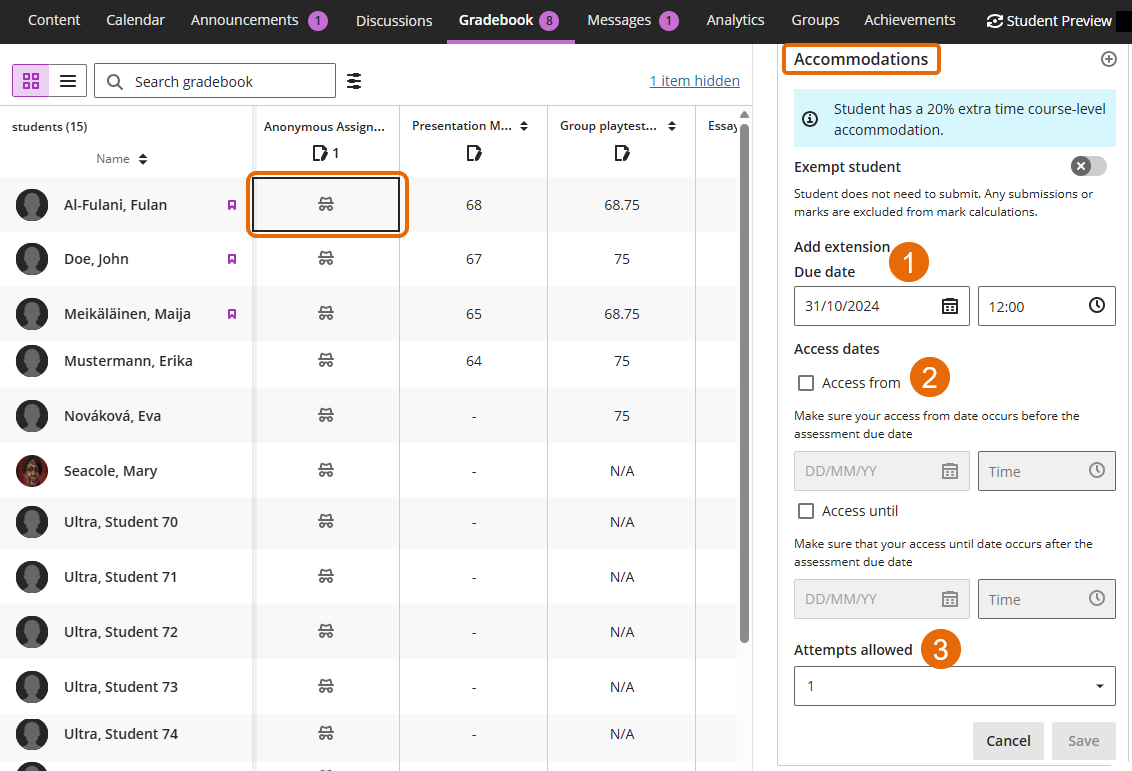
It is possible to make exceptions when anonymity is on.
Edit exception options
You can now add or edit the necessary options for the student as required. If you are editing options for a group assignment, these will also apply to rest of the group.
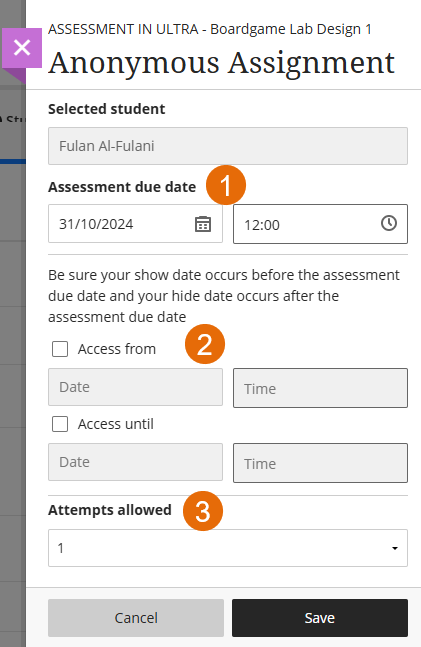
Options are:
- Change Due Date – allows students to submit outside of the normal assignment dates. NB* the new dates does not show anywhere for instructors or student.
- Change Availability of assignment – changes availability for this assignment and this student/group only.
- Change number of attempts allowed – allows students to make additional attempts.
Click Save to finalise edits.
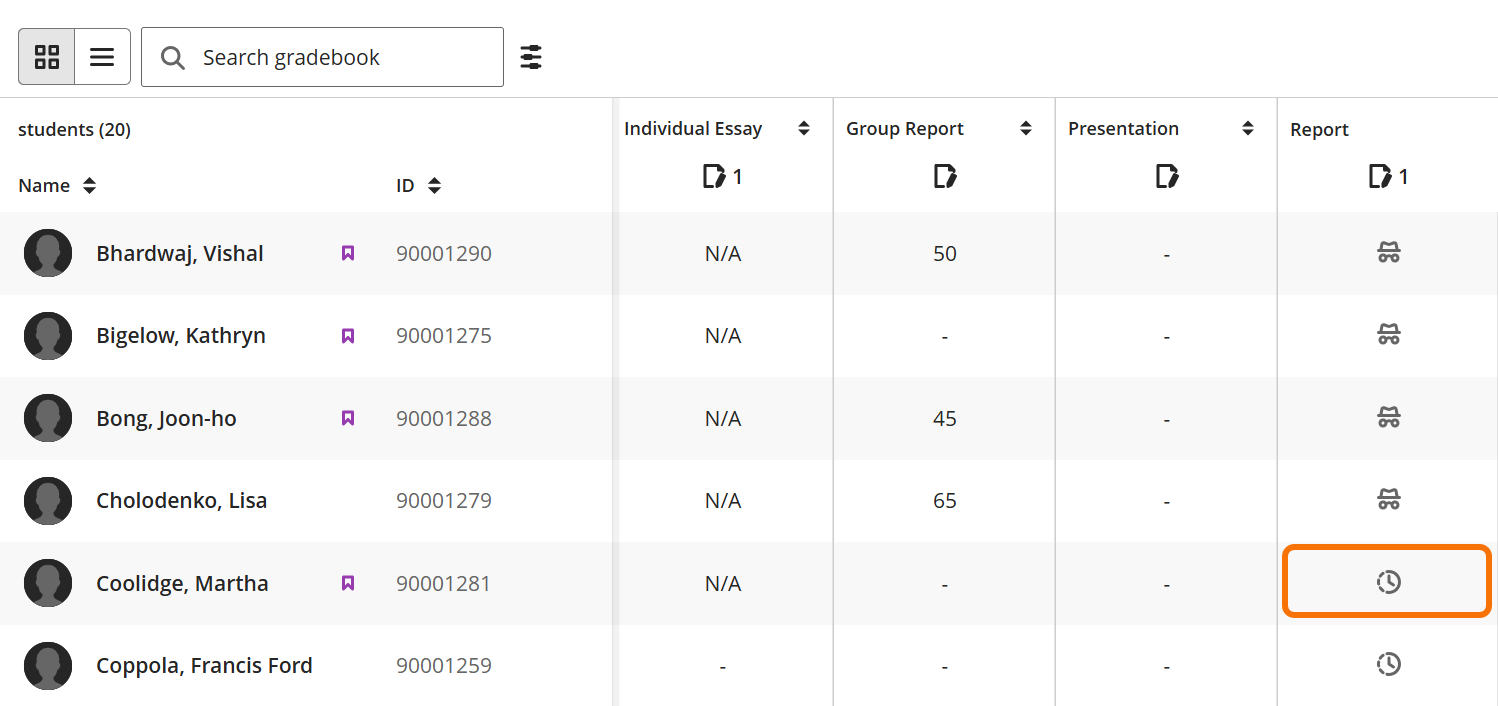
A clock icon will appear in the cell where an exception has been created. The icon will disappear once the submission is marked.
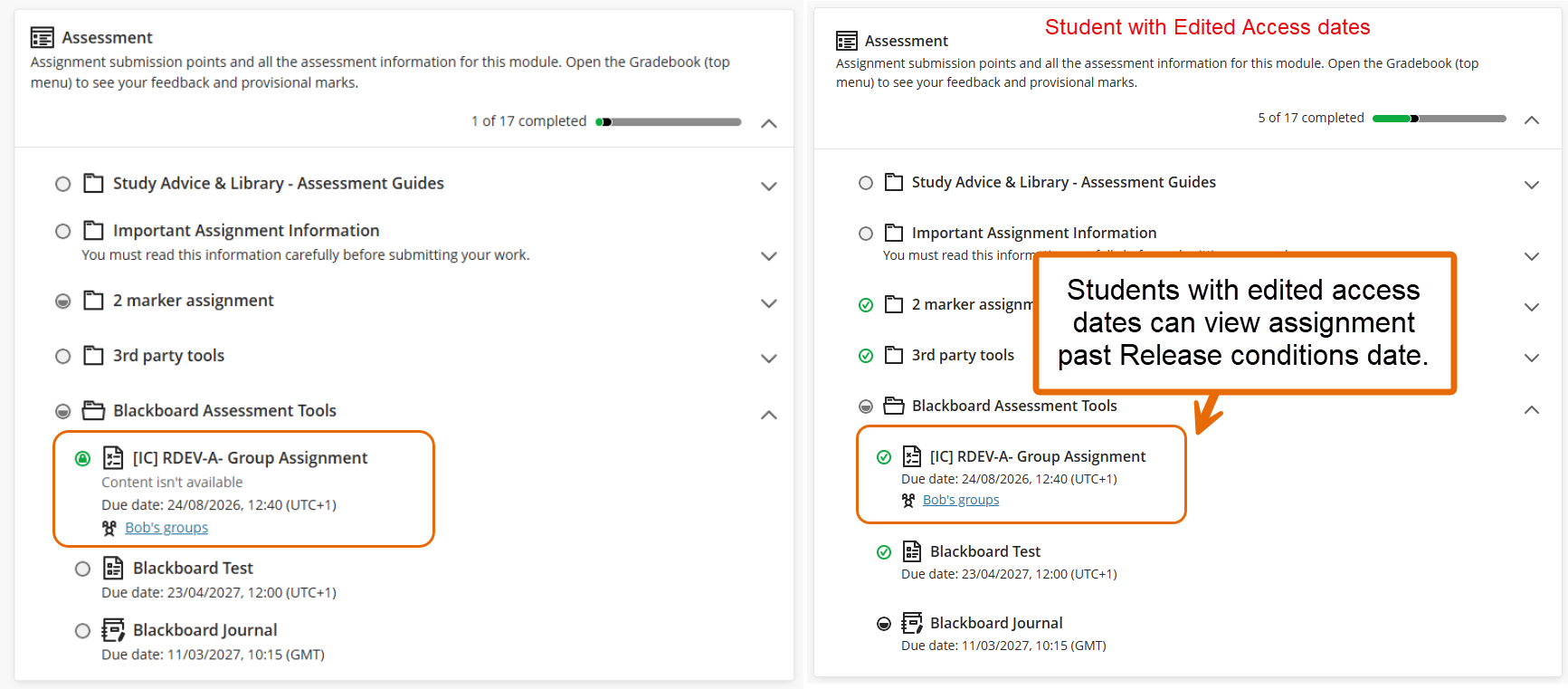
Student view of Access exception
Guide last updated on October 29, 2026