
The Ultra Gradebook has filtering features which allow users to filter their gradebook view by multiple variables, such as individual users, groups, items, and categories. You can also filter the Gradebook to only show students on merged courses. This offers more flexibility for users wanting to get a focused view of their Gradebook.
Applied filters can also be bookmarked and referred to again at a later date.
Applying filters to the Gradebook
- Navigate to the Grid view of the Gradebook and click the Filter icon.
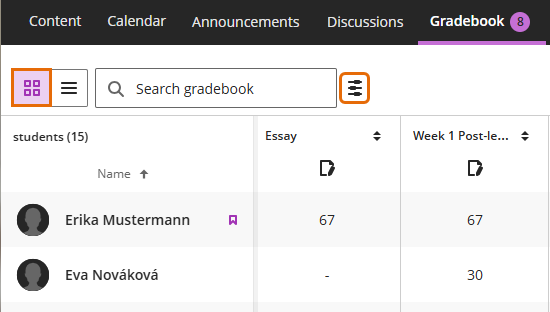
- The Gradebook filter will open.
- Select any filters that you want to apply.
- You can select multiple different variables at once.
- Students
- Groups
- Categories
- Assessment Type (summative/formative)
- Markable items (you can add mulitple columns to your filtered view)
- Merged courses (selecting to filter by merged course affects the overall result as this information takes precedence over other filters)
- Click Apply to see the results in the Gradebook.
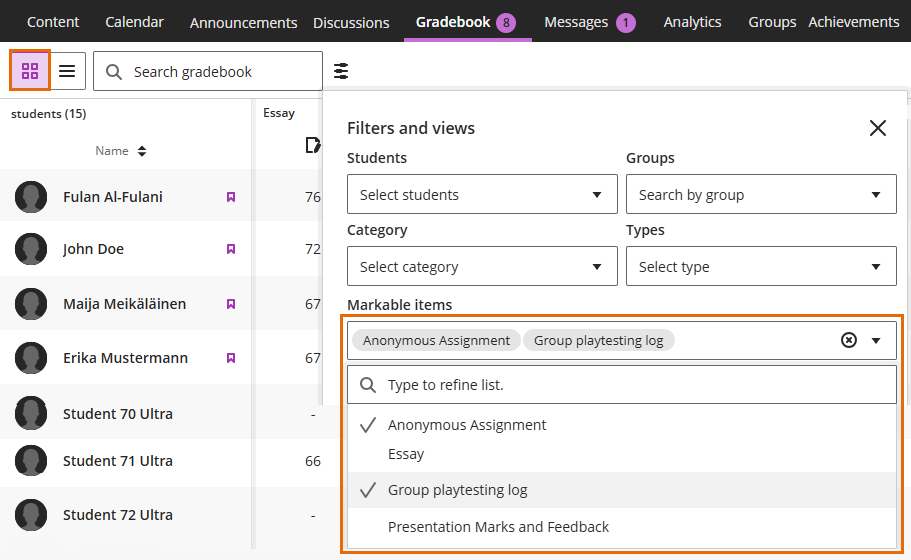
- In the Gradebook a list of Filters Applied will show below the top menu. You can remove individual variables by clicking the X in the corresponding box,

Linking to Gradebook Grid view
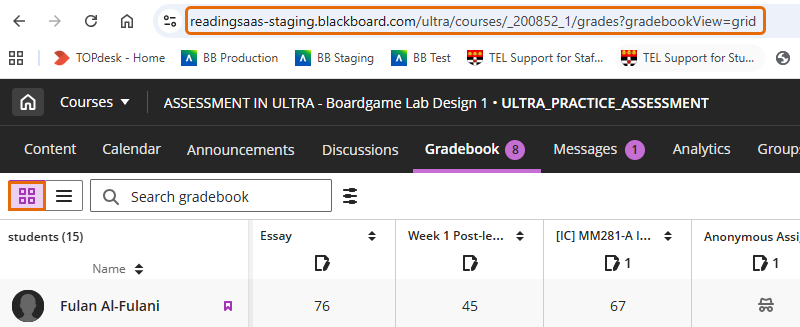
You can copy the URL of the Gradebook Grid view and share it on the External Examiners Organisation.
This will take them to the Gradebook of the relevant course, not a filtered version of the Gradebook. External Examiners can apply filters to find a specific group if directed to do so. Advise them in the Organisation as to which groups and assignments to filter for.
Adding categories
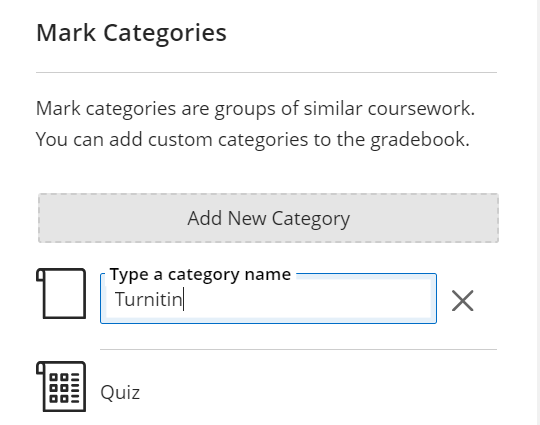
You can add your own custom categories to the Gradebook, which can be used when filtering. You can, for example, create a Turnitin category if you want to filter the Gradebook to only show Turnitin assignments.
- Navigate to the Gradebook and click the cog icon.

- The settings panel will open, scroll down to “Mark Categories”. Click “Add New Category”.
Bulk editing categories
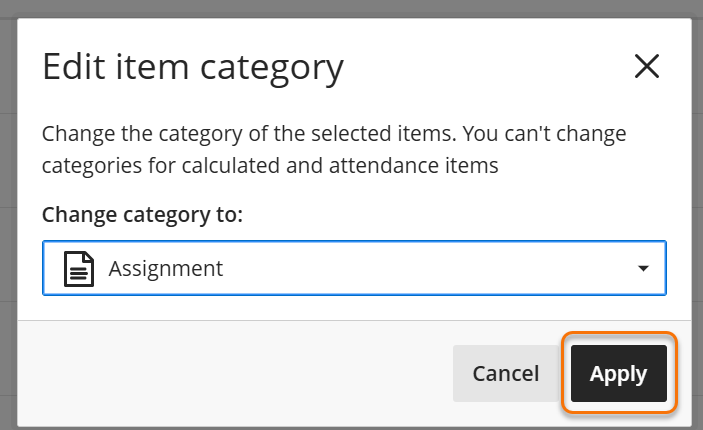
You can assign a category to multiple markable items at once within the Item Management screen.
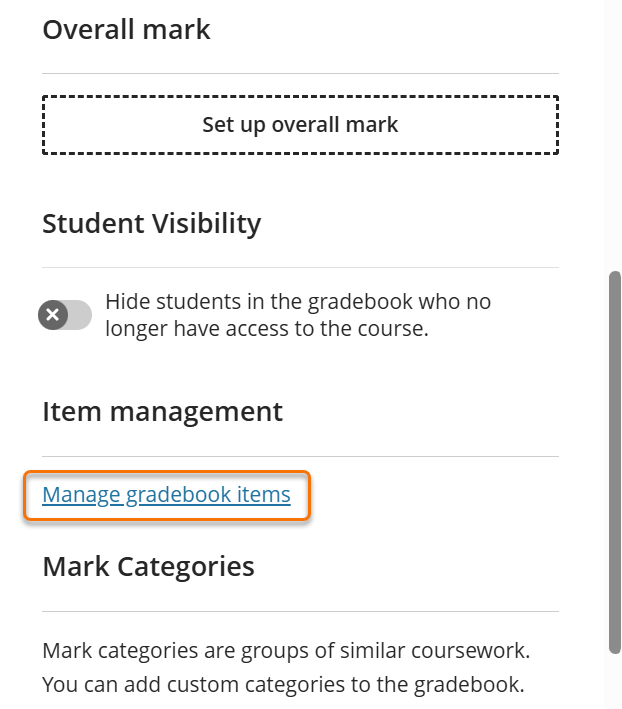
- From any view of the Gradebook, click the cog icon to open the Gradebook settings menu.

- On the side pane that opens, scroll to the Item Management section. Click “Manage gradebook items”.
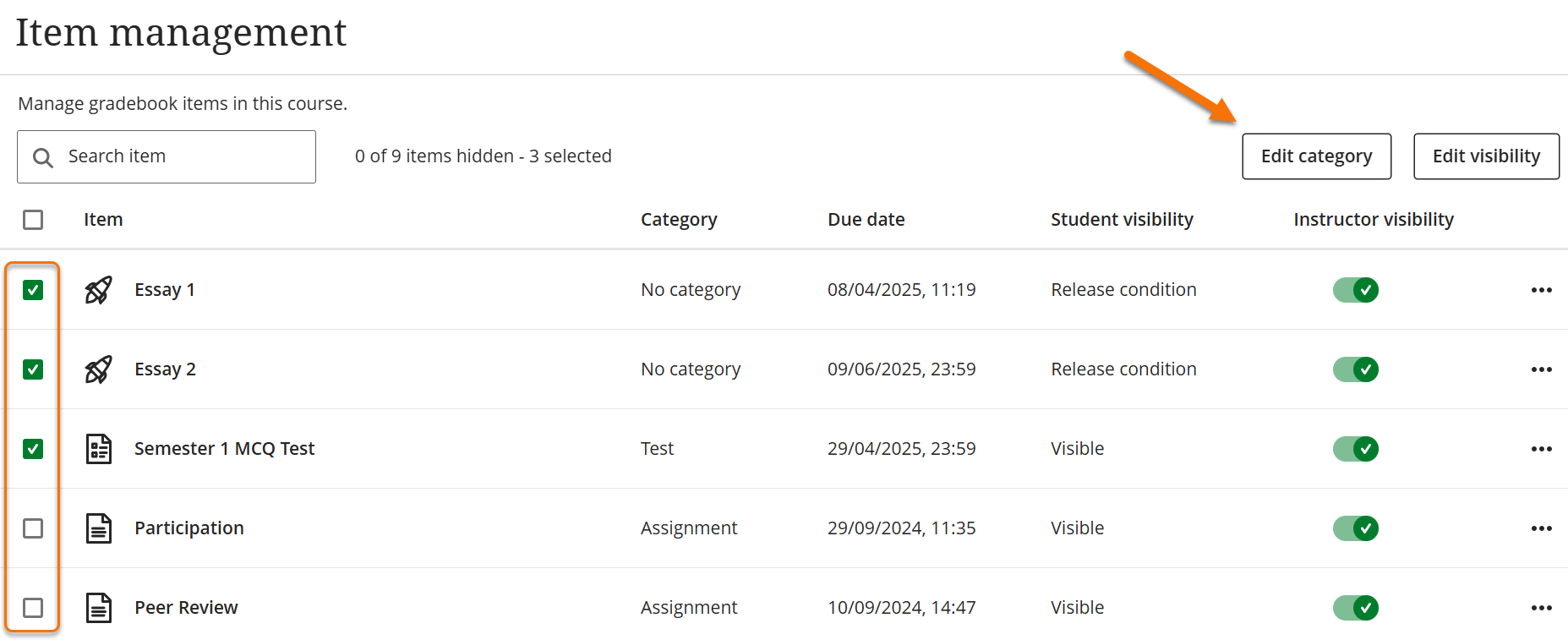
- In the Item Management screen, check the boxes next to all markable items whose categories you want to change. Then, click “Edit category”.
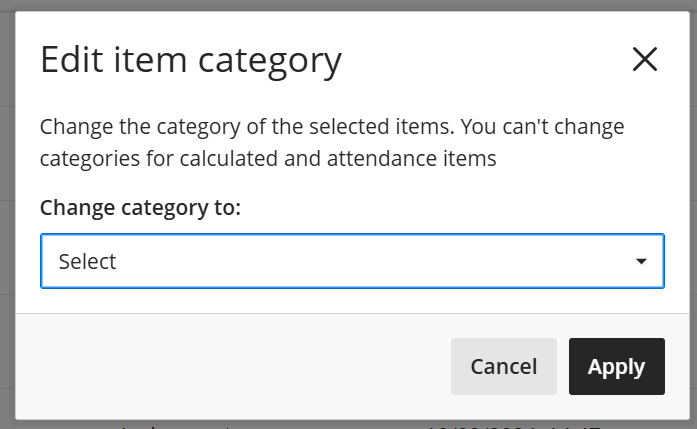
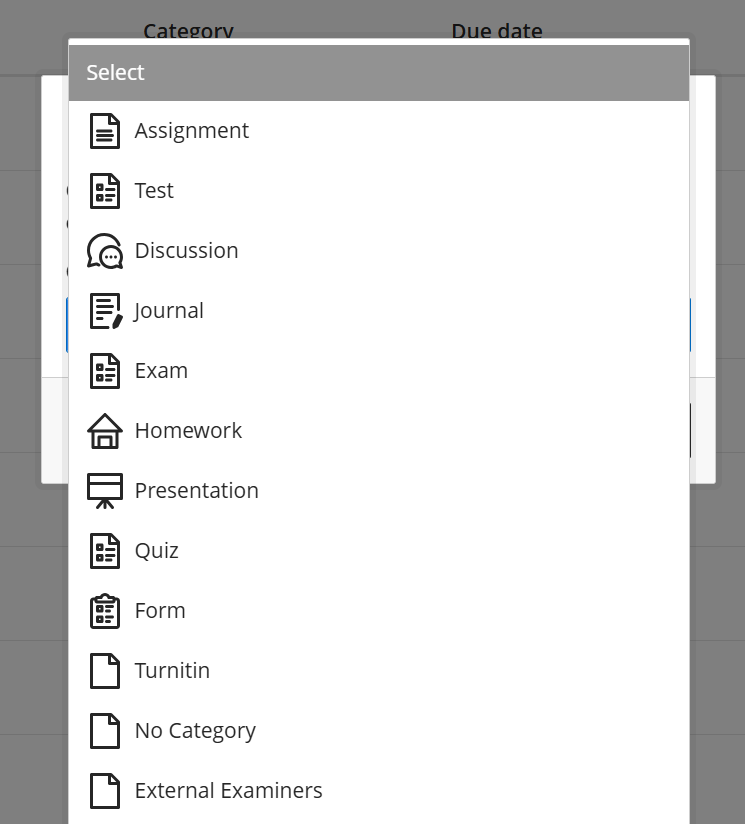
- A new window will open. Click the drop-down menu and select the desired category from the list. Click “Apply”
Guide last updated on August 11, 2026