
Once a Test question has been added to a test there are a number of settings that can be adjusted to suit your needs.
Question Points
Each question can be given a specific number of points. The points possible for the test will be the sum of the points.
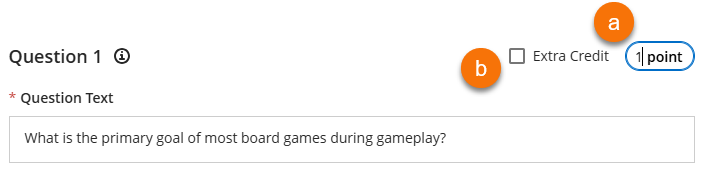
By default each question will have 1 point. This can be altered by clicking on the points field (a).
Extra Credit
The extra credit option (b) will mark the question as an extra credit question.
- Extra credit questions are not included in the test’s points possible.
- A correct answer will give students additional points.
- It is possible for students to gain more than the maximum points possible by answering extra credit questions correctly.
- Students can see which questions are extra credit.
- Students can filter the test to see extra credit questions only.
Allow partial and negative credit
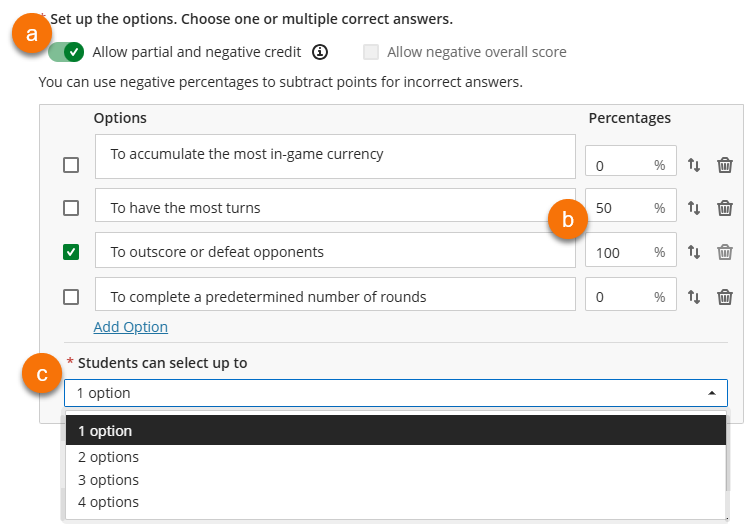
Negative marking is not used at the University of Reading. It is possible to switch on “Allow partial and negative credit” without using negative credit.
Partial credit will allow you to give as specific percentage of credit to some or all of the distractor responses (b).
- The percentages do not have to add up to 100.
- It is possible to stipulate how many options the student can select (c). Keeping this to 1 will prevent students gaining additional credit by simply selecting all options.
Bulk edit question points
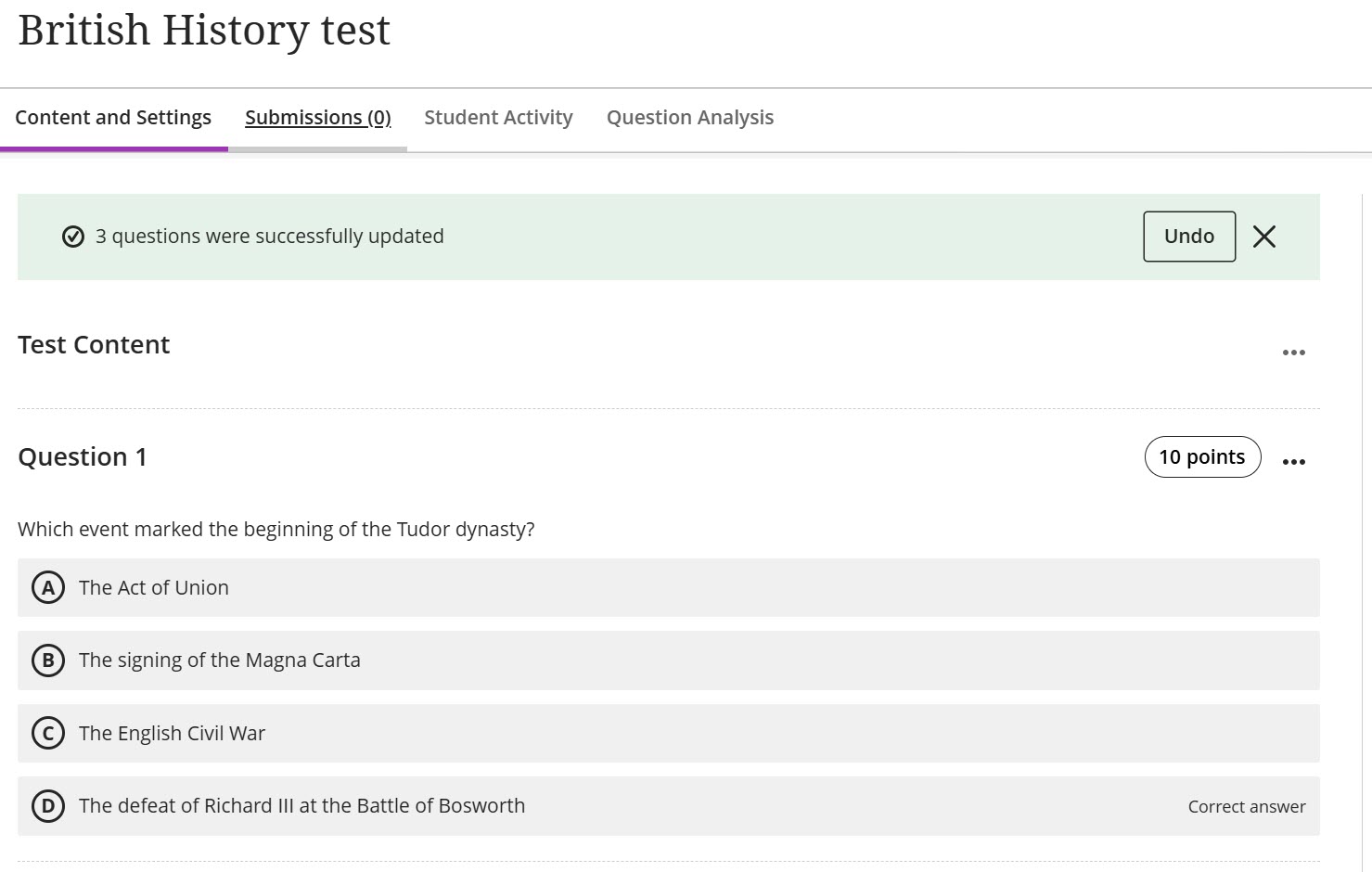
You can edit point values for multiple questions at once.
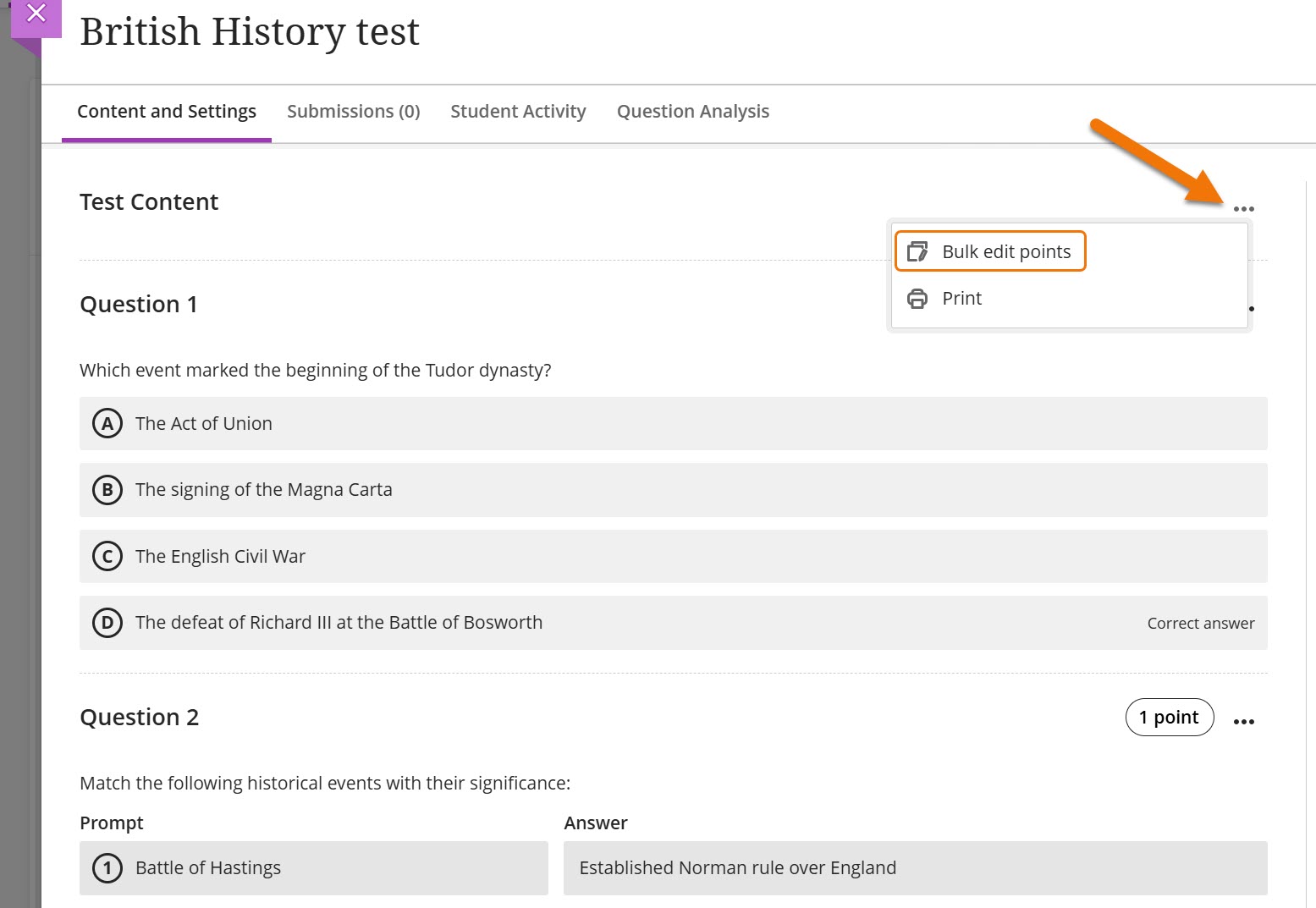
Step 1: Click the three-dot menu icon on the test canvas. Select “Bulk edit points”.
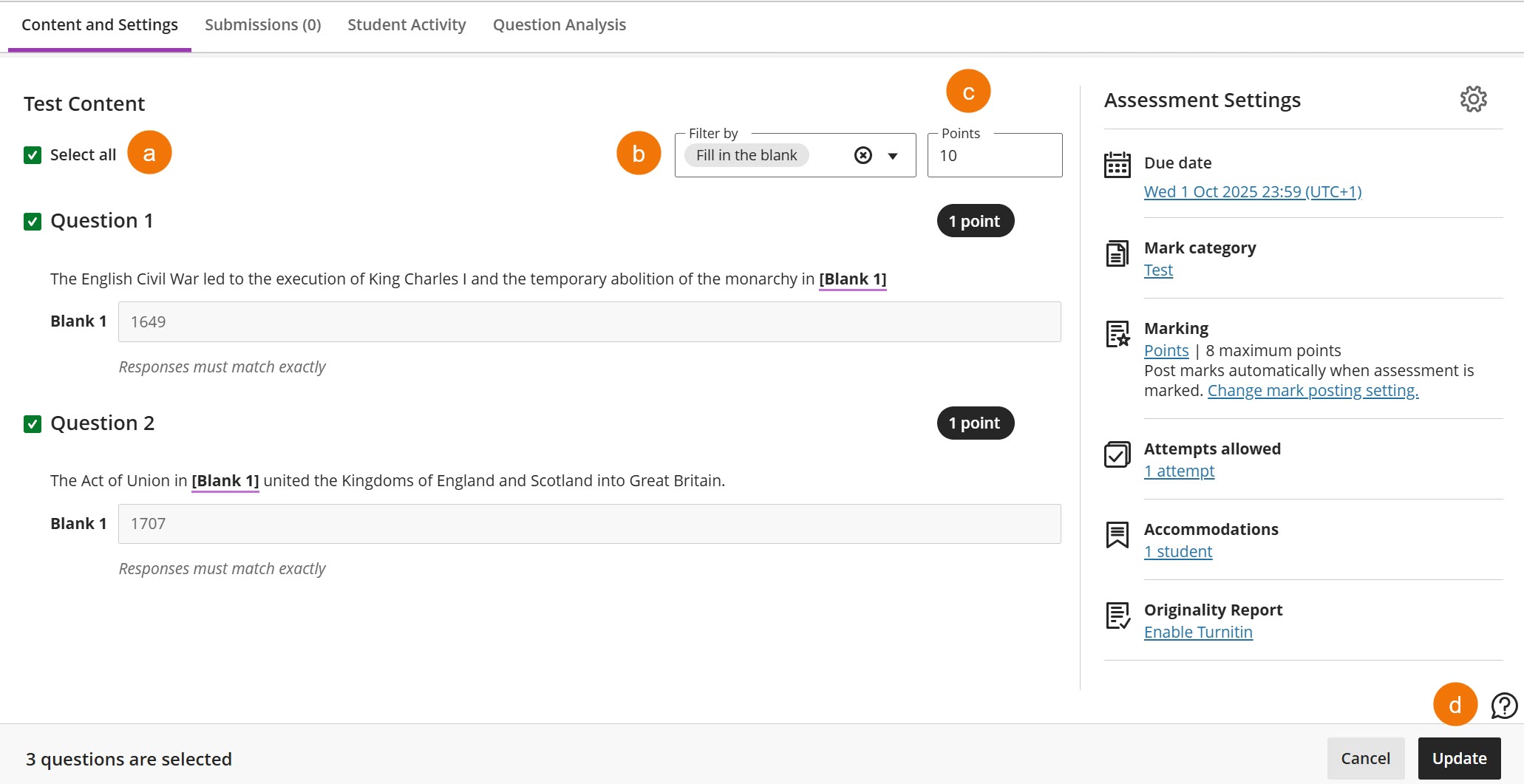
Step 2: Select the questions you want to update. You can select all questions at once (a) or you can select individual questions. You can filter down to specific question types (b).
Step 3: Enter the new points value into the points box (c). Click “Update” (d) to finalise your changes.
You can undo any changes after you have selected “Update”
Automated Feedback
It is possible to add automated feedback for each question. There is a separate text box for correct and incorrect answer feedback.
The incorrect answer feedback will also be visible to partial credit responses. It is possible to paste the same response in both.
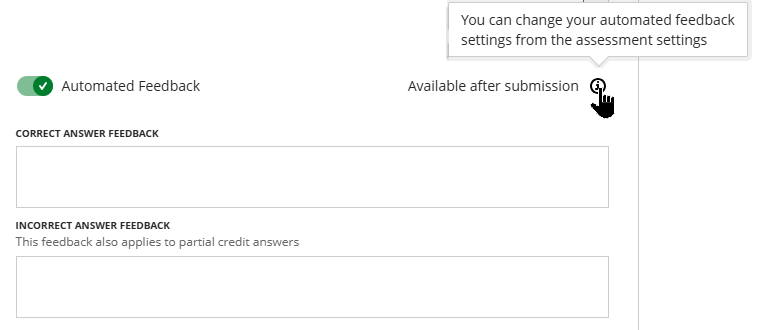
The point at which students can view the feedback is set in the Tests Settings panel, in the Assessment results section.
*Please note students will never see their submission or feedback for tests used in Online Exams.
Answer level feedback (Multiple Choice Questions only)
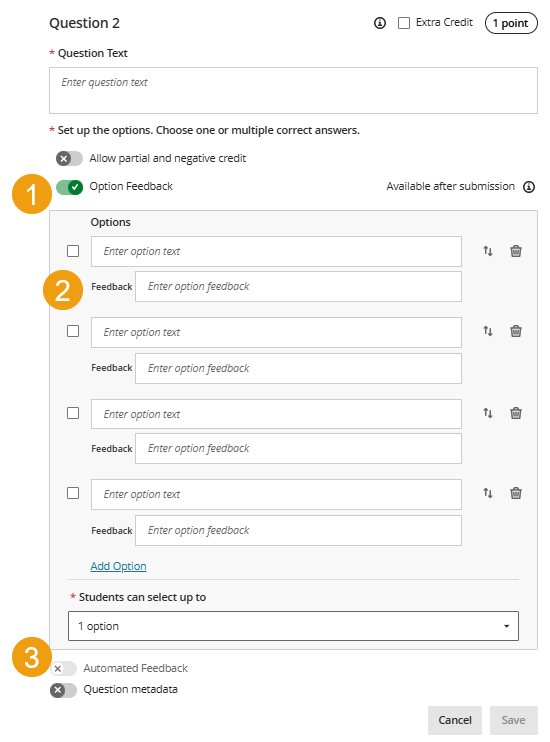
It is possible to add automated answer-level feedback for Multiple Choice questions via the Option feedback (1) feature.
Feedback can be added for each option in the multiple choice question (2).
Once the Option Feedback has been enabled the automatic feedback (3) (whole question feedback) option is greyed out and can no longer be enbable.
Name and Tag Questions with metadata
When creating or editing a question, instructors can enable Question Metadata, which allows them to attach custom tags to questions. Once created, these metadata tags can be reused across multiple questions.
When creating or editing tests it is possible to name and or add a tag to questions
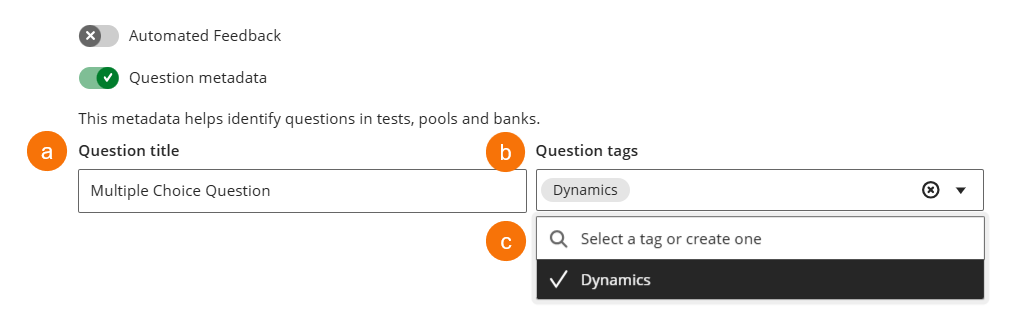
Step 1: Once the question has been created toggle the Question metadata tag under the question.
Step 2: Type your desired Question Title in the text box (a).
Step 3: Type your desired tag into the Question tags text box (b). Once you have created a tag it will appear in the drop down list next time you use Question tags (c).
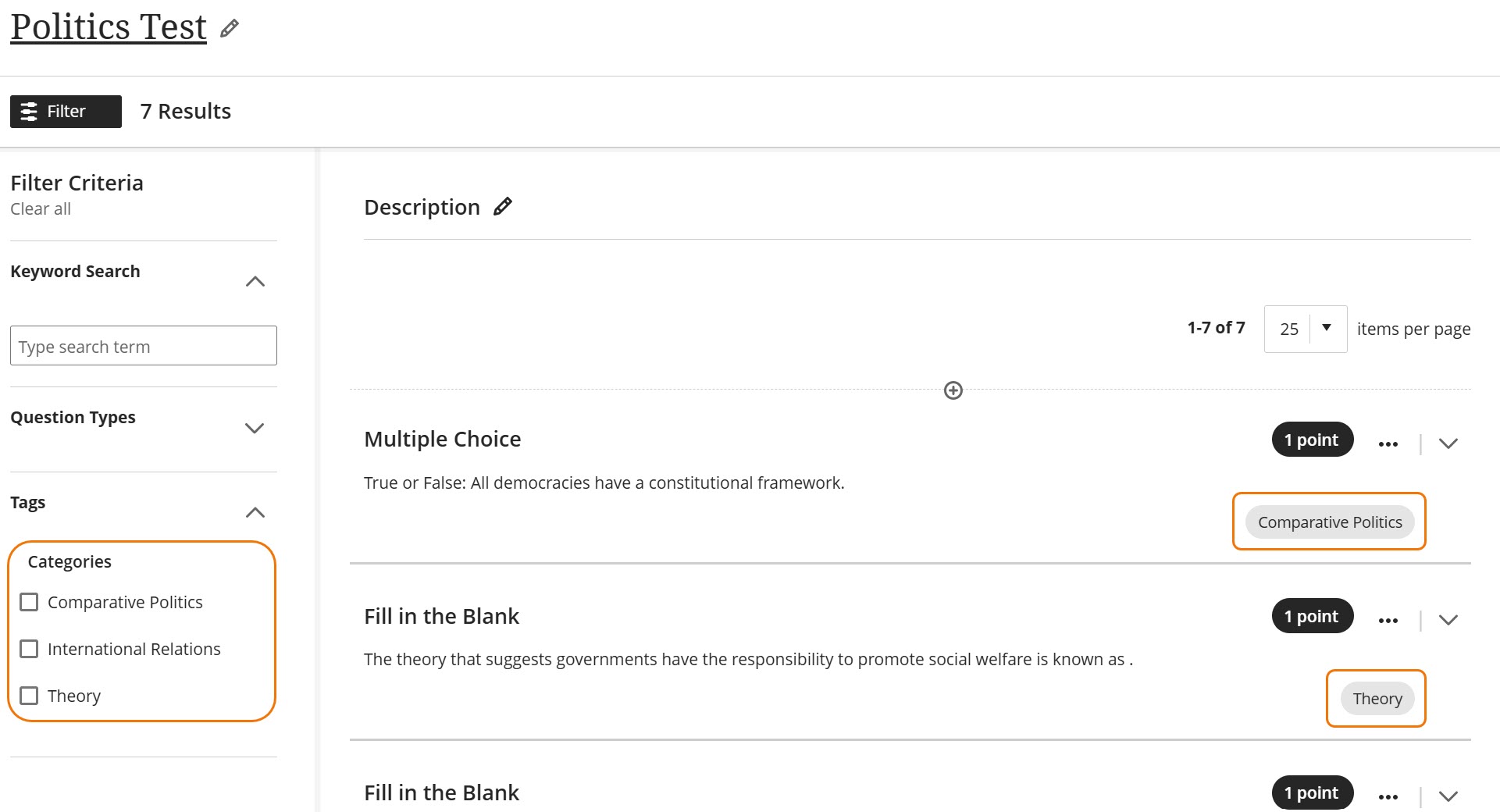
Metadata tags are visible to instructors when creating or editing a question. They can be used to filter questions when reusing them, or when adding questions to pools, forms, or a new test canvas. Created tags appear as options in the Categories filter set, available on both the Question Banks and Reuse Questions pages.
Guide last updated on June 4, 2026