
Please see your Practice course links below.
Students have been enrolled on corresponding practice courses. In addition, Self-enrolments have been enabled. Please encourage students to make use of practice courses to familiarise themselves with different mode of submissions, and identify and resolve technical issues before the actual exam.
| Course Code/link | Practice course |
|---|---|
| PRACTICE_AREA_APD_2027 | Digital Exam Practice Area – School of Agriculture, Policy and Development 2027 |
| PRACTICE_AREA_BEN_2027 | Digital Exam Practice Area – School of Construction Management and Engineering 2027 |
| PRACTICE_AREA_BIO_2027 | Digital Exam Practice Area – School of Biological Sciences 2027 |
| PRACTICE_AREA_HBS_2027 | Digital Exam Practice Area – Henley Business School 2027 |
| PRACTICE_AREA_HUM_2027 | Digital Exam Practice Area – School of Humanities 2027 |
| PRACTICE_AREA_LAW_2027 | Digital Exam Practice Area – School of Law 2027 |
| PRACTICE_AREA_MPS_2027 | Digital Exam Practice Area – Computer Science 2027 |
| PRACTICE_AREA_PCL_2027 | Digital Exam Practice Area – School of Psychology & Clinical Language Sciences 2027 |
| PRACTICE_AREA_UORM_2027 | Digital Exam Practice Area – UORM 2027 |
Support Centre – To Do List
- Review and customise practice course to include school specific information.
- Include information about what type of exam students will be taking.
- Hide or delete submission points that are not relevant.
- Make the practice course available when ready.
- For Gradescope submission types;
- Support centres are required to create Practice assignments in Gradescope,
- Link practice submission points (in Blackboard practice courses) to corresponding Gradescope submission points.
- Programme Admins can search for practice courses in Admin tools, and enrol themselves via “Class Register”. We recommend enrolling as “Teaching Assistant” or “Course Builder” role.
Academic staff wishing to access a Practice course
Academic staff can self enrol as “student”. However, if you need to make any changes, please liaise with your support centre so they can enroll you as “Teaching Assistant” or “Course Builder”.
- To self enrol, open the relevant practice course using the link provided in the table above. (login to Blackboard before clicking the link)
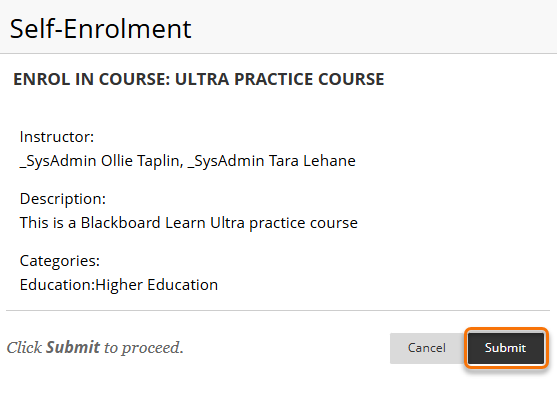
- click Submit when prompted to self-enrol.
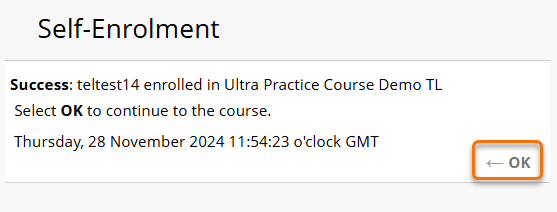
- click OK.
Guide last updated on November 19, 2026