
The Gradebook can be downloaded in a spreadsheet format, allowing you work with marks offline. You can download the Gradebook in .CSV or .XLS format.
Download Gradebook
Downloading the Gradebook allows for a number of different tasks outside of Blackboard, such as:
- Uploading marks directly into RISIS.
- Transferring marks to external marks spreadsheets.
- Applying formulas in order to perform statistical analysis of mark data.
Step 1: Open Gradebook Settings panel
Click on the settings cog in the top right-hand corner of the Gradebook (either List or Grid view).

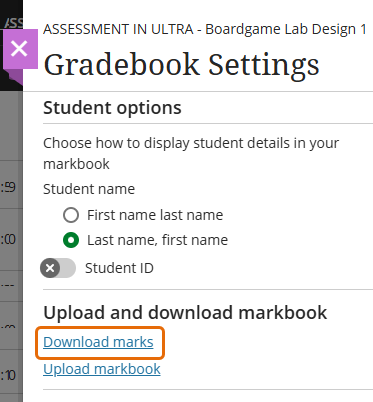
Step 2: Open Download marks panel
In the Gradebook Settings panel select “Download marks”.
Step 3: Select your download options
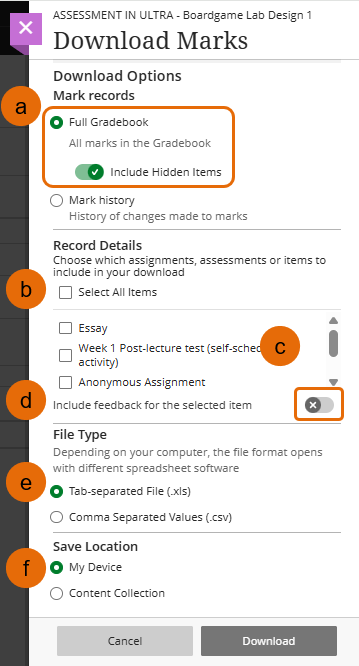
When the Download Options panel opens complete each section.
- (a) Select Full Gradebook and chose whether to include Hidden Items
- (b) Select all items – will download all the columns in the Gradebook
- (c) Alternatively select specific columns
- (d) Choose to include feedback for the selected columns.
- (e) Chose from the File Type options, Tab-separated File (.xls) or Comma Separated Values (.csv),
- (f) Chose to save to My Device
Step 4: Click Download
Once all the options have been selected click download.
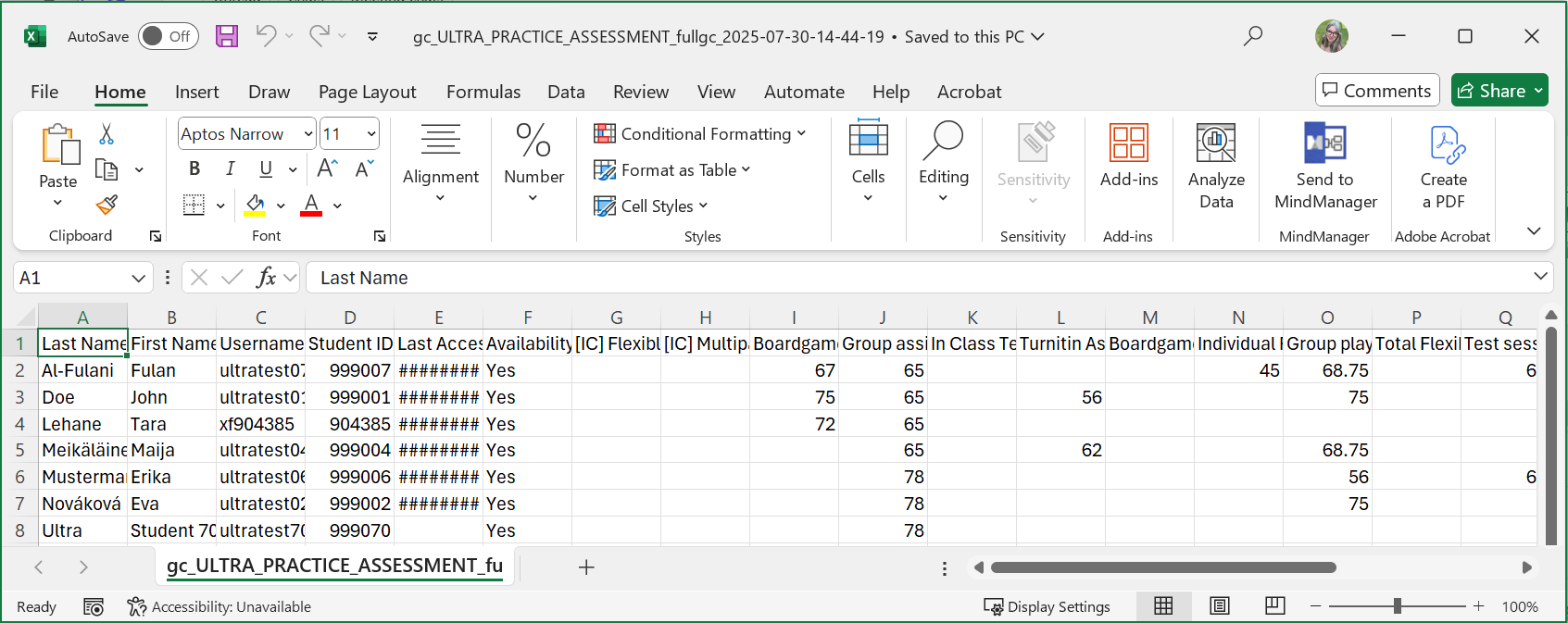
The file will download immediately to your download folder (unless you have selected content collection).
Upload Gradebook
If you are downloading the Gradebook to add marks, for example, than you will need to upload it once more when you are ready.
To synchronize external data to gradebook data, unique identifiers are necessary for each student and for each column in the gradebook. The unique identifier used for each student is the student’s username. The unique identifier for each column is a column ID number these are generated by the system and should not be changed or deleted.
Step 1: Open the Gradebook Settings panel
In the top right-hand corner of the Gradebook select the Upload icon to open the Upload Gradebook panel.

Step 2: Open Upload markbook panel
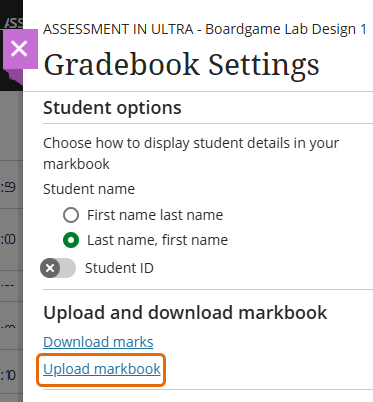
In the Gradebook Settings panel select “Upload markbook”.
Step 3: In the Upload Gradebook panel select your file to be uploaded.
Use the Drag & drop, Upload Local File or Content Collection options to select your file.
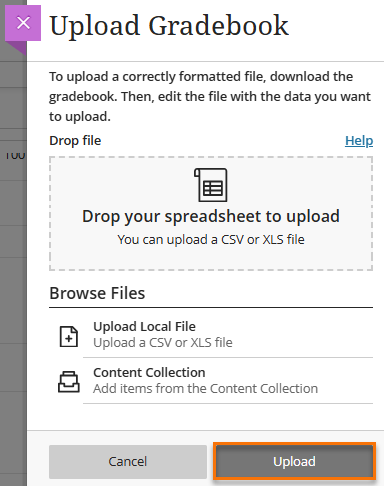
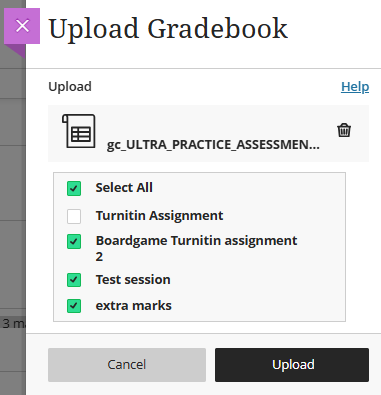
Step 4: Confirm the columns you wish to upload
The Upload Gradebook panel will remain open, the column names of all the columns you have changed, in excel, will appear in a list.
- If you do not want to upload any of these changed columns, de-select them.
- Any column you have added in excel while the file was download will appear on this list.
If any errors to the upload have been found you will be able to view error details to find what the problem is so you can solve it and try again.
Click upload.
The Gradebook will be updated to include the changes you have made in excel.
Any grade additions or changes you made to non-posted grades in the file appear as overrides in your gradebook. In the student list view, you can open a student’s submission and select Undo Override if needed. If you change a posted grade in the file, you’ll need to post the grade again.
Mark History
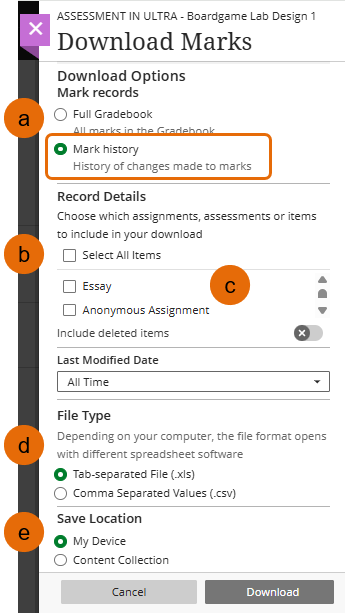
The alternative to Full Gradebook is to download the Mark History, which will give a list of changes made to the marks, submission made, mark added etc. for each assessment.
- (a) Select Mark history and chose whether to include Hidden Items
- (b) Select all items – will download all the columns in the Gradebook
- (c) Alternatively select specific columns
- (d) Chose from the File Type options, Tab-separated File (.xls) or Comma Separated Values (.csv),
- (e) Chose to save to My Device
The downloaded grade history file includes this information:
- Date
- Type of assessment and grade category
- Last edition user’s details
- Student username
- Submission receipt: The submission receipt number
- Submission attempt: The number of the submitted attempt
- Type: If it was a regular or an override grade
- Obtained value
- Event: Additional details such as if was a group attempt, if it’s not posted or if it needs grading
Guide last updated on September 11, 2026