
Your School will provide you with information about Blackboard, and how you can access the specific information you require. Practices vary between Schools, so may not exactly match what is shown below.
- Logging on
- External Examiner’s Organisation
- Access to accessed work
- Turnitin Assignments
- Blackboard Assignments
Logging on
You should log on to Blackboard at www.bb.reading.ac.uk – see our Guide on Blackboard Learn: Logging in.
Please note that logging into Blackboard and many other University systems requires Multifactor Authentication – please see the DTS Guide to Remote Services Access.
If you use Microsoft authentication at your home institution, you may need to follow one of the following options to access the University of Reading Blackboard system.
- sign out of the Microsoft account for your home institution
- or use a private browser window
- or use a different browser (e.g. use Firefox instead of Chrome)
Once logged on, you will see individual modules listed under ‘Courses’ on the left, but your first port of call is likely to be the External Examiner Organisation listed under ‘Organisations’.
External Examiner Organisations
Your External Examiner Organisation is designed to help you find all of the information you need. This may include
- assessment regulations and other key University information
- Programme specifications and handbooks
- Module descriptions
- Module assessment information
Access to assessed work
Students’ submitted and marked work can be accessed via the Gradebook in Blackboard. You can find the Gradebook for each module either by going to the Blackboard course for that module or there may be a direct link to the Gradebook from the EE Organisation.
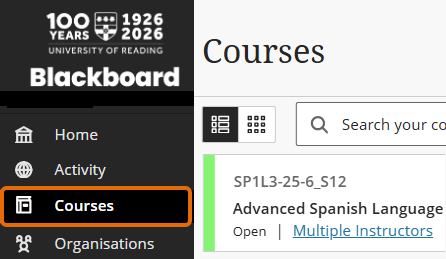
Find courses in the main menu, just above Organisations.
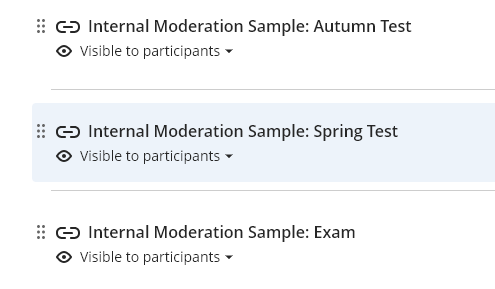
Links to the relevant course Gradebook from the Organisation.
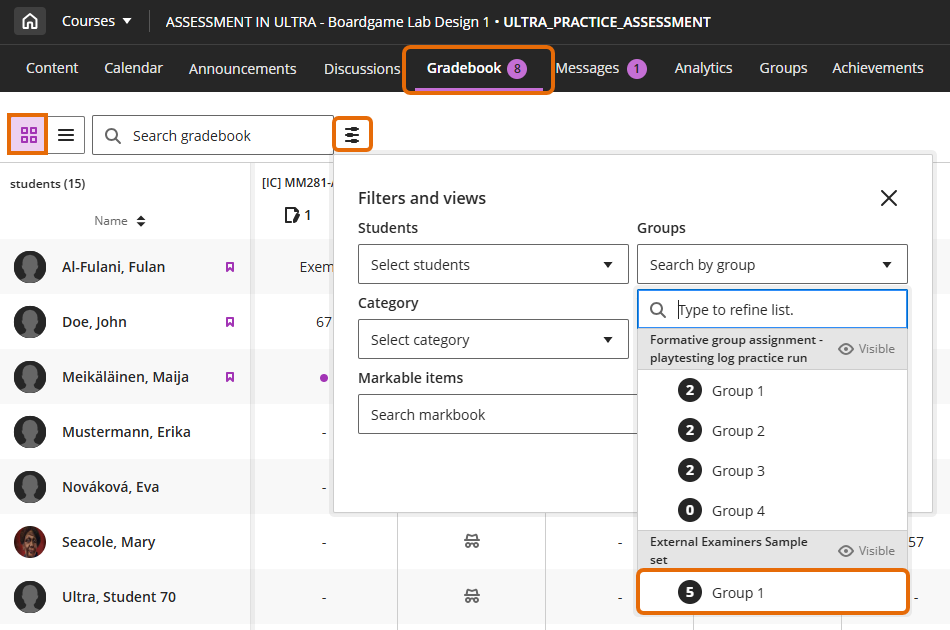
Filter the Gradebook view
In the Gradebook Grid view (four squares icon) you will be able to use the filter to find the papers you need to review. A group may have been created for the sample set for the module or assignment. You can use the filter to see the group or assignment only.
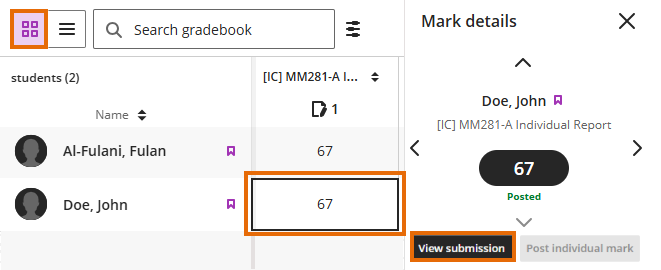
Open sample papers in Gradebook
Click on the mark in the Gradebook to reveal the Mark details panel. Click View submission to open the submitted work.
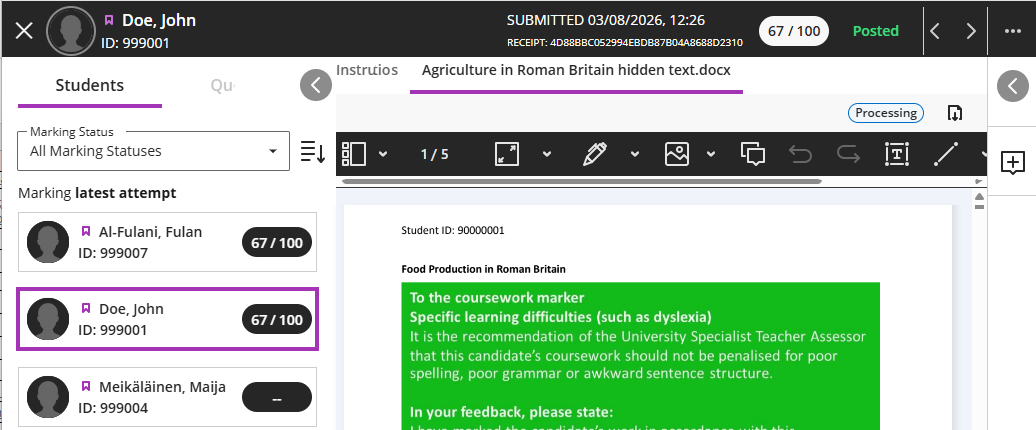
For Turnitin submissions the View submission option will not work. You will have to go to the List view (three line icon) and click on the correct Turnitin submission point. This will open Turnitin, where you can find the submission in the inbox.
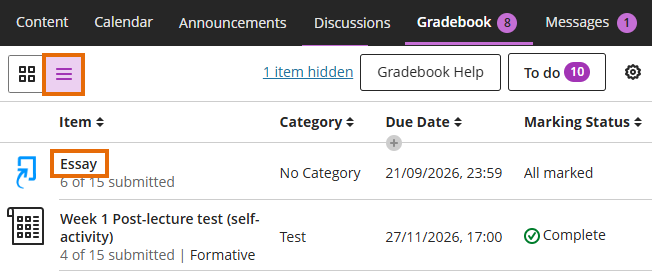
Turnitin assignments
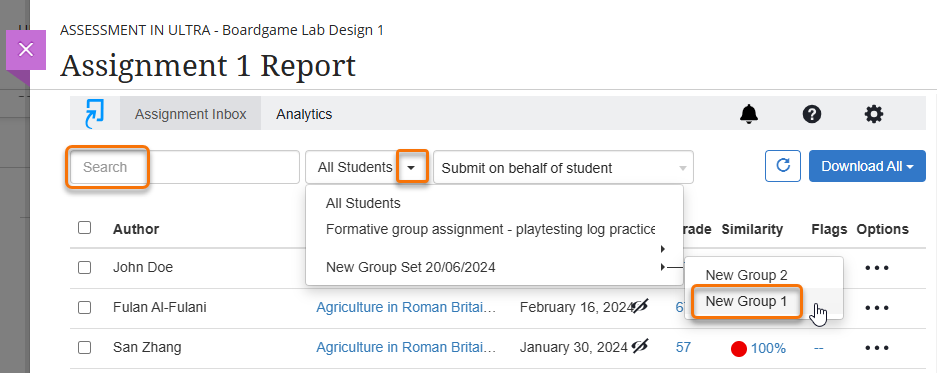
In the Turnitin Assignment inbox you can use the search facility to find a specific student or the All Students filter to see the sample group.
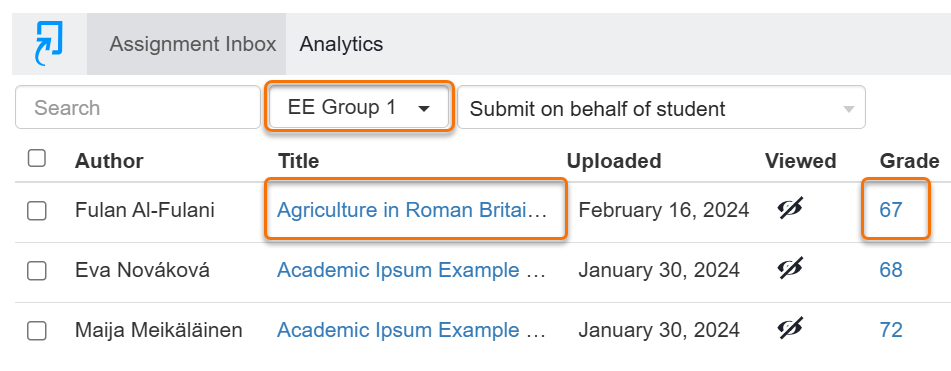
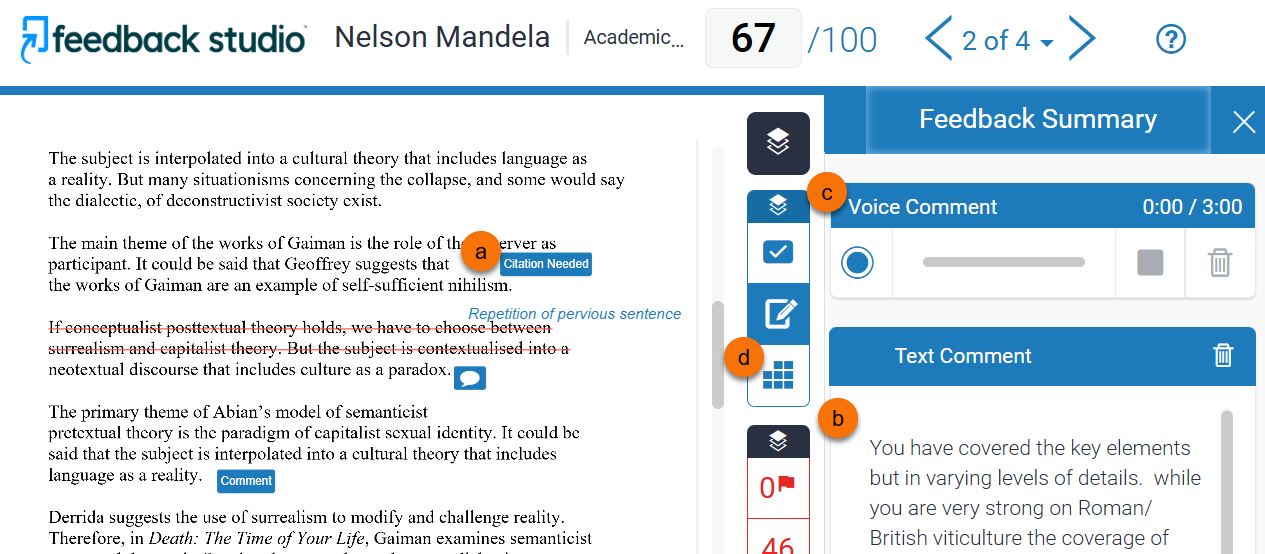
Open a paper in the Turnitin Assignment Inbox by clicking on the paper title or Grade. The paper will open in the Feedback Studio where you can see annotations, summary comments and rubrics, depending on how the marker has used these tools.
- QuickMarks and inline annotations
- Feedback summary
- Audio feedback
- a Rubric or Grading Form
Blackboard
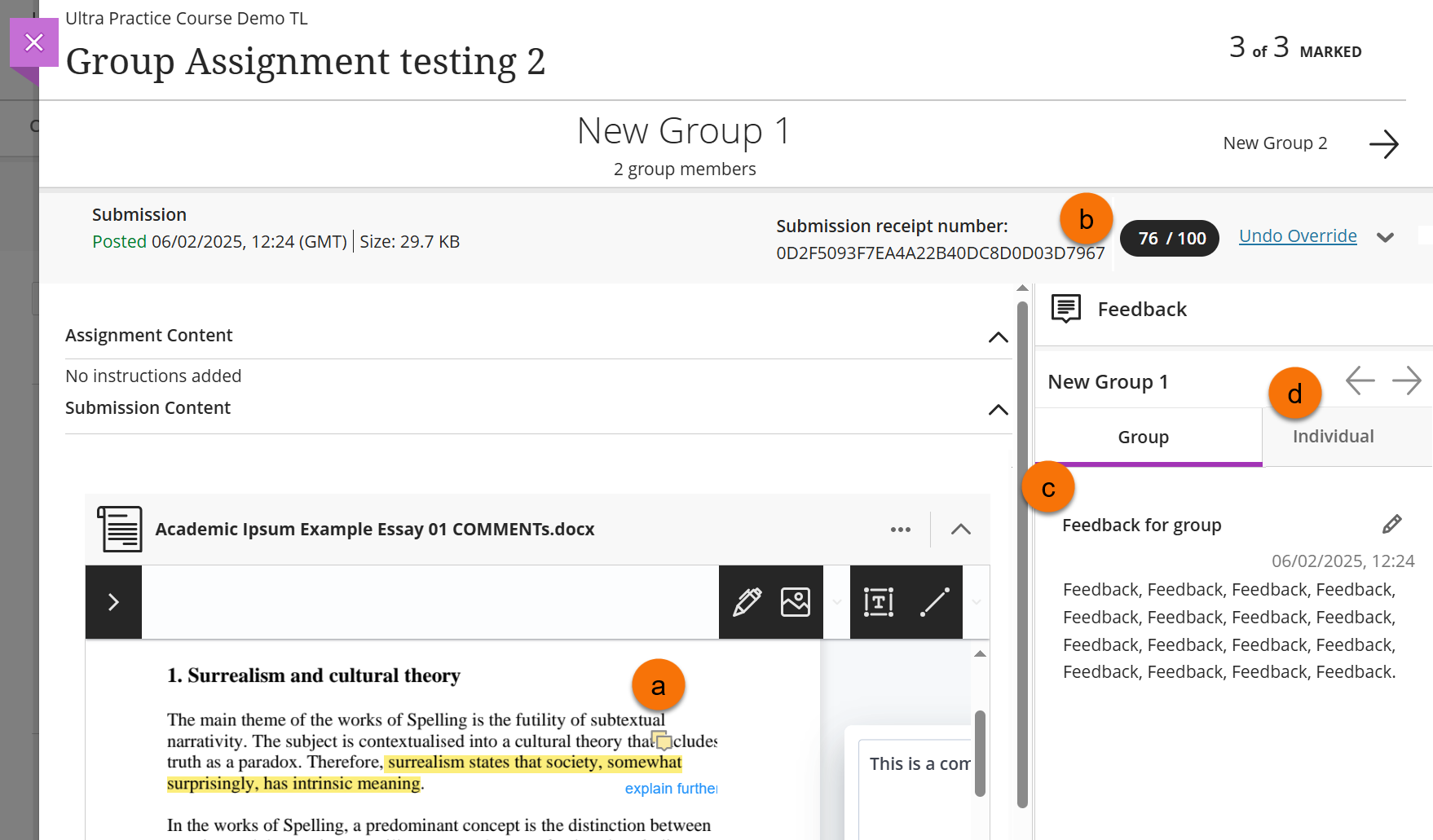
In the Blackboard marking screen you can view any inline annotations or summary feedback, which can include audio or video feedback, given by the marker.
- Inline annotations (a)
- Grade given to paper (b)
- Summary feedback to student (c)
- Individual feedback (group assignments) (d)
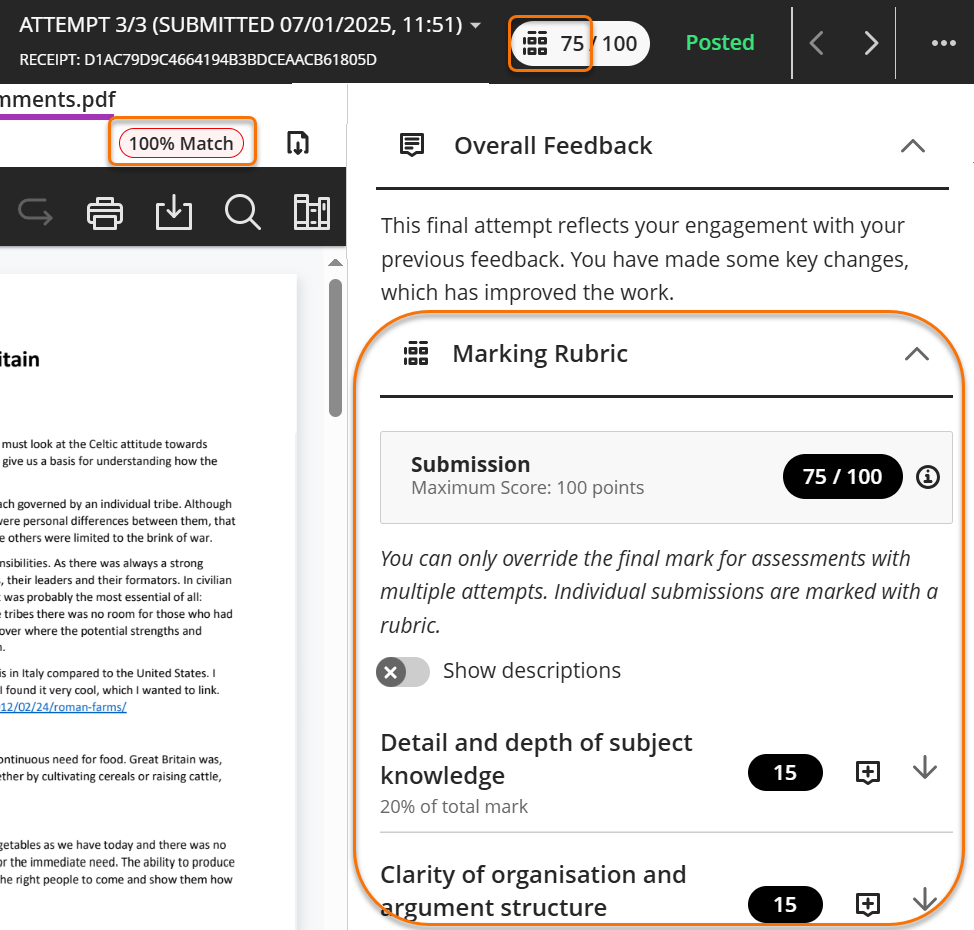
For individual Blackboard Assignments a Rubric may be used.
The Blackboard and Turnitin integration may have been enabled, which would provide a similarity report which can be accessed by clicking on the xx% Match pill button.
Guide last updated on August 11, 2026