
You can grant time extensions for an assignment to individual students in Gradescope.
Typically you will do this for each assignment, but it is also possible to give a student extra time for all future assignments in a course.
Set up a student extension for an assignment
Set up a student extension for a course
Editing student extensions
Set up a student extension for an assignment
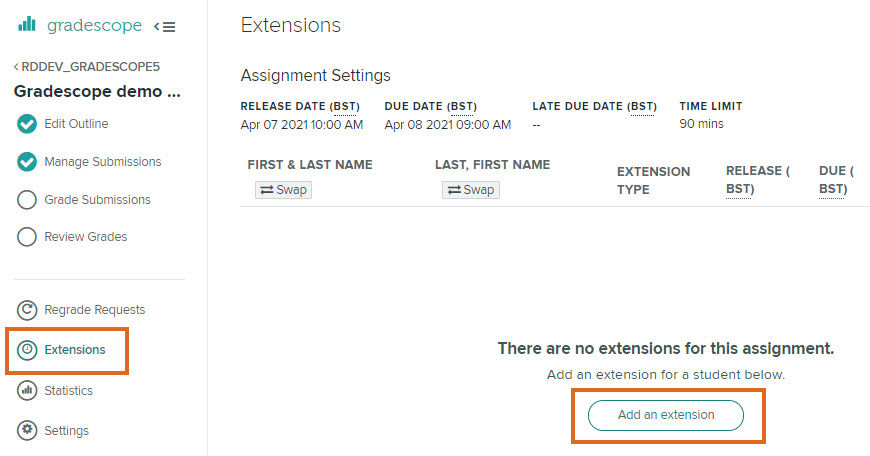
Go into the specific assignment, then choose Extensions from the left hand menu.
Click on Add an Extension.
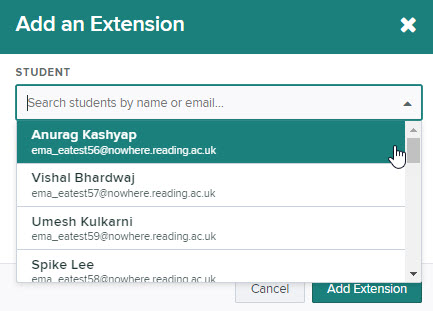
Now select the student from the drop-down list.
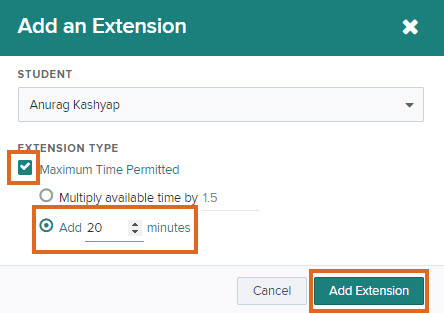
Tick the box next to Maximum Time Permitted.
Tick the second radio button and enter the number of extra minutes this student is entitled to.
You will need to remember to leave the Blackboard access point open until the last student time has passed, otherwise those with extra time might find themselves locked out of the assessment if they leave the assignment or are working in another software until submission of the final piece.
For more information, see the Gradescope article: Extending time limits
Set up a students extension at course level
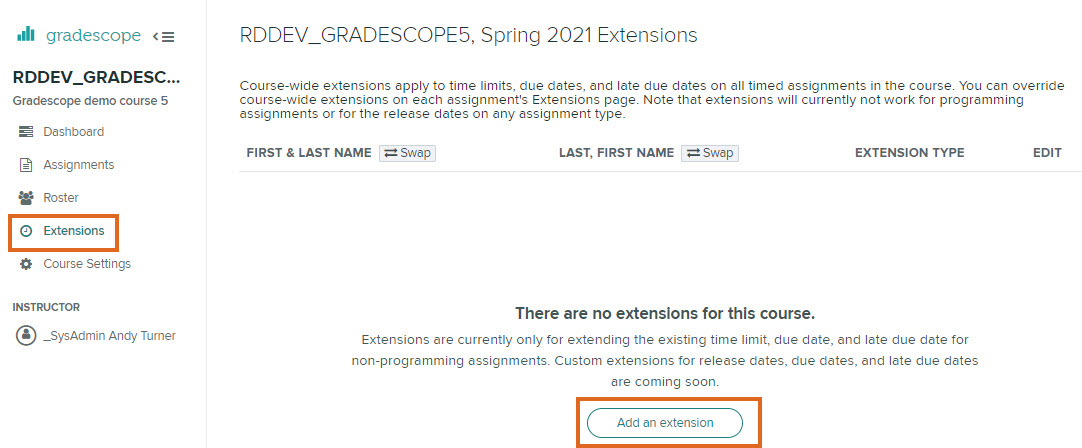
Go into the course, then choose Extensions from the left hand menu.
Click on Add an Extension, and follow the same procedure as above.
You will need to remember to leave the Blackboard access point open until the last student time has passed, otherwise those with extra time might find themselves locked out of the assessment if they leave the assignment or are working in another software until submission of the final piece.
For more information, see the Gradescope article: Extending time limits
Editing student extensions
To edit or delete an extension, go back to the Extensions page of the Gradescope course or assignment.
Under the EDIT column, click on the Pencil icon to edit, or the Bin icon to delete the extension.
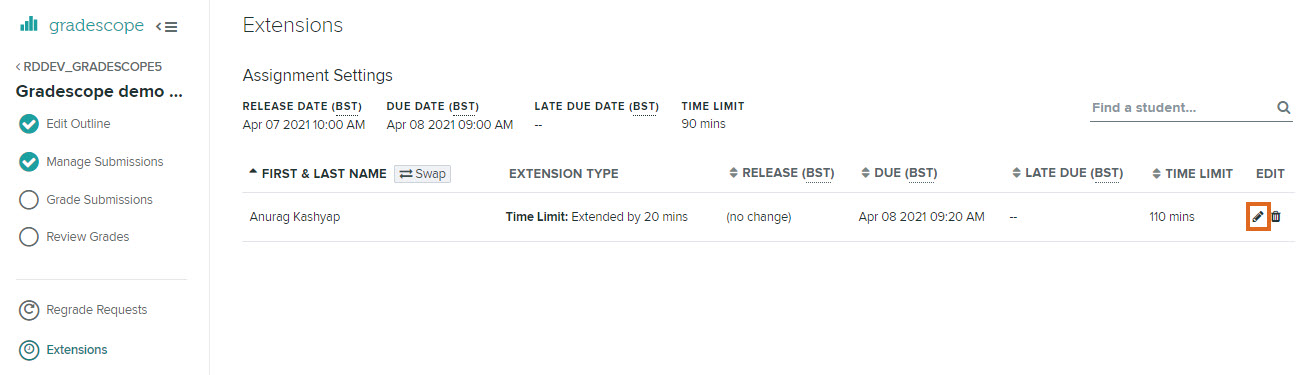
If circumstances require it, you can edit student extensions at any point, including if the student has already started the assignment (or even if the time limit has already expired).
Guide last updated on April 27, 2026