
This guide explains how to view student engagement with YuJa videos, including who has watched them, how much of the recording they watched, and when.
There are two ways to view this data in YuJa, depending on what you need:
- look at a specific video to see which students have watched it
- look at an individual student to see which videos they have watched
Viewing engagement for a specific video (one video → many students)
This option lets you see engagement data for an individual YuJa video, including which students have accessed it.
- Open YuJa and locate the video you want to review.
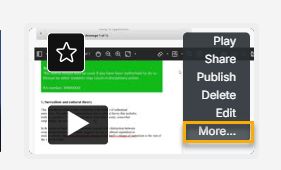
- Hover over the video thumbnail and select More from the menu:
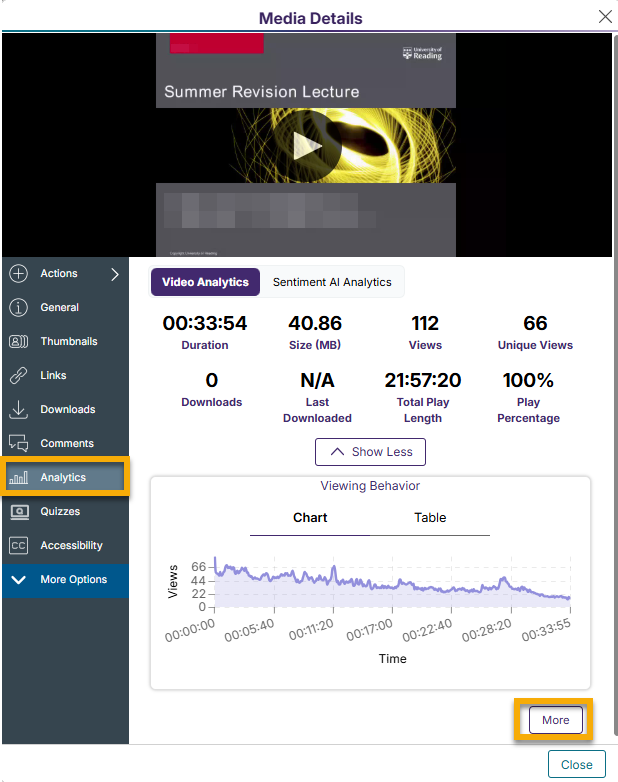
- Choose Analytics and click More:
- Choose Playback to view the list of students who have accessed the video, along with available viewing information:
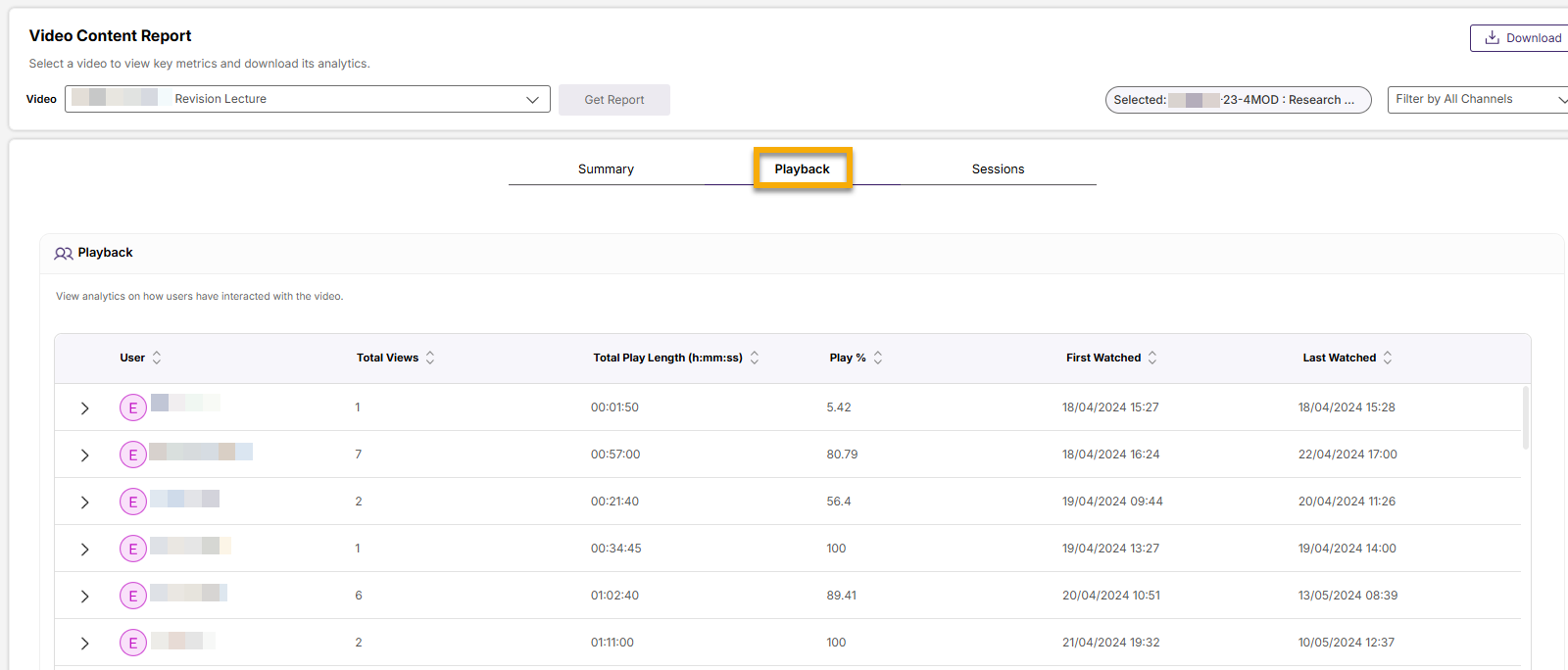
From the menu at the top of this screen, you can easily choose another video without having to follow the steps above.
It’s not yet possible to download this information for the whole course or channel. If you’d like to analyse data from multiple videos, we recommend using the Download option and exploring further using Excel.
Viewing engagement for a specific student (one student → many videos)
This option lets you see engagement data for an individual student across multiple YuJa videos or courses.
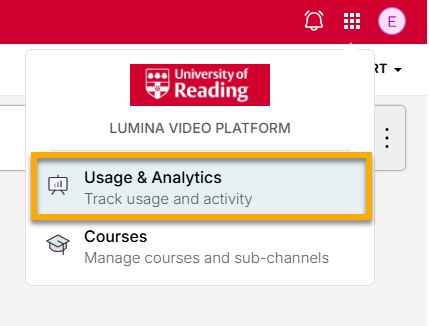
- Open YuJa and choose Usage & Analytics from the menu:
- Select Users from the side menu:

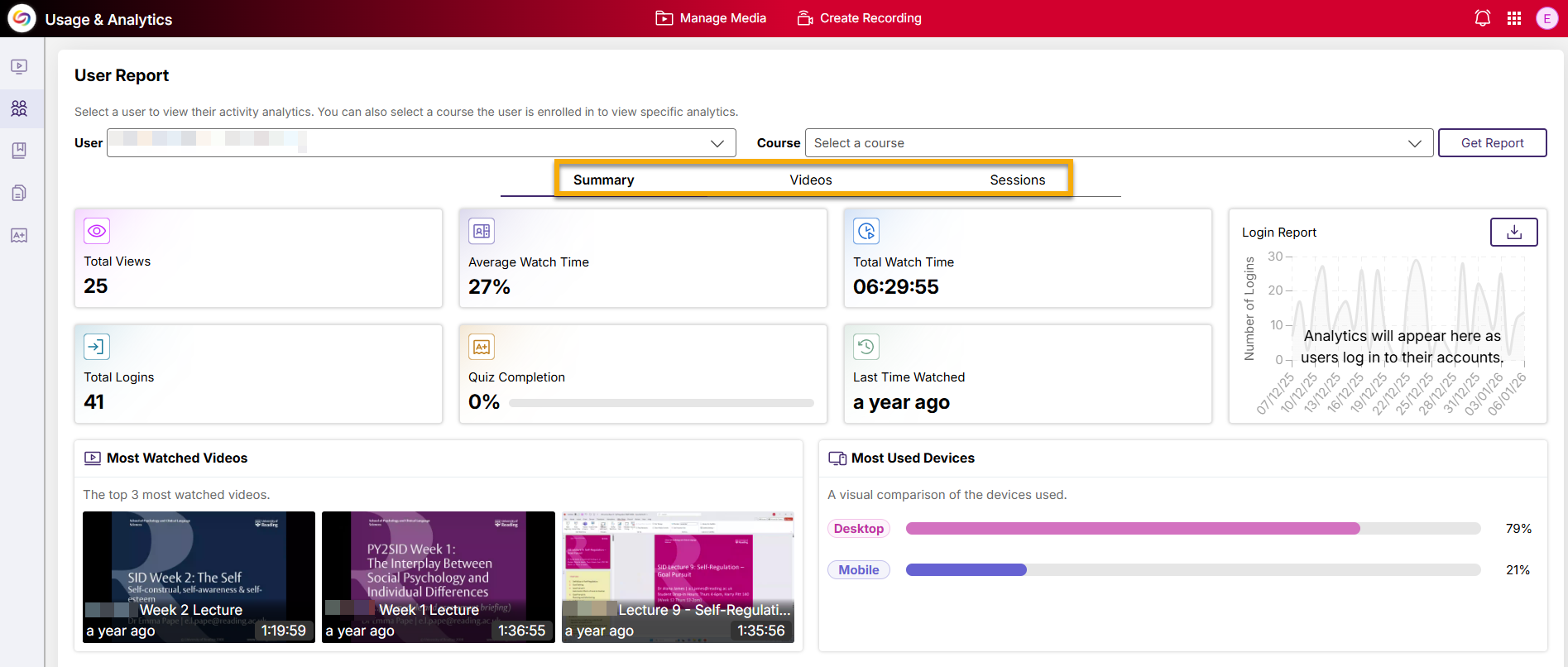
- Choose a student name from the drop-down menu entitled ‘User‘. You can leave the Course drop-down menu blank, or choose a course to further refine the results.
- The User Report gives various viewing statistics. Switch between Summary, Videos, and Sessions for more in-depth data, such as lists of videos watched and total time viewed:
Guide last updated on January 7, 2026