
Gradescope is a third party tool which is integrated with Blackboard. The Gradescope tool can allow for timed assessments, scanned written work and some programming assignment options.
Create assignment in Gradescope
Go to the Assessment area on the course, to the assignment folder where you would wish to insert the Gradescope Assignment. Click the purple plus sign and select Content Market from the menu.
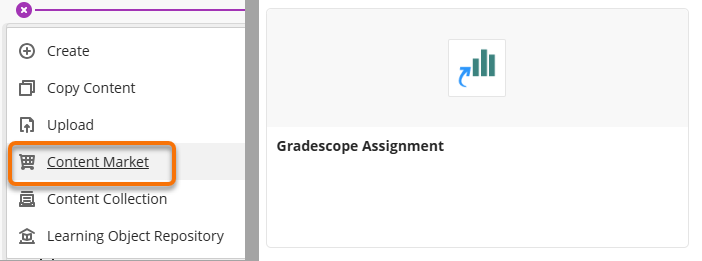
Select Gradescope Assignment from the Content Market options.
In Gradescope Select LINK WITH A new Gradescope assignment. (You may first be promted to Link with a new Gradescope Course)
Press Link Assignment.
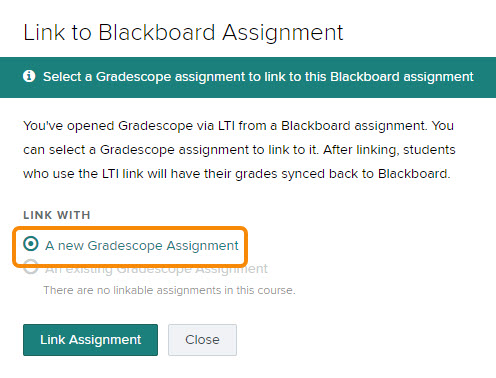
You will now be taken directly to the create assignment page in Gradescope..
Assignment Type
Now choose the type of assessment:
- Homework / Problem Set
This is the most commonly used type of assignment. Students write answers by hand on paper, then scan the work and upload it to Gradescope. - Online Assignment
For assessments which contain multiple choice questions – but optionally also some short answer questions, or questions where students need to submit a scanned copy of handwritten work. Similar to a Blackboard Test. - Programming Assignment
For assessments submitting code. - Bubble Assignment
For multiple-choice in person tests, where all answers can be scanned and automarked.
If appropriate, you can copy assignments both within a course, and from one course to another – see Duplicating an Assignment.
Guide last updated on March 27, 2026