
When using an assignment with limited attempts it may be necessary to ignore a student’s attempt due to wrong work submitted or Assessment Adjustments. This then does not count towards any marks and allows them to submit further work. You may also need to Exempt an entire assignment in the Gradebook.
Exempt individual student attempt
Exempt whole assignment for individual student
Exempt individual student attempt
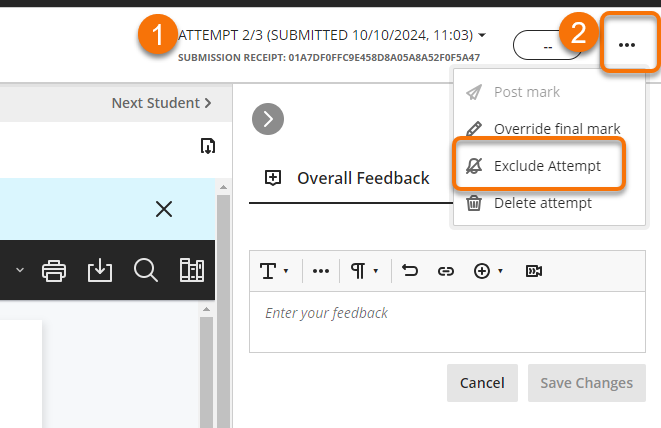
When marking a student submission or asked to exclude it ,
- go to the Attempt
- to exclude attempt, click the three dot menu
- choose Exclude Attempt.
The attempt will now be excluded from the Needs Marking workflow, and will not influence any final marks.

Exempt assignment for a student via Gradebook
You can exempt an assignment entirely for the student from the Gradebook Grid view via the student’s Activity screen Marks tab or the Mark details panel
Via Student’s Activity screen
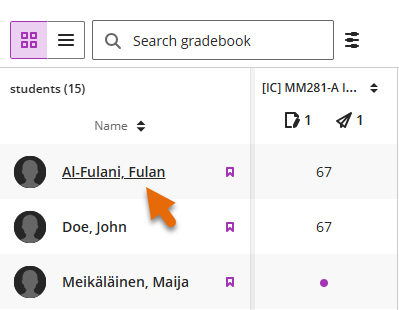
- go to the Gradebook Grid view
- Click on the student’s name
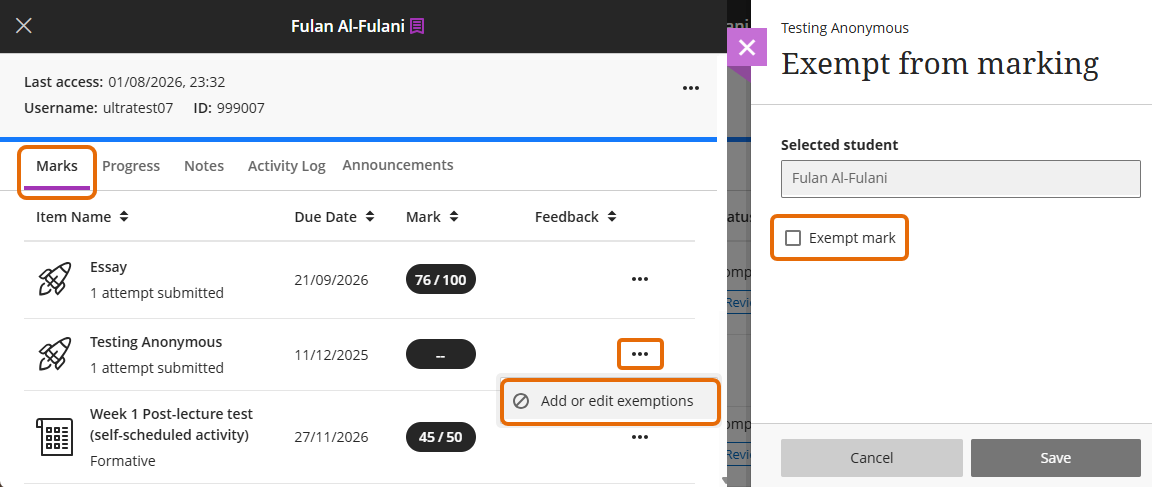
- In the Activity screen select the Marks tab, the list of assignments for the student will open . Click the three dot menu on the appropriate assignment and select “Add or edit exemptions”.
- Tick the “Exempt mark” check box, and click “Save”
Gradebook Grid view
Student’s Activity screen
Via Mark details panel
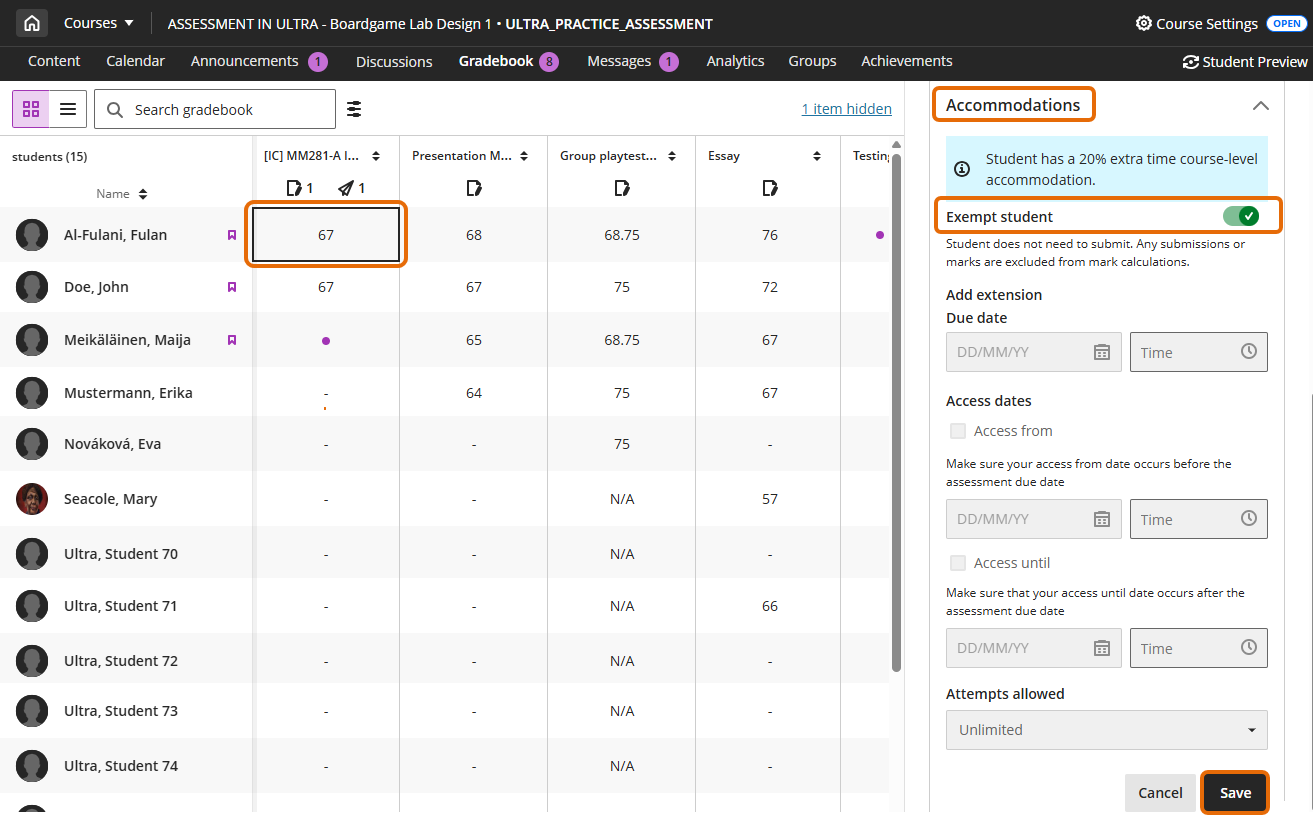
- go to the Gradebook Grid view
- Click on the cell for the specific student in the specific assessment column
- In the Mark Details panel open the Accommodations option
- Tick the “Exempt mark” check box, and click “Save”
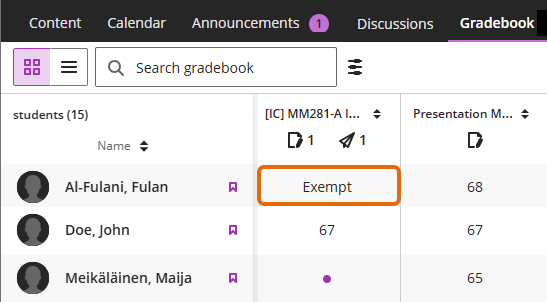
Exemptions indicated in Grid view
Once the assignment has been exempt for the student the word Exempt will appear in the relevant cell in the Grid view column.
Guide last updated on August 24, 2026