
There are two options for padlet anonymity:
Option 1: You can hide student details, with the ability to reveal them as needed. This will make posts anonymous, including entries in the activity panel and post comments. It is possible for the padlet owner to then toggle settings at any point, to reveal the student names (for example, after the activity, to identify a student post you wish to follow up, or during an activity, to ascertain which students have been engaging).
See: Setting Post and Comments to hide names
Option 2: There may be scenarios where you, the padlet owner, do not want to identify individuals at any point, in which case you will need a Padlet ‘avatars only’ set up. For example, if you were using padlet to gather student feedback and you wanted to tell students there was no way to identify their contributions.
See: Creating a Padlet ‘avatar only’ board
Option 1: Setting Post and Comments to hide names
If you would like the student to be able to post without seeing their names up on screen you can do so in the settings panel.
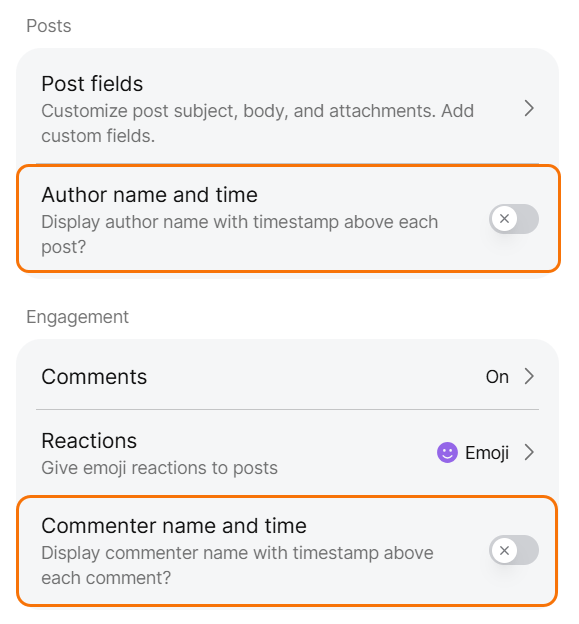
Posts
- Go to the settings panel
- Scroll down to Posts
- Under Author name and time turn off “Display author name with timestamp above each post?”
Comments
- Go to the settings panel
- Scroll down to Engagement
- Under Commenter name and time turn off “Display commenter name with timestamp above each comment?”
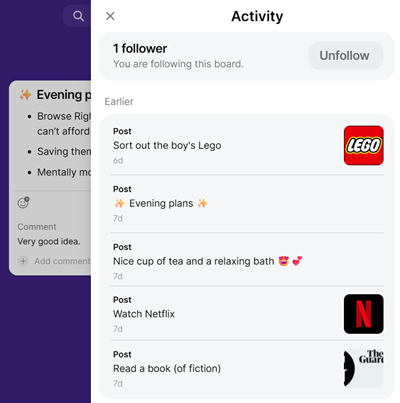
Activity panel
With these settings the Activity panel will not show the names of those who have authored post or those who have commented on posts.
Option 2: Creating a Padlet ‘avatar only’ board
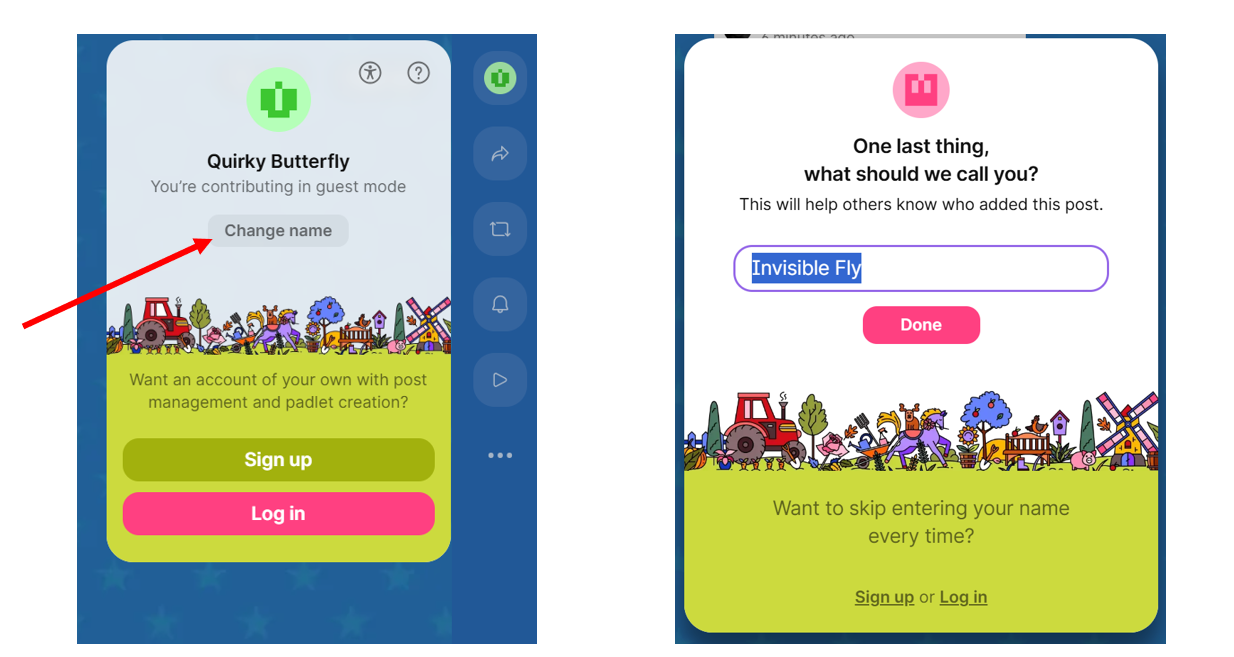
This allows students to join the padlet with a nickname of their choosing, or an animal pseudo name, for example, ‘happy hippo’ or ‘laughing crocodile’. All posts and comments will be attributed to this, instead of student’s real name.
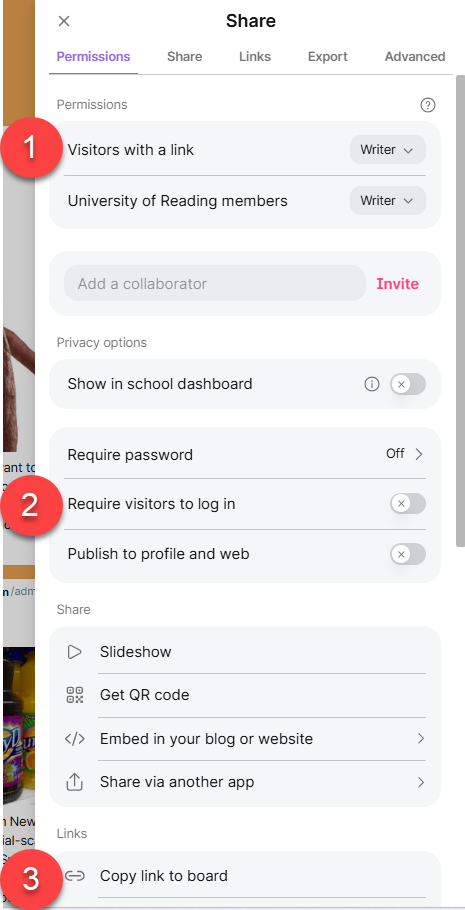
Step 1: Adjust the share settings:
- Open your Padlet → Share panel → Set ‘Visitors with a link’ to Writer,
- Ensure ‘Require visitors to log in’ is OFF (this should be OFF by default),
- Copy the url, go to your Course and add the Padlet as a Blackboard Web Link.
Please be aware, this set-up means students will be able to pass the padlet joining link onto external users who can also contribute to the board (unless you change the share permission to ‘no access’ after the activity).
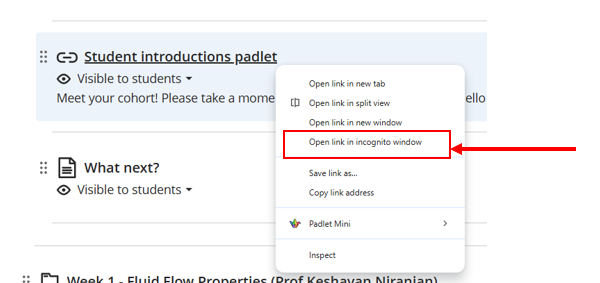
Step 2: Tell your students to open the padlet using a private browser window.
- Right click the padlet
2. Accept the animal avatar. Be aware, students are given the option to change how they would like to be identified on the padlet. All posts and comments will use this name attribution, if students wish to remain anonymous they must not input their name or select Sign up or Login.
Guide last updated on February 11, 2026