
LinkedIn Learning provides access to a wide range of online training materials. These can be used to provide external resources to compliment your core teaching materials.
See the DTS page LinkedIn Learning for details of how to login and access these.
Add Linkedin Learning Courses to your Blackboard Course
Add Sections of Courses to your Blackboard Course
Add Linkedin Learning Courses to your Blackboard Course
Access the Blackboard course and content location where you would like to add your Linkedin Learning materials.
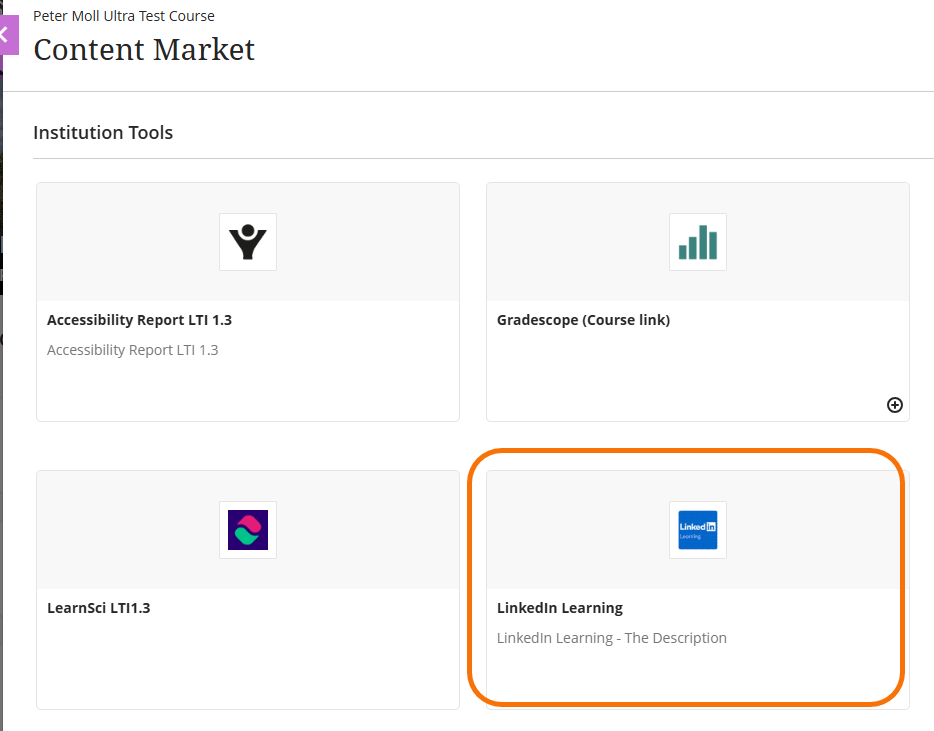
Using the Content Market, select the Linkedin Learning tool.
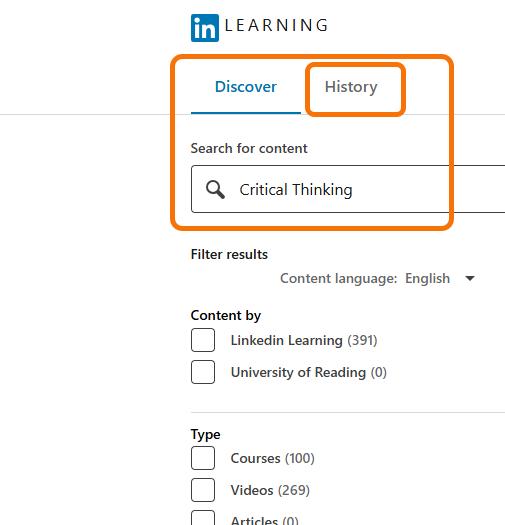
On opening this the search window allows you to search by topic. Use the History button to find previously used courses.
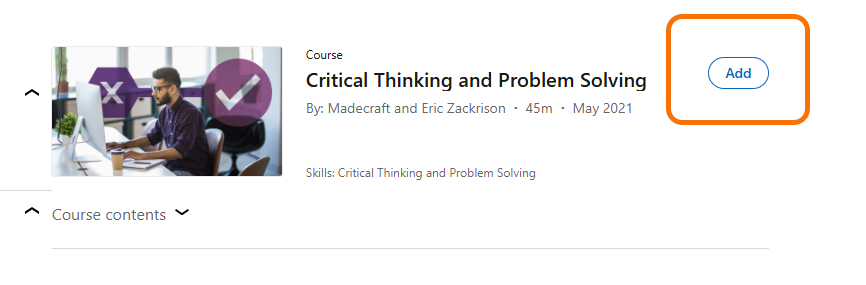
Once you have found the course add to Blackboard using the Add pill.
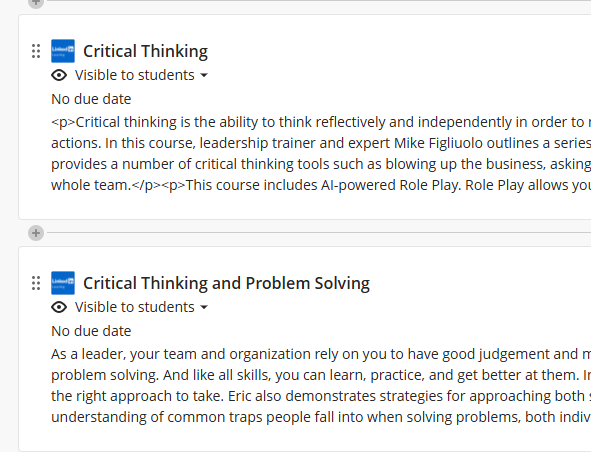
Once added close this window and the Content Market, and refresh the course to see the content.
Adding a Section of a Course
If you would rather direct students to a particular section of a course, you can link to this directly.
Click the Course contents section to open up the contents list. You can then choose the section you wish to add to Blackboard.
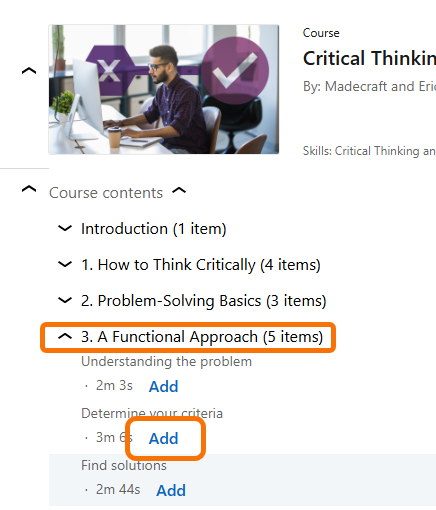
When this link is opened in Blackboard, it will open the whole course, but starting at the chosen section. This allows you to point students to the relevant parts of a course, whilst seeing the context or explore other areas of the course later.
Guide last updated on October 12, 2026